Rewriting the same Outlook emails is a quiet productivity drain. The words may be simple, but typing an acknowledgement, follow-up, scheduling note, or standard closing dozens of times a week adds up quickly - and it makes consistency harder than it needs to be.
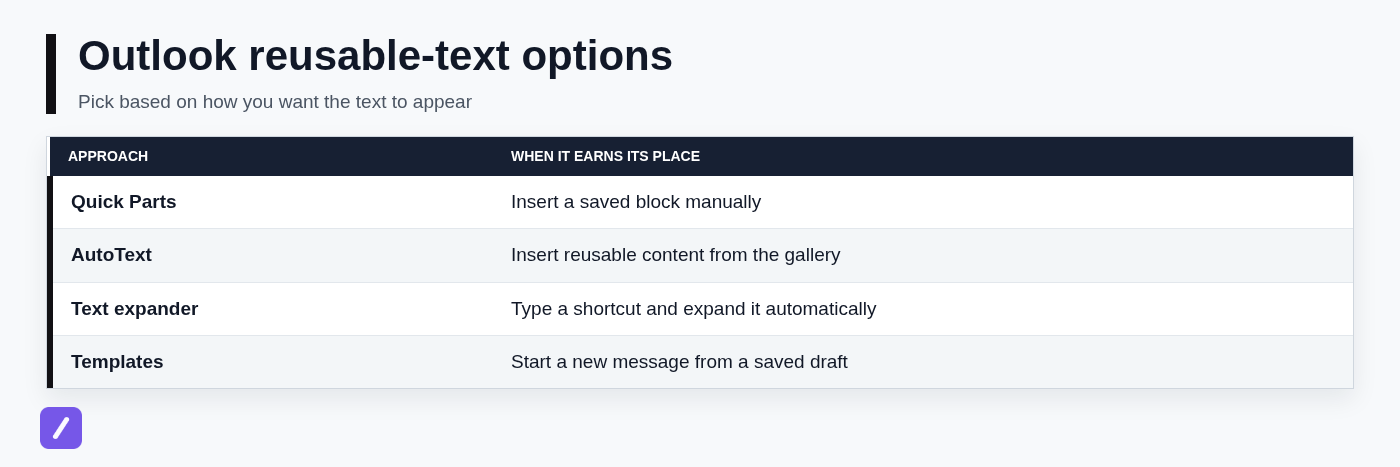
The right solution depends on how you want reusable text to appear. Outlook's built-in options can store content for manual insertion, while a text expander lets you type a short command such as /followup and expand it into a complete email block.
Choose the right Outlook text-expansion method first
A text expander is software that replaces a short trigger with longer saved text. For example, typing /followup can insert a saved message asking for a project update, while /sig can insert a preferred sign-off.
Outlook has its own reusable-content features, but they do not all work the same way. Quick Parts are useful when you want to manually select a saved paragraph or block from Outlook's Insert menu. A cross-platform text expander is the better fit when you want a typed shortcut to expand directly while writing. For a broader comparison, see this guide to text replacers and reusable snippets.
Check which Outlook client you use before investing time in a workflow. Classic Outlook for Windows, new Outlook for Windows, Outlook on the web, and Outlook for Mac do not offer identical menus or reusable-text capabilities. What works in a classic desktop setup may not appear in the same place - or at all - in the web and newer app experiences.
Set up a shortcut system before you save any text
A useful shortcut library starts with predictable naming. Choose a prefix that you rarely type in ordinary email prose, then add a descriptive word. Good defaults include a slash, semicolon, or period: /thanks, /meeting, /invoice, or ;followup.
The prefix matters because accidental expansions are frustrating. Avoid common words such as "status," "thanks," or "meet" as standalone triggers; you may need to type those naturally in an email. Reserve the shortest shortcuts for messages you use constantly, and make less frequent ones more specific, such as /support-refund-policy.
Organize snippets in a way that matches your work. Most people can keep a small library manageable by grouping content by recipient type and purpose: customer support, sales follow-ups, internal updates, recruiting, personal signatures, and links or instructions. If your tool supports folders or labels, use them from the start rather than letting every response live in one long list. A text snippet manager can also help when the collection grows beyond a few shortcuts.
Start with five high-frequency Outlook replies
Do not try to convert every past email into a snippet. Start with the replies you type at least once or twice a week:
- An acknowledgement that confirms receipt and sets an expectation.
- A meeting-scheduling note with a request for availability.
- A polite follow-up on an open task or conversation.
- A response that shares requested documents or links.
- Your most common signature or closing variation.
Save modular blocks instead of building one giant "universal email." A greeting, a follow-up paragraph, a document-sharing block, and a closing can be combined as needed. That is faster to personalize and much less likely to produce an email that sounds generic.
Create reusable blocks with Quick Parts in classic Outlook for Windows
Quick Parts is a sensible native option if you use classic Outlook for Windows and are comfortable inserting saved content manually. It works well for paragraphs you reuse often, such as a privacy notice, a standard meeting agenda, or a carefully approved support response.
To create one, open a new email and type the text exactly as you want to reuse it. Select the block, then choose Insert > Quick Parts > Save Selection to Quick Part Gallery. Give it a clear name and choose a category if your Outlook version offers that option.
Use names that help you find content at a glance. "Support - Received Request," "Sales - Demo Follow-up," and "Internal - Project Status" are more useful than vague labels such as "Email 1" or "Template."
Quick Parts is not automatic shortcut expansion. You still choose the saved item from the gallery, so it is best for people who prefer staying entirely inside classic Outlook and do not need the same shortcuts in other apps.
How to insert a saved Quick Part into a new email
Open a new email and place the cursor where the saved text belongs. Select Insert > Quick Parts, then choose the entry you want from the gallery. Review the inserted text, replace any details that need changing, and finish the message.
Menu placement and feature availability can vary by Outlook version and account configuration. If you are wondering where Quick Parts is in Outlook 365, first confirm whether you are using classic Outlook for Windows rather than new Outlook or Outlook on the web.
Use AutoText when it fits your Outlook version and workflow
AutoText is closely related to the wider Quick Parts gallery. In supported Outlook setups, it can be useful for deliberately inserted, repeatable pieces of content such as greetings, closing paragraphs, boilerplate language, and signature variants.
The practical rule is simple: use AutoText or Quick Parts when you want to select reusable content from Outlook's interface. They are helpful native tools, particularly for a stable block of approved language that should not be casually edited.
They are not a dependable substitute for trigger-based text expansion across every Outlook client. If you work in new Outlook, Outlook on the web, or several applications throughout the day, do not assume AutoText will provide the same typed-shortcut behavior everywhere.
Add true typed shortcuts with a cross-platform text expander
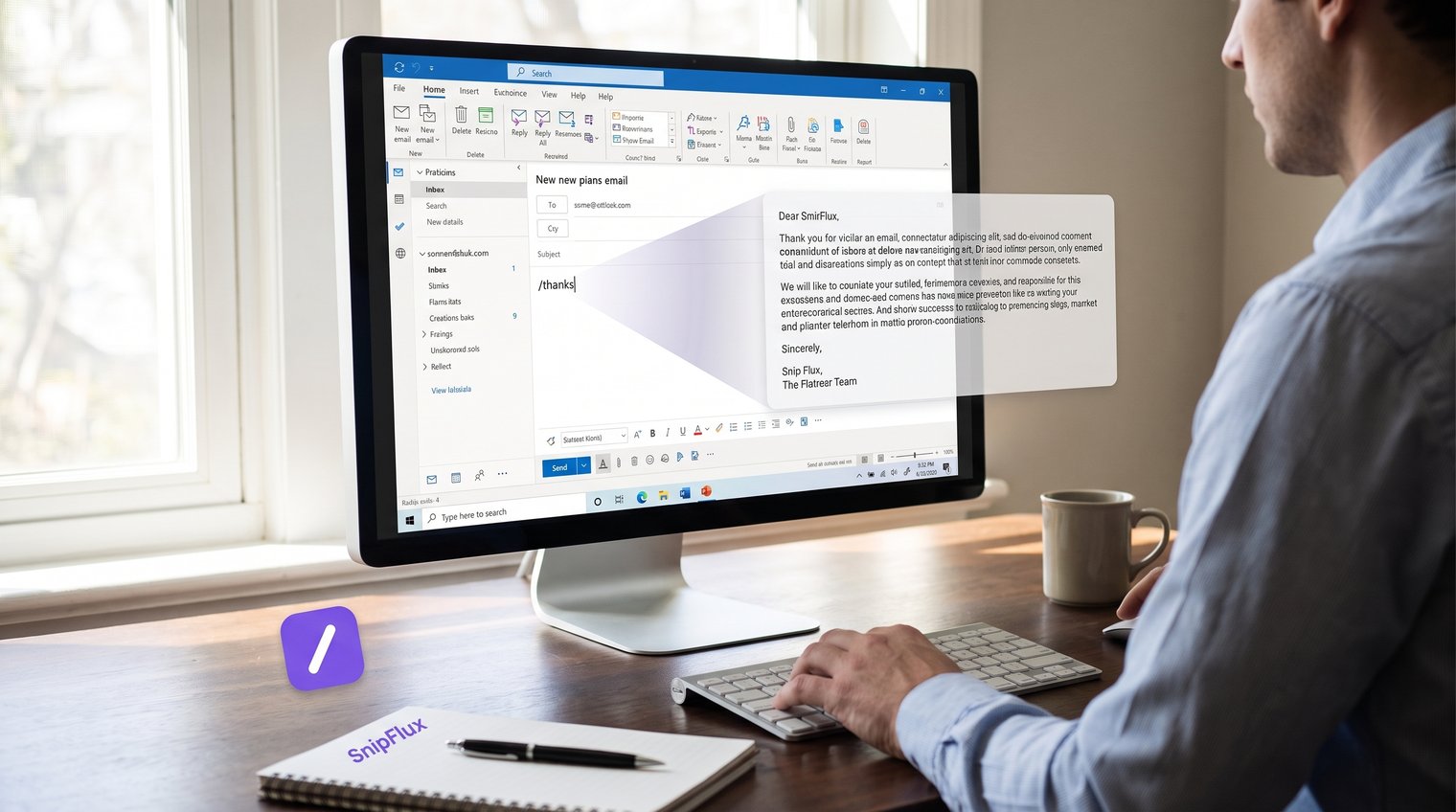
Use a text expander when your preferred workflow is to type a trigger directly in an Outlook compose window and have the saved text appear immediately. This is especially useful when the same replies are needed in Outlook desktop, Outlook on the web in Chrome, customer service tools, CRMs, and internal chat.
For example, typing /followup could expand to:
Hi [Name],
Just following up on [topic]. Could you share an update by [date]?
Thanks,
[Your name]
The shortcut saves the repetitive structure, not the thinking. Before sending, replace the bracketed fields and make sure the request still reflects the specific conversation.
Create your first Outlook email snippet in SnipFlux
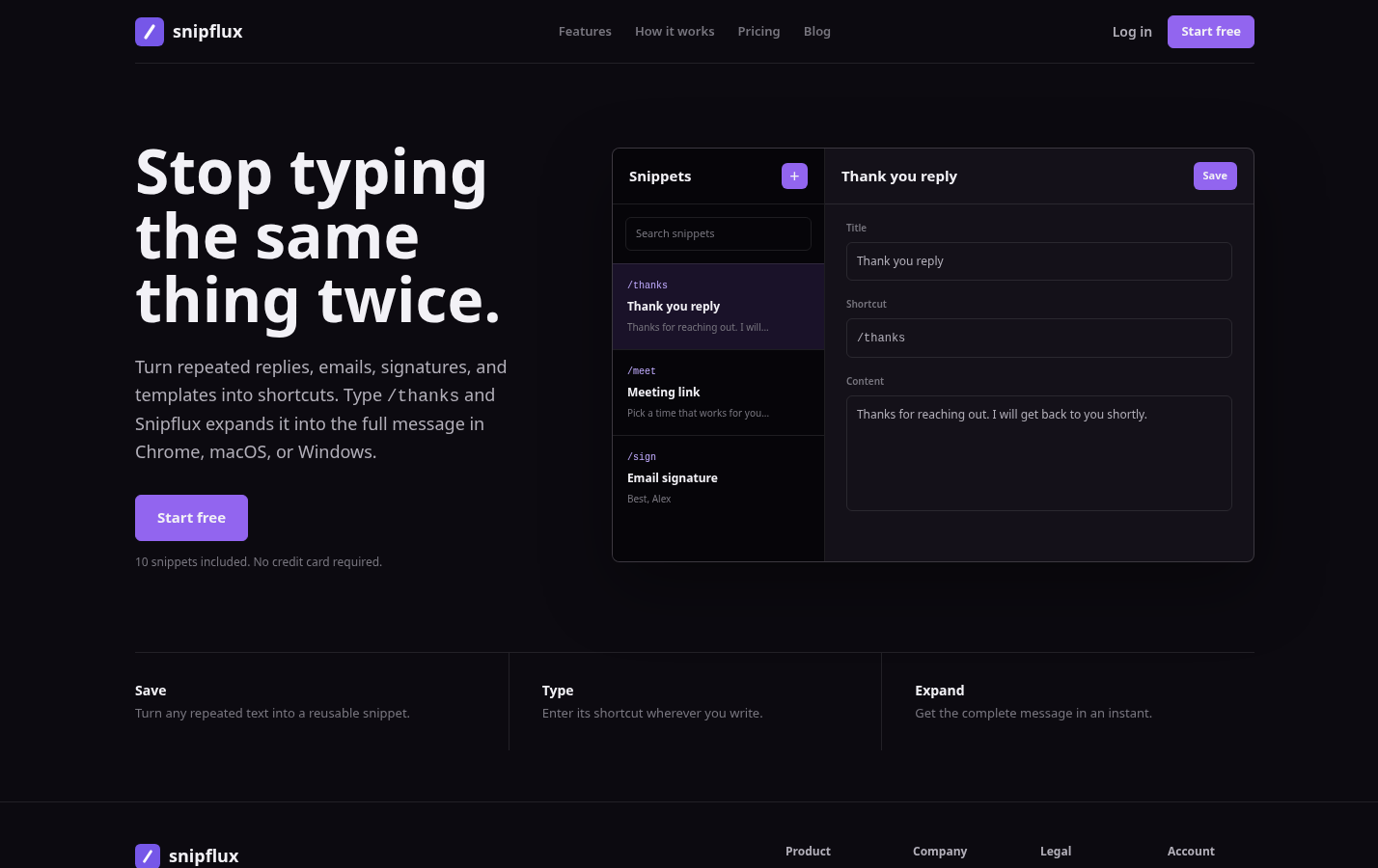
In SnipFlux, create a new snippet and give it a descriptive name, such as "Follow-up request." Paste in the reusable email text, assign a distinctive shortcut such as /followup, and save it.
Use an editable template rather than a finished-looking message with hard-coded details. Keep fields such as [Name], [topic], and [date] visible so you can complete them before sending.
Next, open a new Outlook message in the environment you use every day and type the shortcut. If you use Outlook on the web, test it in Chrome with the relevant browser setup enabled. If you write from a supported desktop context, test it there too.
Common mistake: testing a shortcut in one Outlook client and assuming it will behave the same way everywhere. Test in the actual compose window, account, and browser or desktop environment you rely on before using the snippet for important communication.
Use placeholders without making templates feel robotic
Placeholders are the guardrails that keep reusable emails personal and accurate. Use obvious fields such as [Name], [Project], [Date], and [Link] for information that should never be assumed.
Keep placeholders visible enough that you cannot overlook them during a quick review. Brackets work well because they stand out from ordinary prose. If you send an email with "[Name]" still in place, the saved time was not worth the mistake.
Build Outlook shortcuts for the emails you send most
Start with messages that repeat frequently and require only light editing. The examples below are intentionally concise: they provide a useful structure while leaving room for the specifics that make an email credible.
Acknowledgements, scheduling, and follow-ups
| Shortcut | Use it for | Reusable text |
|---|---|---|
| /received | Confirming receipt | Hi [Name], Thanks for sending this. I have received it and will review it by [date]. I will follow up if I need anything else. Best, [Your name] |
| /meet | Scheduling a meeting | Hi [Name], I would be happy to discuss [topic]. Are you available on [option 1] or [option 2]? If not, please send a few times that work for you. Best, [Your name] |
| /followup | Requesting a status update | Hi [Name], Just following up on [topic]. Could you share an update by [date]? Thanks, [Your name] |
Personalize the topic, date, and proposed times before sending. For a follow-up, also check the prior email thread so you do not ask for information the recipient has already provided.
Support, sales, and internal-update replies
| Shortcut | Use it for | Reusable text |
|---|---|---|
| /docs | Sharing requested materials | Hi [Name], Here are the requested materials for [topic]: [Link]. Please let me know if you need anything else. Best, [Your name] |
| /nextsteps | Recapping actions | Hi [Name], To recap, the next steps are: [Action 1] by [Owner] by [Date], and [Action 2] by [Owner] by [Date]. Please let me know if I missed anything. Best, [Your name] |
| /status | Giving an internal update | Hi team, [Project] is currently [status]. Since the last update, we completed [milestone]. The next decision or action needed is [action] by [date]. Thanks, [Your name] |
For support and sales templates, approved wording matters. Review commitments, pricing, service levels, policy language, and product details before reuse. A snippet should make a valid answer faster; it should not turn outdated information into a repeated error.
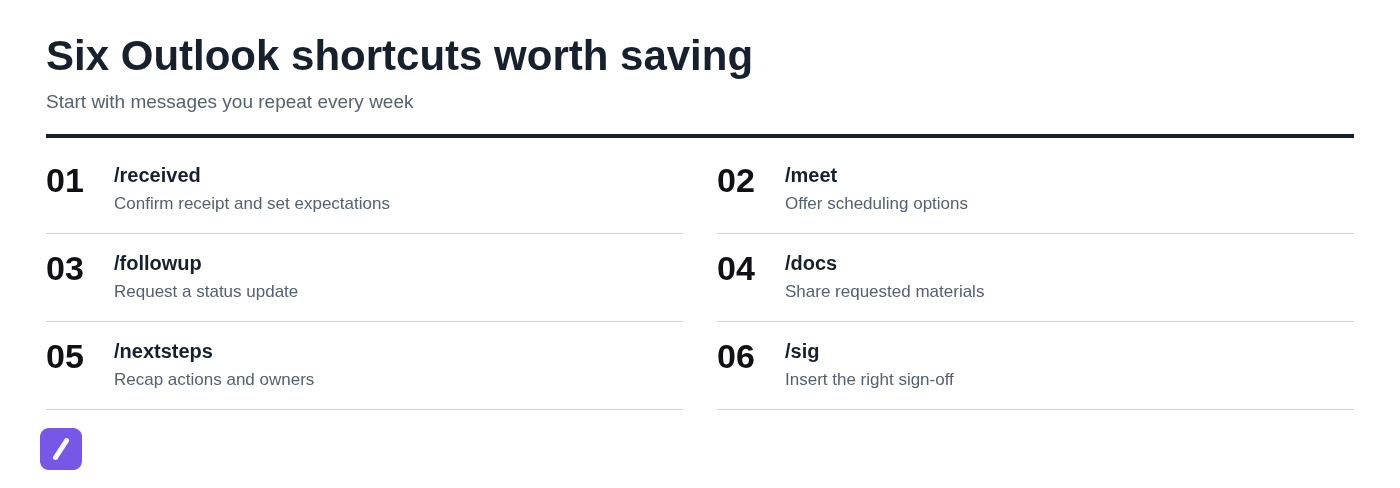
Make shortcuts work across Outlook 365, the web, and desktop
"Outlook 365" can describe several different experiences, which is why compatibility should be checked before you standardize a process. Native content blocks such as Quick Parts are tied to the Outlook client and its available features. A third-party text expander can support shortcut expansion wherever its relevant app or browser extension is enabled.
Users of new Outlook for Windows and Outlook on the web should not assume Quick Parts will offer automatic typed expansion. If typed shortcuts are the requirement, test a text expander in the exact environment where you compose email. If you mainly work in Chrome, this guide to setting up a Google Chrome auto text expander covers the browser-specific part of that workflow.
Use this short compatibility check before rolling shortcuts out to a team:
- Identify the Outlook client: classic Windows, new Windows, web, or Mac.
- Confirm that your text expander is enabled for that supported browser or desktop environment.
- Create one harmless test snippet, such as /testreply.
- Expand it in a fresh Outlook message.
- Check the result for line breaks, links, signature behavior, and any formatting changes.
A five-minute test is better than discovering a formatting problem after sending a customer-facing message.
Preserve formatting, links, and signatures when expanding email text
Plain-text snippets are the safest place to begin. They are reliable for common paragraphs, short replies, and simple sign-offs. Rich formatting can be valuable, but it needs verification in the recipient-facing Outlook compose experience.
When a snippet includes hyperlinks, bullets, tables, styled text, or legal language, send a test email to yourself. Open it on desktop and mobile if the message format matters. Confirm that links point to the correct destination and that the layout remains readable after delivery.
Be cautious with signature snippets. If Outlook already inserts a default signature automatically, a /sig shortcut may create a duplicate. Either rely on Outlook's signature setting or carefully test a snippet-based signature workflow and remove the default where appropriate.
Avoid common Outlook text-expander mistakes
Most text-expander problems are preventable with a little maintenance. The biggest issue is usually not the tool; it is an unmanaged library full of vague triggers, old wording, and templates that no longer match current policies.
- Accidental trigger collisions: Use prefixes such as / or ;, and avoid shortcuts that are ordinary words.
- Outdated boilerplate: Review common snippets at least quarterly, especially customer-facing policy, pricing, and legal content.
- Missing placeholders: Use visible bracketed fields for names, dates, project details, and links that must change.
- Duplicate signatures: Test how Outlook's automatic signature interacts with any closing or signature snippet.
- Assumed compatibility: Verify each shortcut in the specific Outlook client and account where it will be used.
For shared team templates, assign an owner to approved replies. That person does not need to control every personal snippet, but someone should be responsible for keeping shared customer-facing language current.
If a shortcut does not expand, troubleshoot in order: confirm the trigger is spelled correctly, check that the text-expander app or browser extension is active, test the snippet in a plain new compose window, and then inspect formatting or account-specific behavior. Avoid changing several settings at once; isolating one variable makes the issue much easier to find.
Create a faster, more consistent Outlook email workflow
Quick Parts and AutoText are useful when you work in a supported classic Outlook setup and want to insert saved blocks manually. A text expander is the better choice when you want typed shortcuts, repeatable content across supported work apps, and less dependence on Outlook menus.
Begin with a small set of replies you genuinely send every week. Build the snippet, test it in Outlook, personalize the placeholders, and adjust the wording after a few real uses. That process produces a library that sounds like you instead of a collection of generic templates.
If you need shortcut-based reusable text across supported Chrome, macOS, and Windows workflows, create your first snippets with SnipFlux and turn your most repetitive Outlook messages into a few memorable commands.