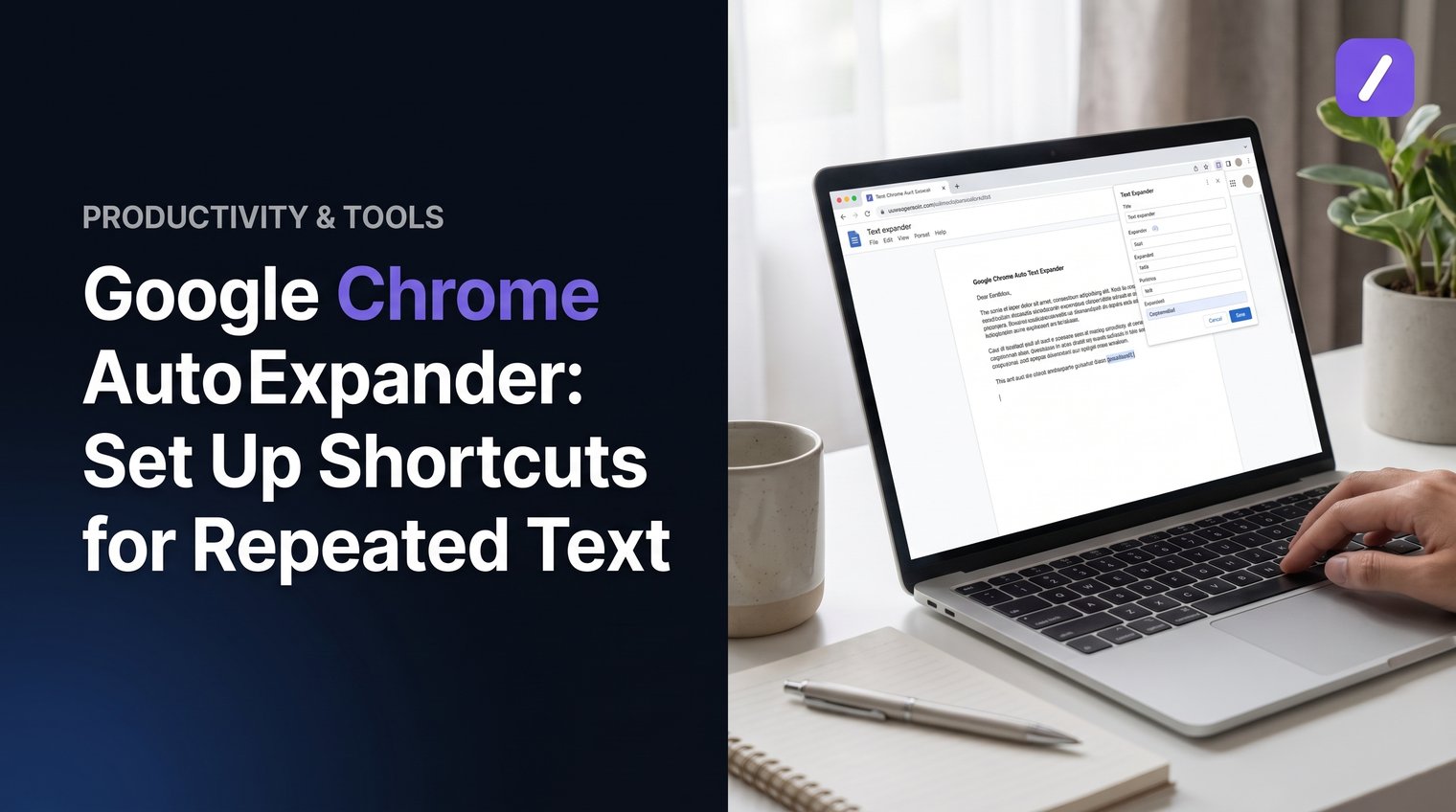
Typing the same reply for the tenth time in a day is not a productivity problem you need to tolerate. A Google Chrome auto text expander lets you turn a short trigger such as /thanks into a complete, ready-to-review message wherever you work in the browser.
The payoff is simple: less repetitive typing, fewer copy-and-paste mistakes, and more consistent replies. The key is setting up a small set of shortcuts that match work you already repeat, rather than trying to automate every sentence you write.
What a Google Chrome auto text expander does
A text expander is a Chrome extension or app that replaces a short trigger with saved text. You create a shortcut, save the full version of the message, and type the shortcut when you need it.
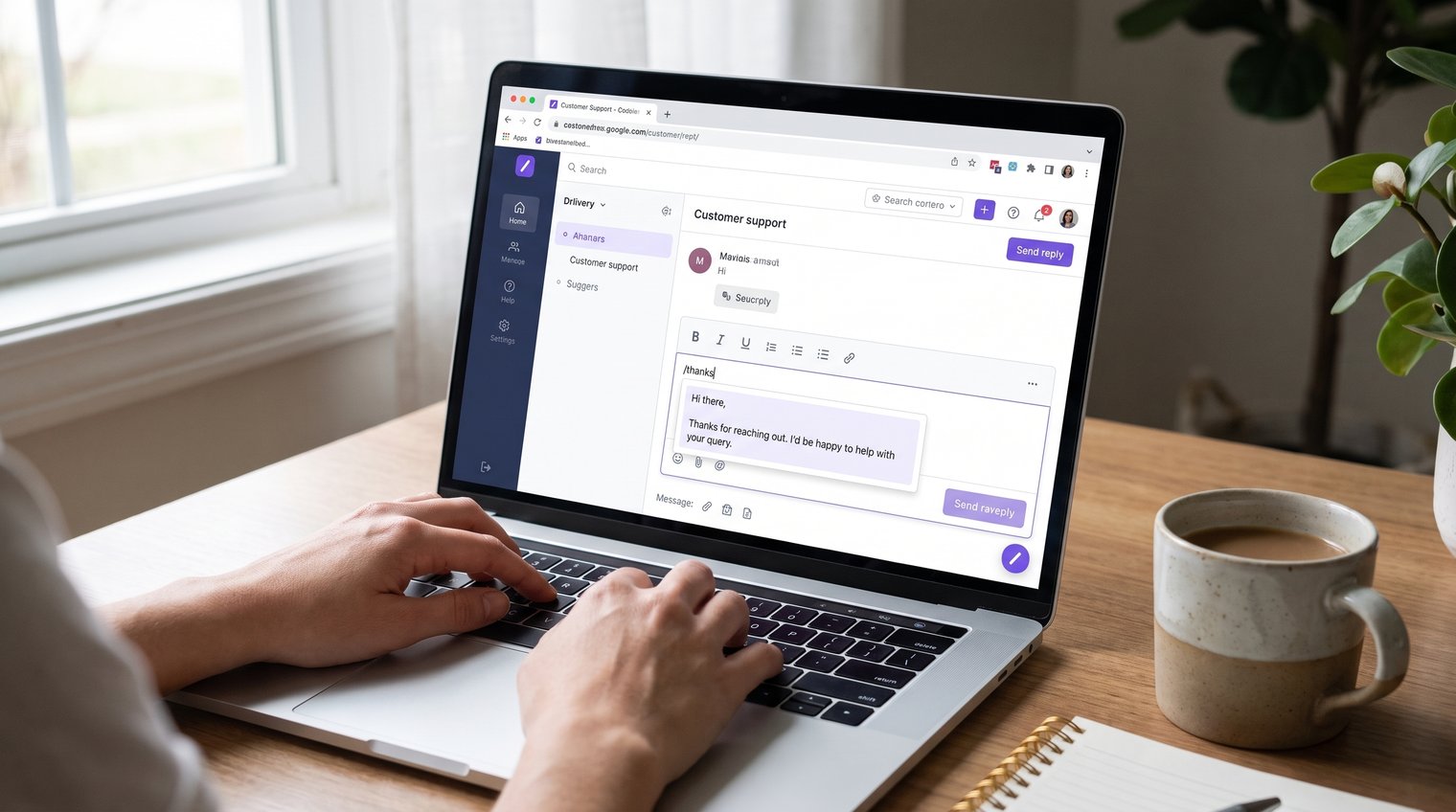
For example, /thanks might expand into a polished thank-you reply. /address can insert your business contact details, while /followup can produce a standard post-meeting email. Instead of finding an old message, copying it, and rewriting it, you begin with the reusable version already stored in your snippet library.
Most expanders work in many browser text fields, including webmail, CRMs, help desks, forms, and social platforms. Compatibility is not universal, though. A site's editor, Chrome permission settings, or an embedded form can affect whether an extension can detect and replace a shortcut.
Choose the right type of Chrome text expander
The first decision is whether you need shortcuts only inside Chrome or everywhere you write. Both options can save time, but the better choice depends on where repeated text actually lives.
A Chrome-only extension is often enough when your work happens in browser-based tools such as Gmail, HubSpot, a support desk, LinkedIn, or a web CRM. A cross-platform expander makes more sense if you also reuse text in desktop email clients, native apps, documents, or operating-system dialogs.
Before committing to any tool, check its free-plan limits, the number of shortcuts permitted, sharing options for teams, and support for fields such as names or dates. This text snippet manager guide can help you compare the organization features that matter as your library grows. A free auto text expander for Chrome can be useful for a personal starter library, but it may not include the organization or shared controls a larger workflow needs.
Chrome extension: best for browser-only shortcuts
A Chrome extension is the practical default if you work almost entirely in web apps. It can cover repeated answers in forms, webmail, sales platforms, social tools, and browser-based support systems without requiring a separate desktop workflow.
Read the extension's permissions before installing it. Also verify the kinds of fields it supports, especially if you spend time in Google Docs or rich-text editors. A shortcut that works in a standard email compose box may behave differently in a document editor with its own formatting and keyboard controls.
Cross-platform expander: best when repeated text lives beyond Chrome
Browser-only shortcuts become limiting when a workday moves between Chrome and desktop applications. A cross-platform text expander keeps the same reusable snippets available across Chrome, macOS, and Windows, so your approved support reply or signature does not need separate versions in each place.
SnipFlux is one example of a cross-platform reusable snippet manager built around shortcut expansion and an organized text library. That approach is particularly useful for people and teams who need the same replies, instructions, links, and templates in more than one writing environment.
Install and activate your text expander in Chrome
Install your chosen tool from the Chrome Web Store or the provider's official site. During setup, create an account or sign in if required, then complete the initial onboarding steps. If you want faster access to your library, pin the extension icon to Chrome's toolbar.
To confirm that the expander is active, open a simple web text field, such as a draft email or a basic form. Type a test shortcut and use the tool's designated expansion key, often Space, Tab, or Enter. If the shortcut remains unchanged, check the extension icon first: Chrome may have disabled the extension, or the extension may not have site access.
Use only extensions from providers you trust. Text expanders commonly need access to page text fields to recognize triggers and insert saved text, so understand what access is being requested before approving it.
Check extension permissions before you start
Chrome may let you control whether an extension runs on all sites, only on selected sites, or only when you click its icon. A text expander usually needs permission to run on the sites where you expect shortcuts to work. If you prefer tighter control, allow access only to the specific web apps where you use repeated text.
Do not use ordinary text shortcuts for passwords, payment card details, authentication codes, or highly sensitive personal data. A text expander is for reusable writing, not a replacement for a password manager or secure credential system.
Create your first repeated-text shortcut
Open your expander's snippet creation screen. The button may be labeled New Snippet, Add Shortcut, Create Expansion, or something similar, but the setup follows the same pattern: choose a trigger, add the full text, save it, and test it.
Start with a message you genuinely type every week. For example, set /thanks to expand into:
Hi [Name],
Thank you for getting in touch. I appreciate the details you shared, and I will review them and follow up shortly.
Best,
[Your Name]
Save the snippet, open a browser text field, type /thanks, and activate it using the selected expansion key. Replace the bracketed text before sending. This is the essential trigger-to-expansion workflow behind every Google Chrome auto text expander.
SnipFlux
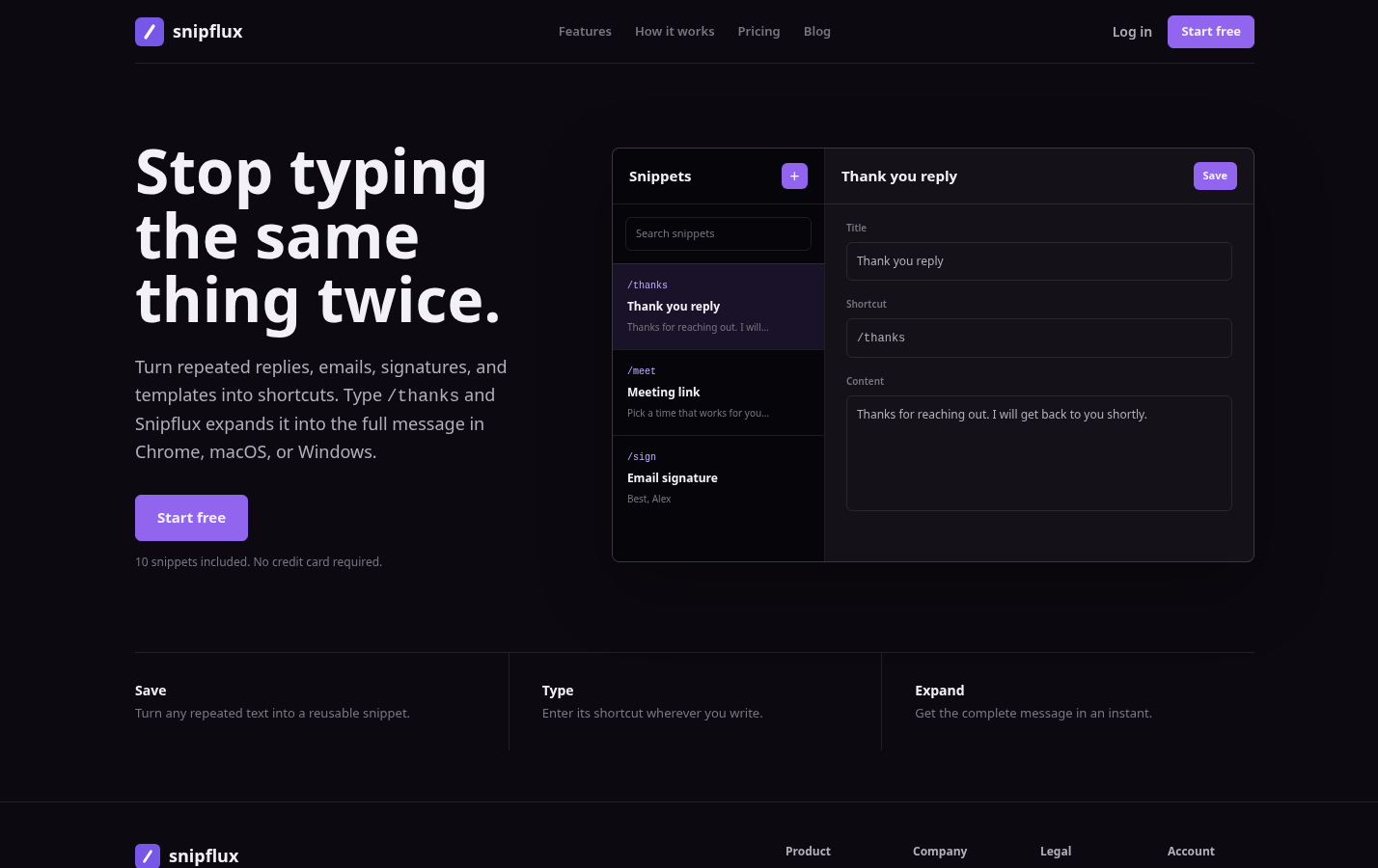
SnipFlux is best suited to people who want shortcuts backed by a reusable, organized snippet library across Chrome, macOS, and Windows. You can save repeated replies, email templates, signatures, instructions, and links, then retrieve them through a memorable shortcut or by searching the library. Folders, labels, workspaces, and invitations also make it useful when a team needs shared response templates.
The important distinction is that SnipFlux is designed for repeated text workflows, not for managing passwords, writing content with AI, or storing general clipboard history. Choose it when the same text needs to be easy to find and reliable across browser and desktop work.
Use a shortcut that will not expand by accident
Use a distinctive prefix so your trigger is unlikely to appear in ordinary writing. A slash is a strong default: /thanks, /followup, and /address are easy to remember and unlikely to be typed accidentally. A semicolon or uncommon letter pair can work as well.
Avoid common words such as thanks, address, or sent as triggers. They can expand when you intended to write the word normally. Also check whether your tool expands after Space, Tab, or Enter. If it requires a space, typing the trigger and immediately clicking Send may leave the shortcut unexpanded.
Common mistake: creating shortcuts that overlap. If /follow and /followup both exist, the shorter trigger may interfere with the longer one. Use clearly separate names, such as /fu and /followup-email, or follow your tool's exact-match rules.
Write the full text as a reusable template
Keep the expansion focused on one job. A support acknowledgement, a scheduling message, and a product-return policy should be separate snippets, even if they share a similar greeting. Focused snippets are easier to find, update, and review.
Preserve line breaks, links, and signature formatting when you save longer text. For example, a meeting snippet can include a calendar link and a short list of time windows:
Hi [Name],
Thanks for your interest. I am available Tuesday at 10:00 AM or 2:00 PM, or Wednesday at 11:30 AM. You can also choose a time here: [Meeting Link].
Best,
[Your Name]
Do not try to make one enormous "general response" template cover every scenario. It creates more editing work than it saves and makes errors more likely.
Test the shortcut where you actually work
After saving a snippet, test it in the exact browser application where you expect to use it: Gmail, your CRM, help desk, social inbox, or internal web tool. Type the full trigger, then press the configured expansion key. Confirm that the shortcut disappears and the saved content appears with the intended line breaks and formatting.
Check the message before sending. Make sure the expansion did not leave an extra space, omit a line break, or place the cursor somewhere unexpected. If a site has a rich-text editor, test both a new message and a reply field because they may behave differently.
Keep the original text in your snippet manager until the shortcut works reliably. Do not delete your old template, bookmark, or saved draft after one successful test in a different app.
Build a useful starter library of Chrome text shortcuts
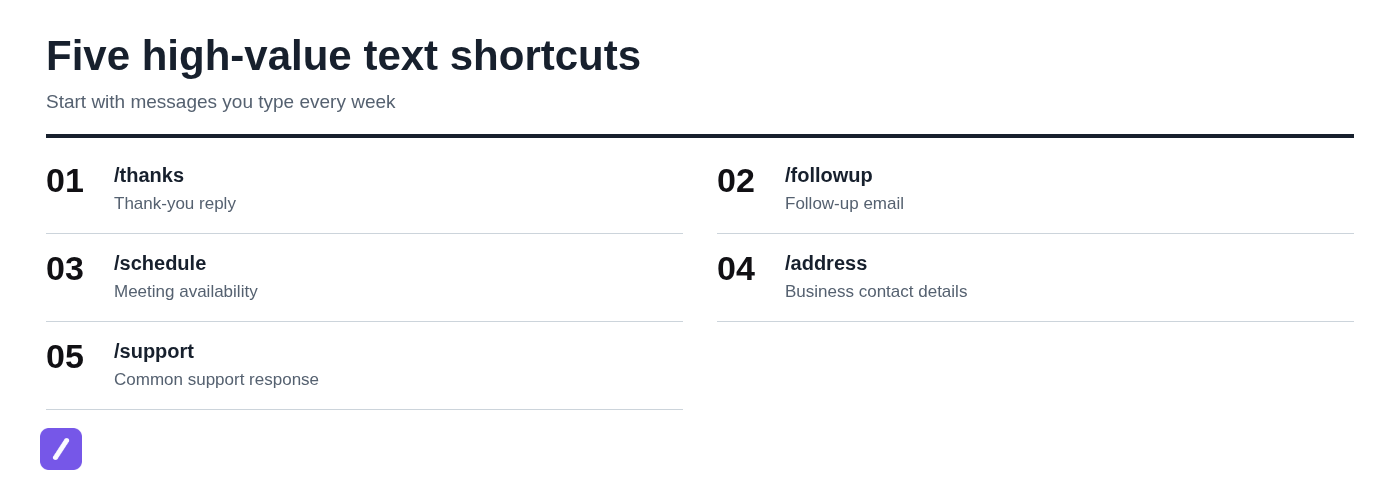
Start with five high-return snippets, not fifty. The best candidates are messages you type repeatedly with only minor changes. You will get more value from a dependable small library than from a cluttered collection of rarely used boilerplate.
- /thanks for a concise acknowledgement or thank-you reply
- /followup for a post-call or post-demo follow-up email
- /schedule for meeting availability and a calendar link
- /address for business contact details, mailing information, or a standard signature block
- /support for a common support answer with troubleshooting steps or a help link
Sales professionals may add a prospecting follow-up. Support staff may prioritize account-access instructions or a known-issue response. Social teams may save a courteous first reply that moves detailed conversations to the right channel. In every case, the expansion should save typing while leaving room for a quick personal review.
Add placeholders and variables for messages that need personalization
Fixed boilerplate works for an address or signature. Most customer-facing messages need a few details changed each time, such as a person's name, company, date, meeting link, or ticket number. Placeholders make that editing obvious instead of leaving you to hunt through a full paragraph.
For example, a follow-up template could read:
Hi [First Name],
It was great speaking with you about [Company]. As discussed, I am sending [resource or next step]. Please let me know if [date] works for a follow-up.
Best,
[Your Name]
Some expanders support fill-in fields, dates, cursor placement, or other dynamic variables. Others treat placeholders as ordinary text. Check your tool's capabilities, but review every expanded message either way. An auto text expander should reduce repetitive typing, not send a message with "[First Name]" still in it.
Organize shortcuts so they stay easy to find
A snippet library becomes useful when it stays navigable. For more guidance, see How to Organize Copy Paste Templates Into Reusable Snippets. Group snippets by workflow instead of by vague labels. Good starting folders include Sales, Support, Admin, and Personal.
Use a consistent convention for names and triggers. For example, a support team could use /sup-login, /sup-shipping, and /sup-refund, while sales could use /sales-demo and /sales-followup. The prefix makes shortcuts easier to recall and reduces collisions between unrelated templates.
Teams should separate shared, approved text from personal snippets. Shared snippets are appropriate for policy language, product instructions, official links, and standard customer responses. Personal snippets are better for an individual's signature variations, scheduling preferences, or writing habits.
Fix common Chrome text expander problems
When a shortcut fails, troubleshoot in a simple order. First, make sure the extension is enabled and signed in. Next, test the same shortcut in a plain browser text field. Then reload the affected tab, check the extension's site access, and confirm that the extension is up to date.
If it works in a plain field but not in your CRM or help desk, the issue is likely that site's editor rather than the snippet itself. Some rich-text editors, embedded fields, and restricted pages do not allow extensions to interact normally. Consult your specific tool's support documentation for known app limitations.
The shortcut types normally instead of expanding
Confirm that the text expander is active and that the trigger matches the saved version exactly. Check for accidental spaces, incorrect capitalization if your tool uses case-sensitive matching, or another snippet with a similar shortcut.
Then try the expected activation key. Many tools wait for Space, Tab, or Enter before expanding so they do not replace text mid-word. If you type /thanks and immediately click elsewhere, it may remain plain text because the expansion event never occurred.
The shortcut works on one site but not another
Different websites handle text entry differently. Rich-text editors, iframe-based forms, embedded chat windows, and pages with strict security controls can prevent a Chrome extension from detecting or replacing a trigger.
Try another text field on the same site first. Then review the extension's allowed-site settings, reload the page, and temporarily disable other extensions that modify writing fields. Grammar tools, autofill extensions, and competing text expanders can sometimes intercept the same keystrokes.
Keep your expanded text accurate and secure
Review saved snippets periodically. Addresses change, calendar links expire, pricing language evolves, policy wording is updated, and signatures need maintenance. A quarterly review is a sensible baseline for a personal library; customer-facing team templates may need a more frequent owner-led check.
Never store passwords, one-time authentication codes, payment information, or sensitive personal data in ordinary snippets. If a message includes private customer information, avoid turning it into a reusable template unless the sensitive fields are removed and added manually when needed.
For shared libraries, assign a clear owner for each customer-facing category. That person should approve policy changes, retire old templates, and make sure the team is using current links and language.
Make Chrome shortcuts part of your daily workflow
Begin with three messages you already type repeatedly this week. Create clear triggers, test them in the actual Chrome apps you use, and adjust the wording after a few real interactions. Add a new snippet only when repetition proves that it deserves a shortcut.
The best Google Chrome auto text expander setup is recognizable, reliable, and easy to maintain. It should help you write faster without making your messages sound automated or causing accidental expansions.
If your repeated text needs to travel beyond the browser, across Chrome, macOS, and Windows, explore SnipFlux for an organized shortcut and snippet workflow.