Typing the same reply for the tenth time is not a productivity problem you solve by typing faster. The real question is whether that repeated text should appear automatically from a short trigger or remain a deliberate choice from a well-organized library.
Text replacement and reusable snippets both reduce retyping, but they support different kinds of work. Choose the wrong workflow and you either waste time hunting for copy or, worse, insert the wrong message before you notice.
Text replacer vs. reusable snippets: the practical difference
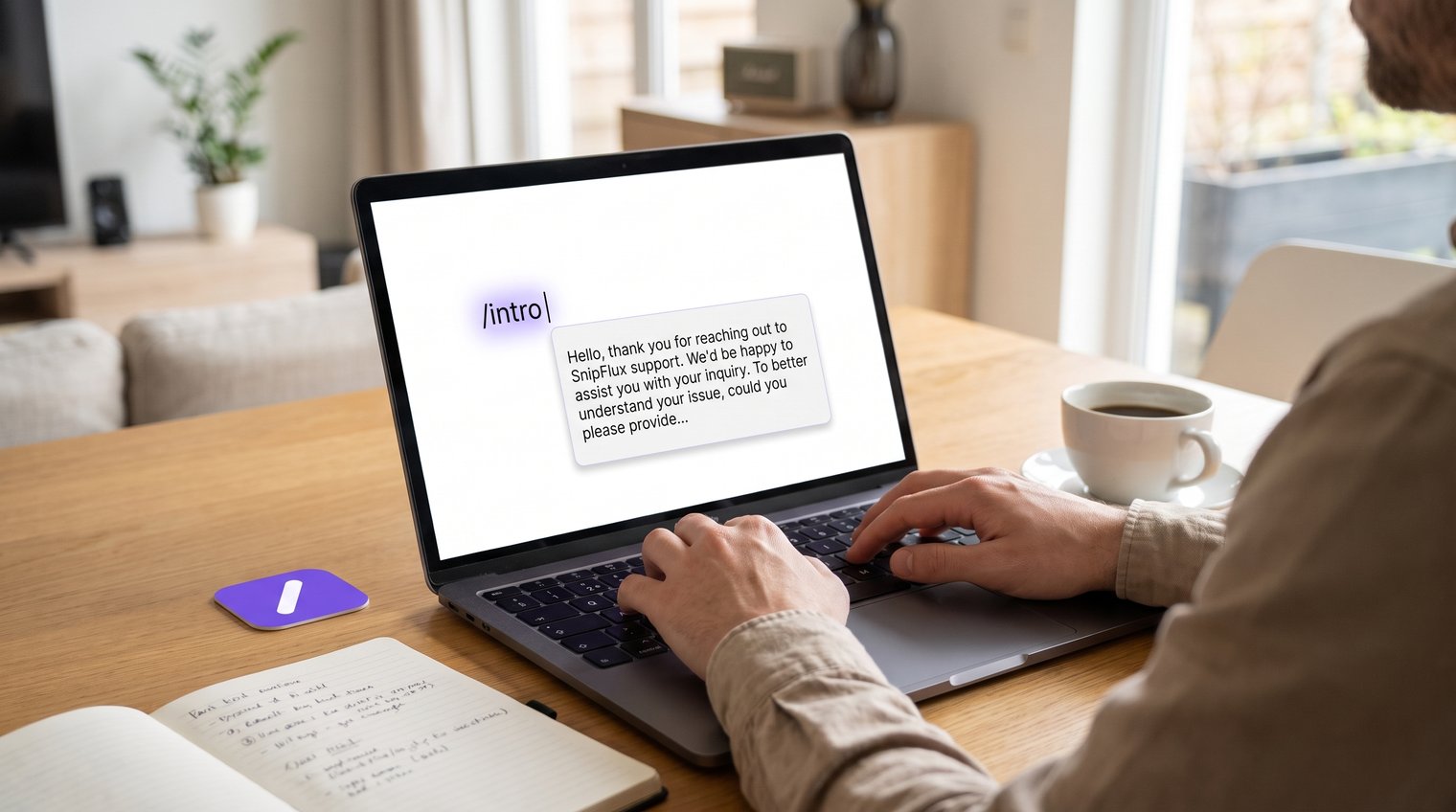
A text replacer, often called text expansion, turns a short trigger into saved text as you type. For example, entering ;addr might automatically expand into your full shipping address, while ;cal could insert a meeting link.
Reusable snippets are the saved text itself. You can insert them automatically with a shortcut or choose them manually from a searchable library. Manual selection is useful when several approved versions look similar; shortcut expansion is useful when you already know which version you need.
Do not confuse either workflow with find-and-replace. A browser or document find-and-replace tool edits text that already exists. Text replacement and snippet tools help you create recurring text while composing something new.
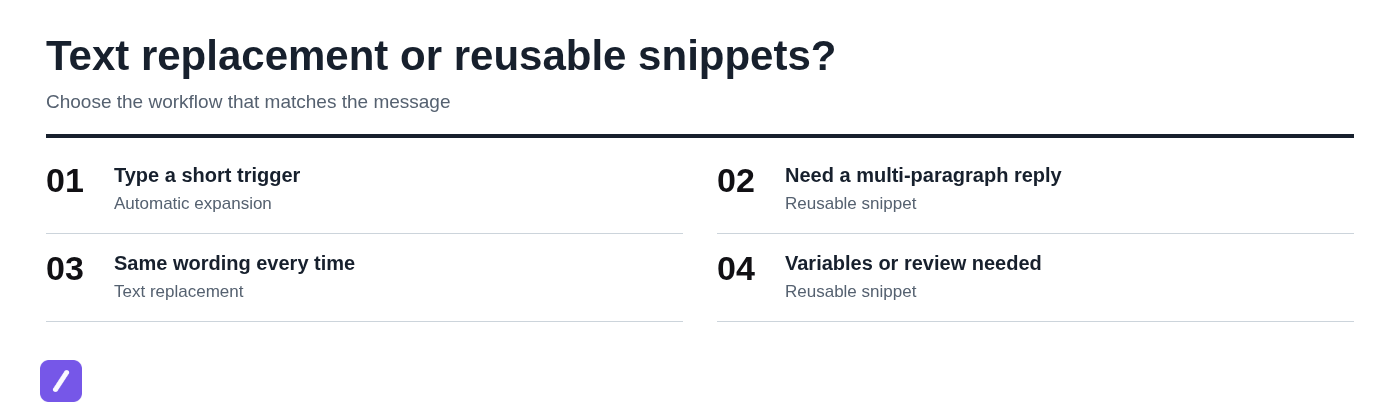
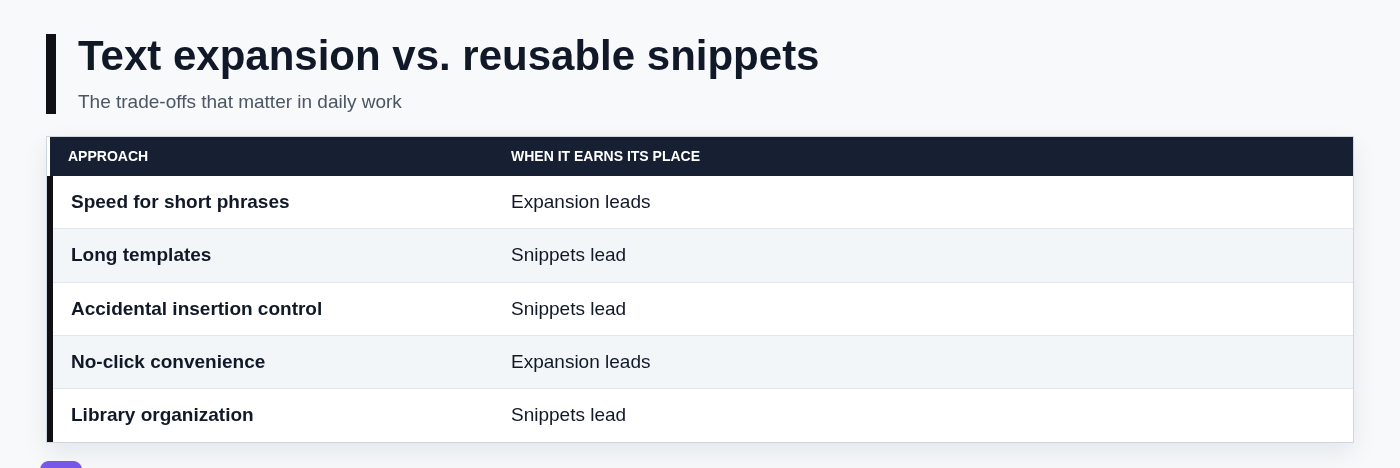
The practical rule is simple: use text replacement for short, predictable phrases, and use reusable snippets for longer, variable, or approval-sensitive content.
Quick verdict
Text replacement is best for personal shorthand, fixed contact details, common typo corrections, and other short text you use exactly the same way each time. Reusable snippets are better for teams, long templates, changing instructions, client messages, and content that must be chosen intentionally.
For many support, sales, and operations professionals, the best answer is both. Keep a few fast triggers for low-risk micro-text, then maintain a searchable snippet library for the messages that deserve a second look before they are sent.
What a text replacer is used for
A text replacer is used to insert repeated text quickly without retyping it. Common examples include email addresses, postal addresses, signatures, booking links, calendar links, standard instructions, frequently used hashtags, meeting-note headings, and short support responses.
It is particularly useful when the text is stable and the trigger is easy to remember. A recruiter might use ;intro for a short outreach opening. A support agent may use ;track for a one-line tracking instruction. Someone who regularly shares a video call link might use ;meet.
The phrase "text replacer" can describe several unrelated jobs, including text expansion, document find-and-replace, browser tools, and image or OCR editing. Editing wording inside an image requires an image-editing or OCR-based workflow, not a keyboard shortcut.
Automatic expansion also has risks. An old address can live on in a shortcut long after it changes, a common trigger can expand unexpectedly, and sensitive shortcuts may expose information on a shared device. Treat each expansion as saved operational copy, not disposable convenience text.
How text replacers work
Most text replacers use a trigger-to-expansion system. You define a shortcut, such as ;sig, and pair it with a phrase, such as a full email signature. When the system recognizes the trigger as you type, usually after a space, punctuation mark, or another delimiter, it replaces the trigger with the saved phrase.
Exact behavior varies by operating system and app. Some tools honor capitalization, some wait for a word boundary, and some sync your saved replacements between devices. A shortcut that works in one keyboard, browser, or application may not behave identically in another.
That is why short, distinctive triggers matter. A shortcut like brb may be accidentally typed in ordinary conversation, while ;brbmsg is much less likely to collide with normal writing. A prefix such as a semicolon, slash, or double period gives your shortcuts a consistent pattern and reduces accidental replacements.
Find-and-replace is different. In a document, you search for existing text and replace every matching instance or review them one at a time. Text expansion does not scan an old document; it inserts a saved phrase during composition.
When automatic text expansion is the better choice
Automatic expansion wins when speed matters and the wording is stable. The ideal expansion is short enough to verify at a glance and generic enough that it is correct in nearly every place you use it.
Good candidates include an email address, a shipping address, a calendar link, a concise sign-off, a common typo correction, or a standard one-line instruction. These are small pieces of text that interrupt your flow when typed manually but do not usually require judgment.
For example, a consultant could use ;book for a scheduling link and ;thanks for a preferred closing. Neither needs a search, a folder, or a multi-step selection process.
Best use cases for short triggers
Create shortcuts that are memorable but unlikely to appear naturally in a sentence. A semicolon prefix is a practical choice: ;mail, ;address, ;sign, and ;link are easy to recall without triggering during ordinary writing.
- Contact details: email address, phone number, office location, and website URL.
- Short links: calendar booking page, help center article, onboarding resource, or portfolio link.
- Micro-responses: "Thanks, I received this," or "I will follow up by Friday."
- Writing cleanup: common typos, product names, or frequently mistyped technical terms.
- Sign-offs: a one-line closing or a compact email signature.
Keep expansions short enough that an accidental insertion is obvious and easy to undo. If a shortcut produces a paragraph, multiple links, or a message that could make a promise on your behalf, it has moved beyond the safe sweet spot for automatic expansion.
Where automatic expansion breaks down
Text expansion becomes fragile when the message needs context. A refund response may require an order number, a sales follow-up may depend on the prospect's industry, and a policy statement may need current approved wording. Automatically injecting a large block of copy invites people to send it without reading it.
It also struggles when you need multiple versions of the same response. Memorizing ;follow1, ;follow2, ;follow3, and ;follow-final may work briefly, but it becomes a private shorthand system that is difficult to train, audit, or maintain.
Long messages, placeholders, pricing, deadlines, legal wording, client-specific claims, and changing instructions are all better handled as deliberately selected content. Fast is not helpful when it makes an outdated or incomplete message easier to send.
When reusable snippets are the better choice
A snippet library stores named blocks of text. Search by title, browse a folder, or filter by label when you need to compare versions. When the right snippet has a memorable shortcut, expansion can insert the same text without a manual copy step.
This is the better workflow for longer templates, multiple versions of approved language, recurring links, internal instructions, and messages that change over time. It gives the sender a pause to confirm that the wording fits the conversation.
SnipFlux is a text expander and reusable snippet manager that supports shortcut expansion as well as deliberate selection. It helps users save, organize, find, expand, and copy recurring replies, signatures, templates, instructions, links, and other frequently used text.
Use snippets for messages that need context
A support team may need separate snippets for delivery delays, account access issues, refund requests, and escalation handoffs. A sales team may keep distinct follow-ups for a first demo, no-response outreach, proposal reminders, and post-meeting next steps.
The same approach works for project handoffs, social media replies, policy language, AI prompts and instructions, and internal process notes. The useful difference is discoverability: a clear title such as "Refund request - eligible order" is safer than expecting everyone to remember a cryptic shortcut.
Folders, labels, and descriptive names turn repeated copy into a usable library. They also make it easier to find related variations, replace outdated language, and onboard new team members without handing them a long list of abbreviations.
Use snippets when copying is safer than auto-inserting
Deliberate copying creates a small but important safety check. Before sending text that includes personal data, pricing, delivery dates, legal language, a discount, or a client-specific statement, you can read it, tailor it, and confirm that it belongs in the current conversation.
Use visible placeholders to make that review unavoidable. A template such as "Hi [Name], your order [Order Number] is scheduled for [Date]" is more reliable than a polished paragraph that looks ready to send but contains someone else's details.
Placeholders are not a weakness. They are a signal that human judgment is still required.
SnipFlux
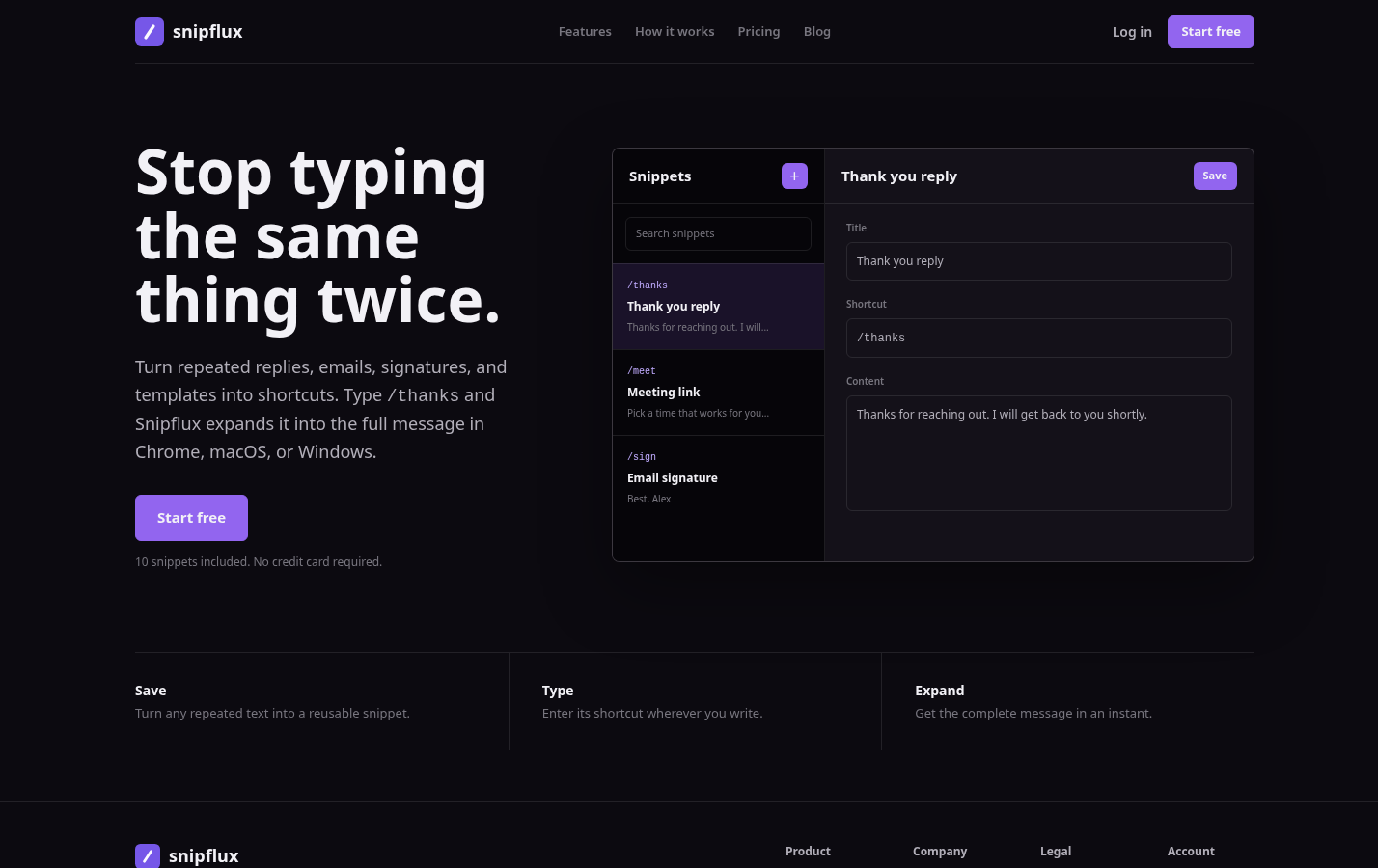
SnipFlux does best when repeated text needs to be easy to locate, organized, and reused through shortcuts or deliberate selection. It helps users save, find, expand, and copy recurring text into the app where they are working.
SnipFlux supports shortcut-based text expansion as well as a searchable snippet library. Support, sales, and operations teams can expand a saved reply in a supported writing field, or find and copy it manually when selection needs more care. Review placeholders and context before sending either way.
Comparison matrix: text replacement vs. reusable snippets
Neither workflow replaces the other. The better choice depends on the text itself: its length, how often it changes, the risk of using the wrong version, and whether other people need to find and maintain it.
| Decision factor | Shortcut expansion | Manual snippet selection |
|---|---|---|
| Insertion | Type a shortcut in a supported field | Find the saved text, then copy and paste |
| Best fit | You know which snippet you need | You need to compare versions or browse |
| Long replies | Expand, then review and personalize | Select, paste, then review and personalize |
| Context | Check the destination and placeholders before sending | Check the destination and placeholders before sending |
| Organization and sharing | Depend on the tool and library setup | Depend on the tool and library setup |
| SnipFlux | Supports shortcut expansion | Also supports finding and copying saved snippets |
How to turn on Text Replacement on iPhone
On an iPhone, open Settings, choose General, tap Keyboard, then tap Text Replacement. Select the add button, enter the full text in the Phrase field, enter the trigger in the Shortcut field, and save it.
iPhone Text Replacement expands the Shortcut into the Phrase while you type in compatible text fields. It is useful for fixed details that you enter repeatedly, including an email address, address, preferred sign-off, calendar link, and common typo corrections.
Novelty "hidden message" tricks are not the reason to build a text replacement list. You can create a playful trigger if you want, but the practical value comes from removing small, repetitive typing tasks without increasing the chance of sending the wrong text.
Best text replacements for iPhone
Start with a compact set that saves time every week. Avoid filling the list with every sentence you have ever repeated; an overloaded shortcut list quickly becomes hard to remember.
- ;email for your primary email address.
- ;addr for a mailing or office address.
- ;cal for your calendar or booking link.
- ;sign for a short professional sign-off.
- ;ty for a simple thank-you phrase, if it will not collide with normal typing.
- teh corrected to "the" for a frequent typo.
Use a consistent prefix for phrases that should never appear accidentally. Be especially careful with sensitive information on shared devices, and avoid shortcuts that could expand in the wrong text conversation or form.
Why iPhone Text Replacement may not work
The most common problem is an incorrect or overly common shortcut. Check that you are typing the exact character sequence you saved, including punctuation, and make sure the shortcut is not being altered by autocorrect or a different keyboard language.
Other causes include keyboard settings, sync delays between Apple devices, and app-specific text fields that do not behave like standard typing areas. Test the shortcut in a simple app such as Notes first. If it still fails, delete the entry, recreate it carefully, and test again before assuming the feature is broken.
Some people also look for "secret" iPhone input tricks, including triple-tap, three-finger, or hidden-button shortcuts. Those accessibility and gesture features are separate from Text Replacement. Likewise, dialing codes such as *69 or *#21 are carrier or call-setting matters, not iPhone text replacement features and not a solution for typing faster.
How to replace any text in a document, browser field, or existing copy
"Replace text" can mean three different tasks. First, you may want automatic expansion while writing. Second, you may need to change existing words throughout a document. Third, you may want a browser tool that replaces or inserts text in editable web fields.
For an existing document, use the application's find-and-replace command. In Word, Google Docs, spreadsheets, and many editors, this is the right way to update a product name, correct a repeated typo, or change a phrase throughout text that has already been written.
Use text replacement when the same phrase appears repeatedly in new writing. Use a reusable snippet library when you repeatedly send full messages, need a choice between variants, or want a team to work from current approved copy.
A text replacer extension can help with editable browser fields, and searches for a "text replacer Google" solution often point to browser extensions. Review permissions carefully before installing one. An extension that can read or change website content may have access to sensitive forms, messages, customer records, or internal systems.
Why online text replacers are not the same as text expansion
A free text replacer online tool usually lets you paste text, enter a word or string to find, provide replacement text, and process the result. This is handy for one-off bulk edits, such as changing an old product name in a draft or removing a repeated phrase from copied notes.
It is not a reusable trigger system. It generally will not expand text across your email client, browser fields, chat app, and documents, and it does not create an organized library of templates your team can maintain.
Be cautious about pasting sensitive content into third-party websites. Customer messages, contracts, personal data, internal plans, and unreleased copy should stay in tools that meet your organization's privacy and approval requirements.
Image-text editing is a separate workflow. It can involve editing image pixels, recognizing text with OCR, or generating replacement artwork. It is not keyboard text expansion and does not solve the problem of reusing a support reply or sales follow-up.
Build a system that uses both without creating shortcut chaos
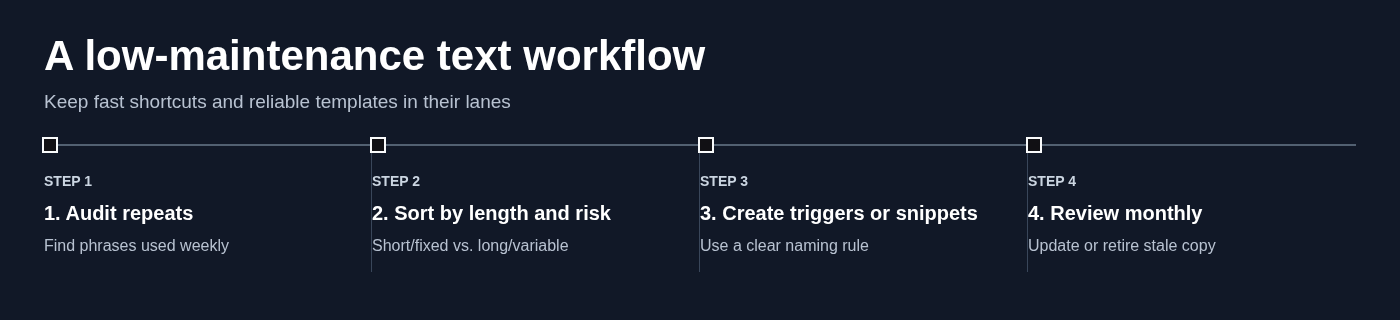
A good system gives each kind of repeated text a home. The goal is not to automate every sentence. It is to eliminate retyping while preserving enough friction to prevent careless sending.
- 1. Audit your repeats. For one week, note phrases, links, and messages you type more than once. Focus on items you use weekly, not one-off copy.
- 2. Sort by length and risk. Put short, fixed, low-risk text into automatic expansion. Put long, changing, customer-facing, or approval-sensitive text into snippets.
- 3. Create a clear naming rule. Use a trigger prefix such as ; for expansions. Give snippets descriptive titles such as "Support - password reset - first response" rather than vague names such as "Reply 4."
- 4. Use placeholders consistently. Mark fields that need review with brackets: [Name], [Company], [Order Number], [Price], and [Date].
- 5. Assign ownership for shared copy. One person or role should be responsible for updating policy language, pricing statements, and approved messaging.
- 6. Review monthly. Remove shortcuts you no longer use and retire snippets with outdated links, dates, product details, or policy wording.
This approach bridges one-off online find-and-replace work with a durable communication workflow. A document editor can handle a bulk correction today, while a maintained shortcut and snippet system prevents the same repetitive work from returning tomorrow.
Choose text replacement, snippets, or both
Pick text replacement if you repeatedly type short, fixed phrases and want them to appear with minimal effort. Email addresses, links, addresses, typo fixes, and compact sign-offs are the obvious wins.
Pick reusable snippets if your repeated text is longer, changes often, contains placeholders, has multiple approved versions, or must be shared with a team. A searchable library is more dependable than expecting people to memorize dozens of triggers.
Pick both if you handle high-volume communication. Use automatic expansion for tiny, low-risk building blocks, then use snippets for support replies, sales follow-ups, templates, instructions, and other messages that need context. If you need that searchable library, SnipFlux can keep recurring text organized and ready to expand with a shortcut or copy manually.
The best workflow minimizes retyping without making it easier to send the wrong text. Speed matters, but reliable communication matters more.