A duplicate text expander shortcut can turn a useful workflow into a risky one fast. You type a familiar trigger expecting a standard reply, but a client-specific message, an outdated template, or nothing at all appears instead.
The fix is not simply deleting the first duplicate you find. You need to identify every place that claims the shortcut, decide which snippet should own it, and test the change where you actually work. That approach prevents the same conflict from returning through a shared library, browser extension, or another device.
Confirm that the duplicate shortcut is the real problem
Before renaming anything, make sure you are dealing with a shortcut collision rather than an inactive text expander. A snippet tool can fail to expand because it is disabled, lacks browser or accessibility permission, uses a different delimiter setting, or has not synced the current library.
Reproduce the problem in a simple plain-text field first, such as a basic note or an unformatted message box. Type the exact shortcut as you normally would, including its prefix, capitalization, and final space or punctuation. Record three details: the trigger you typed, the text that appeared, and the app or website where it happened.
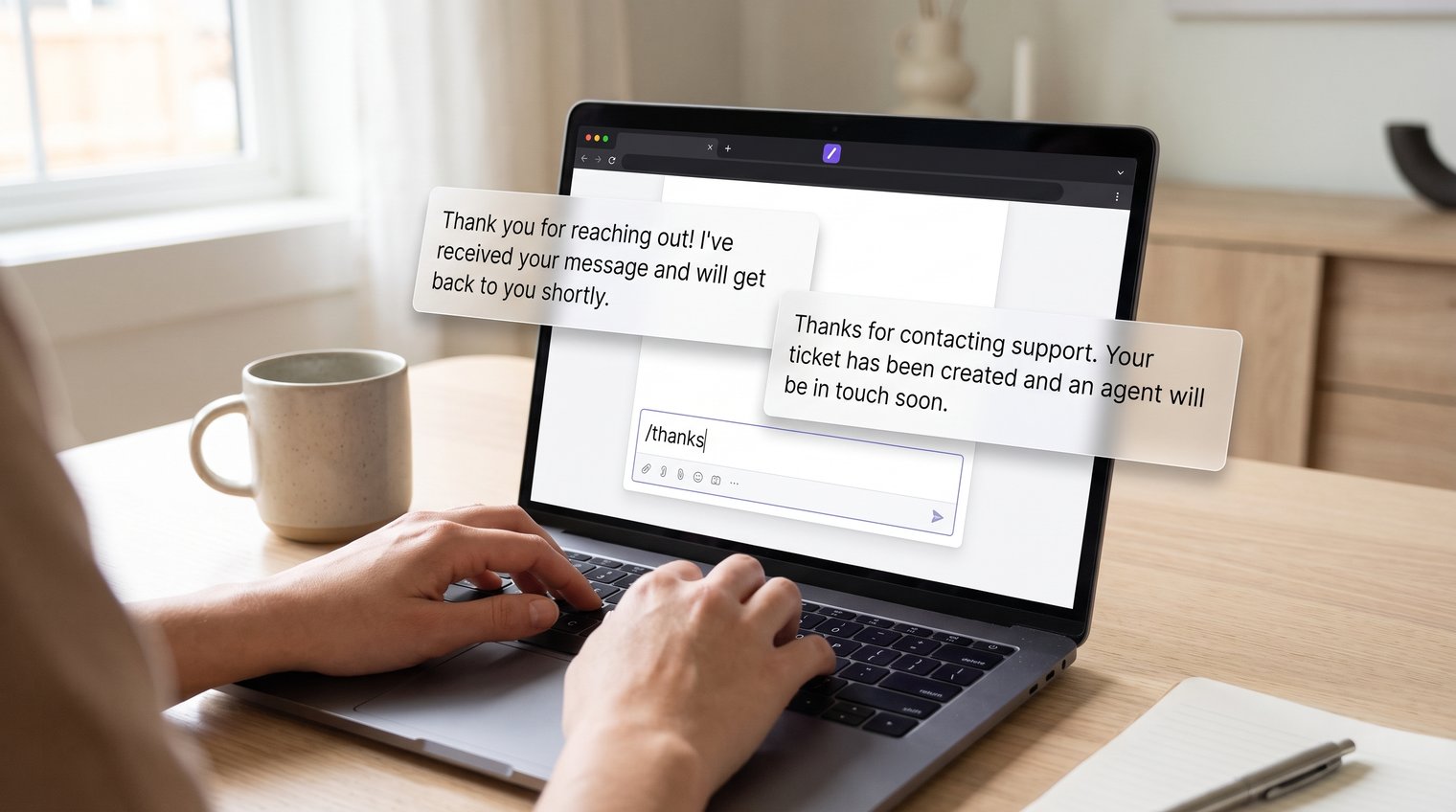
For example, if typing /followup expands a customer-specific email in your CRM but a general follow-up in a browser message field, you may have two active systems competing for the same trigger. If it expands nowhere, the problem is more likely activation, permissions, or sync.
Signs of a shortcut collision
A true collision usually has a recognizable pattern. The wrong snippet may always win, different apps may produce different expansions, or the result may change depending on whether you type a space after the shortcut.
Other common signs include a trigger expanding inside ordinary words or two snippets that appear equally plausible when you search your library. Do not assume the duplicate is in your personal folder. It may live in a shared team collection, an old imported library, another signed-in device, a browser extension, an operating-system text replacement feature, or a second text expander running in the background.
Find every snippet that uses the same abbreviation
Start with your text expander's global search. Search the exact shortcut first, including punctuation and capitalization. If your trigger is /refund, search /refund, not just "refund," so you can distinguish the shortcut from text that happens to appear inside a snippet.
Check every relevant location before editing: personal folders, team or shared collections, archived snippets, imported libraries, and alternate account or workspace views. A conflict is easy to miss when a shared library is hidden behind a separate workspace or an archived folder remains searchable. If you are evaluating how to organize these entries, a text snippet manager can help clarify which features support searching, ownership, and organization.
If the affected snippets matter to your team, export them or copy their content into a temporary document before making changes. Capture the full text, links, variables, formatting, and current shortcut. This is a backup step, not busywork; it lets you restore an important response if someone later discovers that the older version was still needed.
Search for near-duplicates, not only exact matches
Exact matches are only the first pass. Many expanders treat shortcuts as case-insensitive, so /FAQ and /faq may conflict even if they look different in the library. Others expand when a delimiter is omitted, making ;sig potentially interfere with ;signature.
Also look for shorter triggers nested inside longer ones. If your tool expands as soon as it recognizes a match, /pro can create trouble for /proposal. Search by the core text without the prefix when necessary, then inspect the related shortcuts manually.
SnipFlux
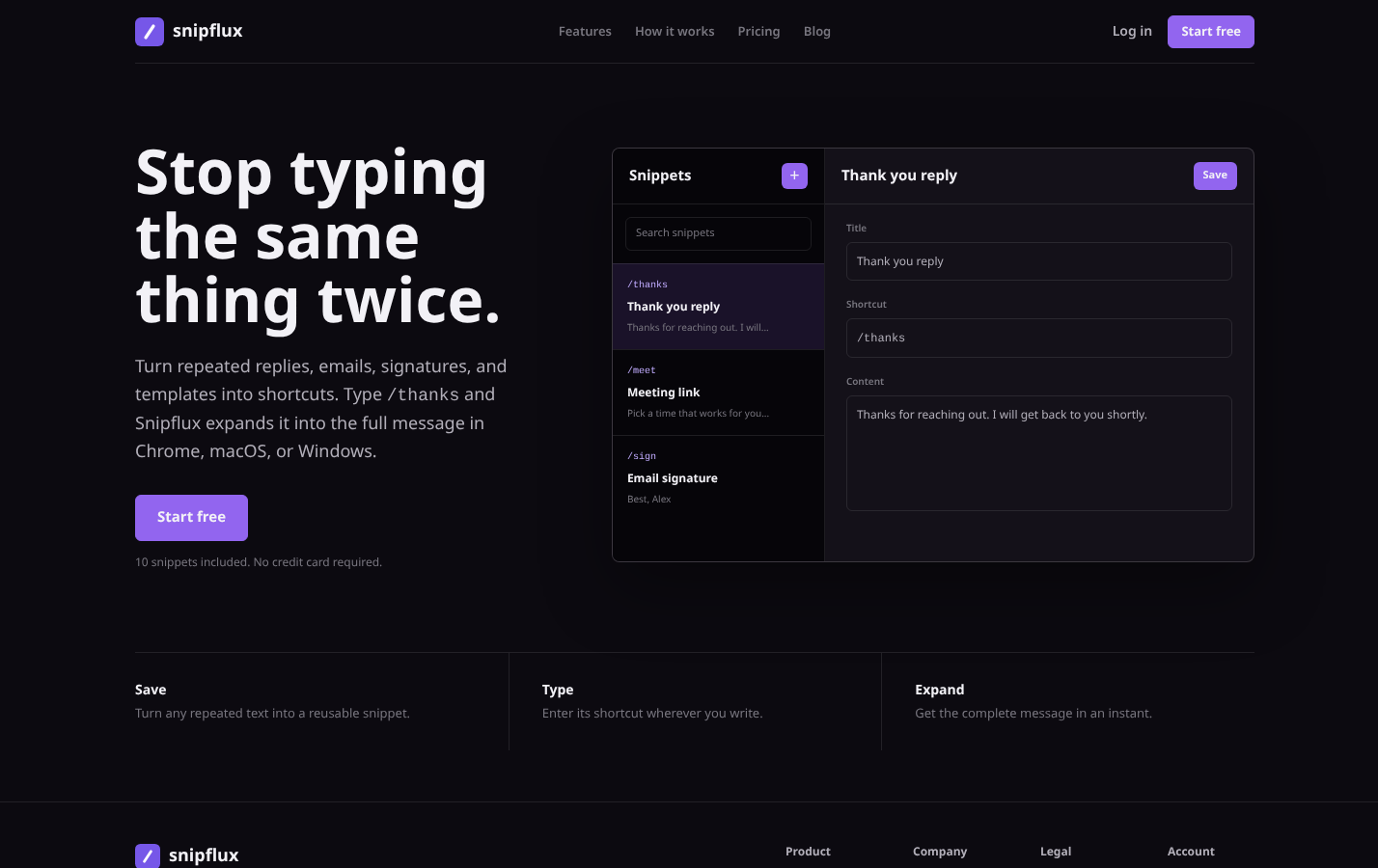
SnipFlux is designed around reusable snippets with memorable shortcuts, searchable libraries, folders, labels, and shared workspaces. For a duplicate-shortcut investigation, the practical advantage is being able to search the library by snippet name or shortcut and review likely claimants before changing a trigger.
It is a good fit for teams that need the same response templates available across Chrome, macOS, and Windows, especially when support, sales, or operations contributors share content. It is not a substitute for reviewing other active text replacement tools on a device; a conflict created by a separate extension or system feature still has to be resolved at its source.
Decide which snippet should keep the shortcut
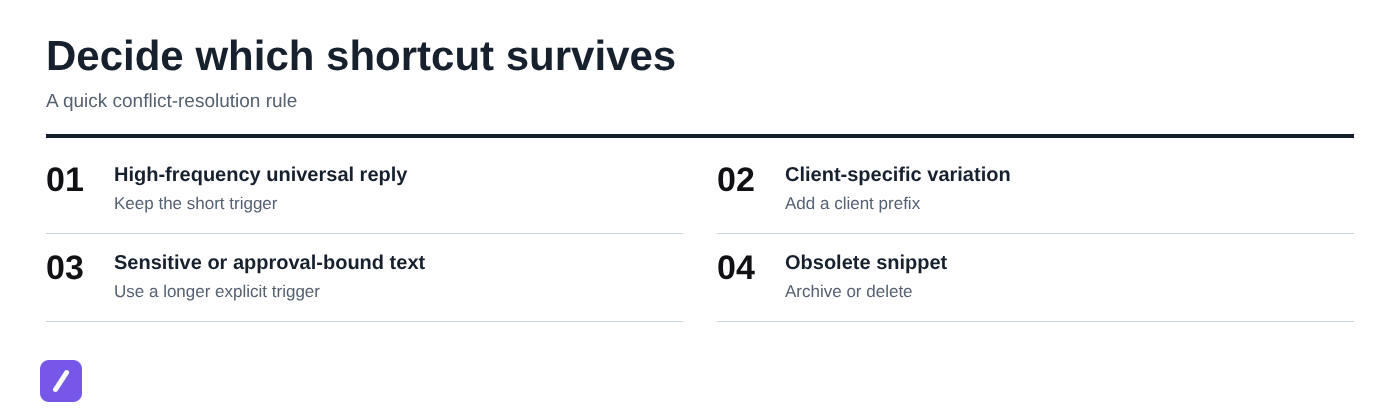
Once you find the competing snippets, do not choose based solely on which one was created first. Give the shortest, easiest trigger to the snippet that is used most often, broadly safe, and least likely to need revision for a specific recipient.
Suppose your team has two versions of /followup. One is a standard post-demo email used dozens of times each week. The other is a customized message for Acme's procurement team. Keep /followup for the standard email and rename the specialized version to /followup-acme.
Deleting the duplicate is not always the right answer. A shared snippet may be valid and useful, but its shortcut should communicate its scope. Sensitive content, approval-bound language, pricing details, and client-specific templates deserve longer, more explicit triggers because an accidental expansion carries more risk.
Use an ownership rule for shared libraries
Shared libraries need a basic convention, or collisions become inevitable as more people contribute. Assign shortcut namespaces by function, team, client, or content type. A customer support team might use /cs-, sales might use /sales-, and client-specific material might use /acme-.
Write the rule in the library description or team operating guide. It can be simple: "Use /cs- for support replies, /sales- for sales outreach, and /client- for account-specific content." The point is to make the next contributor's choice predictable before they create a new shortcut.
Rename the conflicting shortcut without creating a new collision
Change one shortcut at a time. After assigning a replacement trigger, search the full library again before saving or immediately afterward, depending on how your tool handles validation. This avoids solving one collision by creating another.
Use readable prefixes and separators rather than cryptic combinations of letters. Good examples include /em-thanks for a common email reply, /cs-refund for a support response, and /acme-followup for a client-specific sales message. A shortcut should be fast to type but still understandable weeks later. For a broader walkthrough of this workflow, see how to use a text expander for reusable text and shortcuts.
Keep the snippet content unchanged while you fix the trigger unless you intentionally want to revise the content too. Accidentally altering formatting, links, variables, or cursor placement makes it harder to tell whether a later problem came from the rename or the content edit.
Choose shortcuts that do not trigger by accident
Use an intentional prefix such as / or ; when your text expander supports it. A category prefix after that marker gives you both safety and clarity: /cs-login is much less likely to appear during ordinary typing than login.
Avoid everyday words, common initials, and very short letter combinations. Shortcuts such as ok, as, or br will eventually appear in normal writing. They may be fast, but they are unreliable and can produce embarrassing expansions in the wrong context.
Match trigger length to consequence. A low-risk, high-frequency reply can justify a short shortcut such as /ty. A send-ready legal statement, refund exception, pricing explanation, or customer-specific response should require a more deliberate trigger, such as /cs-refund-exception.
Check for conflicts outside the snippet library
If your snippet library contains only one owner for the shortcut, look beyond it. The same abbreviation can be registered by a browser extension, desktop text expander, keyboard utility, CRM macro tool, email canned-response feature, or operating-system text replacement setting.
Use a controlled isolation sequence. Temporarily pause other text expansion tools, then test the affected shortcut in the same field where the problem occurred. Re-enable one tool at a time and repeat the test until the unexpected expansion returns. That identifies the competing source without forcing you to guess.
Do not leave a required work tool disabled after testing. Once you find the collision, rename or remove the duplicate trigger in the less appropriate system, then turn the tool back on and confirm both workflows still work.
Review browser, macOS, and Windows text replacement settings
Check the environment where the issue appears. A shortcut that misbehaves only in Chrome may be claimed by a browser extension, while a shortcut that expands across desktop applications may come from a native text replacement utility or another installed expander.
Menus and labels differ by browser and operating-system version, but the goal is consistent: find active text replacements, shortcut utilities, writing assistants, and automation tools that use the same abbreviation. Search their settings for the exact trigger, then rename it or disable that replacement if it is obsolete.
Check sync, shared-workspace, and device-specific copies
A duplicate that disappears and then returns is usually a sync or workspace problem. Another signed-in computer, an offline app, or a teammate's shared library may still contain the old version and restore it after synchronization.
First, confirm you are in the correct account and workspace. Resolve the conflict in the authoritative cloud or shared-library record rather than repeatedly patching local copies. Then allow synchronization to finish before testing again.
If you use more than one device, search for the shortcut from a second device after the change. This verifies that the updated owner and renamed version are consistent everywhere. In a shared workspace, tell contributors about the rename if they may have memorized the old trigger.
Test the fix in the places where the shortcut matters
Testing only in a library editor is not enough. Start in a plain-text field, then test in the browser, email client, CRM, chat app, or help desk where the original failure occurred. For a repeatable team process, see how to test text expander snippets before sharing with a team.
Confirm that the intended snippet expands, formatting remains intact, links and variables are preserved, and the cursor lands where you expect it. Also verify delimiter behavior: some tools expand only after a space, tab, return, or punctuation mark. Test the exact way you normally complete the shortcut.
Finally, test the retired trigger. It should either stop expanding entirely or produce the newly assigned snippet, depending on how you resolved the conflict. Skipping this check is a common mistake because an old shortcut can remain active in a second tool or unsynced library.
If the text expander is still not working
If nothing expands after the rename, stop changing shortcuts. You are likely dealing with a separate no-expansion problem.
Check the basics in this order: confirm the app or extension is enabled, verify required browser or accessibility permissions, make sure the correct profile or workspace is active, refresh or restart the affected app, and test another writing field. If the shortcut works elsewhere, focus on the specific app or website rather than rebuilding your snippet library.
Prevent duplicate shortcuts from returning
The best long-term fix is a small habit before anyone creates a new shortcut: search first. A quick search catches existing owners, near-duplicates, and naming patterns that a new contributor may not know.
Use a consistent naming convention, review imported libraries before merging them, and periodically audit shared collections for old or overlapping triggers. For high-impact templates, limit edit access or assign a clear owner. That does not mean blocking contributions; it means someone is accountable for maintaining shortcuts that affect customer communication or revenue workflows.
Use this quick check before saving a new snippet:
- Is the trigger unique across personal and shared libraries?
- Does its delimiter or prefix make accidental expansion unlikely?
- Does the name make its team, client, or workflow scope clear?
- Have you tested the expansion in a real writing field?
- Could the shortcut appear inside an ordinary word or common phrase?
Keep your shortcut library predictable
Duplicate text expander shortcuts are manageable when you follow a consistent sequence: locate every claimant, choose one clear owner, rename the alternative safely, check competing expanders and sync sources, and test in the apps where the shortcut matters.
A predictable library saves more than a few keystrokes. It helps your team send the right response with confidence, without wondering which version of a template will appear. SnipFlux can help teams organize reusable snippets and keep shortcut libraries easier to search and maintain across Chrome, macOS, and Windows.