A shortcut that works on your laptop is not automatically ready for a team. One missing line break, an accidental trigger, or an unreplaced placeholder can turn a time-saving text expander snippet into a customer-facing mistake.
The fix is a lightweight release process. Before sharing a snippet library, test the shortcut, the expanded text, the places people will use it, and the instructions someone else needs to use it correctly. This guide walks through how to use a text expander for reusable text and shortcuts and how to test text expander snippets before sharing them with a team.
Define what "ready to share" means for each snippet
A personal shortcut only has to work well enough for its creator. A team-ready snippet has a higher bar: it must be accurate, safe in context, understandable to others, and reliable in the applications where the team actually writes.
Set acceptance criteria before anyone starts testing. A snippet is ready to share only when its output is correct, its trigger behaves as intended, its wording is approved, it works in the required apps, and one person owns its ongoing accuracy.
For example, a shared support reply should have approved language, a shortcut that will not appear in ordinary writing, correct links, and a named owner in support operations. Without those basics, a shared library quickly becomes a collection of competing drafts.
Classify snippets by risk before testing
Not every snippet needs the same review. A low-risk internal meeting template or a generic "Thanks for reaching out" reply can usually receive a quick functional check. Pricing statements, security instructions, legal language, refunds, account-access guidance, and credential-related text need more scrutiny.
High-risk snippets should receive both content approval and scenario testing before release. If a customer could make a purchase decision, disclose information, lose access, or misunderstand a policy because of the text, do not treat it as a simple typing shortcut.
- Low risk: internal updates, meeting notes, common greetings, personal signatures.
- Medium risk: sales follow-ups, support troubleshooting steps, onboarding instructions.
- High risk: pricing, terms, compliance, security, account recovery, refund and cancellation language.
For high-risk text, identify the approver before testing begins. Functional testing can prove that a snippet expands correctly; it cannot prove the underlying claim is current or authorized.
Create a safe test copy and define the expected result
Never experiment directly in a live team library. Duplicate the snippet or place it in a private test collection first, so a formatting edit or shortcut change cannot affect teammates who are already relying on the shared version.
Write down what success looks like for each snippet. Include the shortcut, the exact expected expansion, intended apps, required formatting, placeholders, and prohibited contexts. A snippet for a help desk reply may be approved for an email composer and ticket comment, but not for a public social reply or internal chat.
Use realistic sample data without using real customer information. Test with names such as "Jordan Patel," order numbers such as "ORD-10482," dates such as "October 18, 2026," and a safe example URL. Keep passwords, API keys, personal information, and customer records out of test text.
Write a compact test case for every snippet
A test case does not need to become a formal QA document. A small table or shared checklist is enough, as long as another person can repeat the test and understand the result.
| Field | Example |
|---|---|
| Snippet name | Shipping delay reply |
| Shortcut | /support-shipping-delay |
| Input location | Help desk reply field in Chrome |
| Expected output | Approved reply with two paragraphs and a tracking-link placeholder |
| Actual output | Record exactly what appeared |
| Result | Pass or fail |
| Environment | Windows, Chrome, tester name |
Include a few edge cases instead of testing only the ideal path. Try the shortcut at the start of a sentence, after punctuation, following a space, and when only part of the shortcut has been typed. These quick checks expose triggers that expand too early or fail because of a boundary rule.
Test the shortcut trigger where people actually type
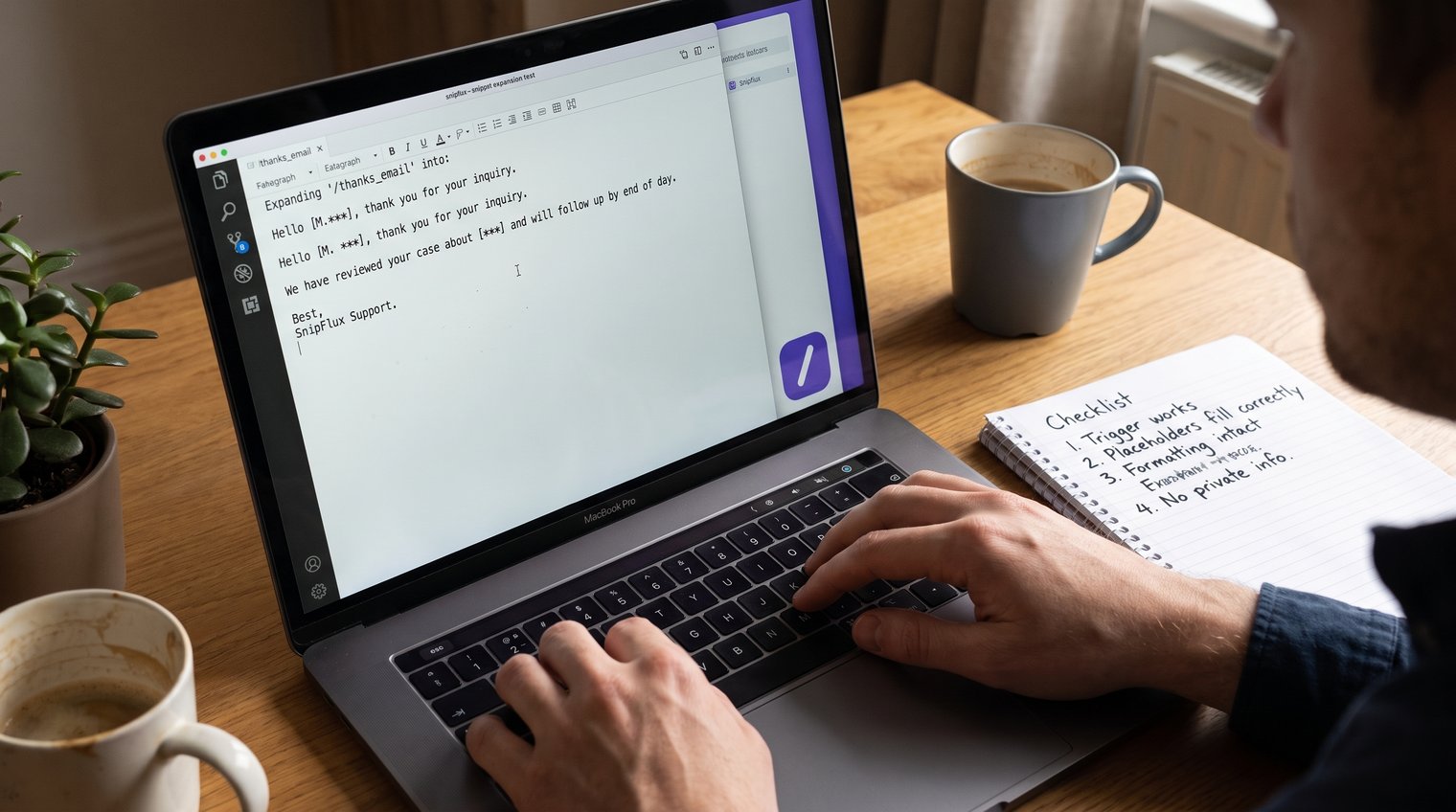
Test a snippet in the real destinations your team uses, not only in a notes app. That usually means a browser, desktop email client, webmail composer, help desk, CRM, team chat tool, and document editor. The same shortcut can behave differently depending on the field and platform.
Check whether expansion requires a space, Enter, Tab, punctuation, or another boundary. Also test case sensitivity and confirm that the trigger does not expand in the middle of an ordinary word. If a shortcut is intended for a customer response, test it in the exact reply field where agents compose that response.
When a text expander is "not working," isolate the cause instead of immediately rewriting the snippet. First test the shortcut in a known supported field. If it works there but not in the target field, the problem may be the field itself, browser or app permissions, an extension conflict, or an unsupported environment. If it fails everywhere, inspect the shortcut spelling, trigger settings, and account or sync status.
Look for accidental expansions and shortcut collisions
Type normal sentences that contain the shortcut or closely related words. A short trigger such as brb may be convenient, but it can collide with informal chat. A generic trigger such as /followup may collide with another team's existing naming system.
Use a shared naming convention that makes shortcuts memorable and specific. A practical default is a slash plus a function and topic, such as /support-return, /sales-demo-followup, or /ops-vendor-onboarding. Longer shortcuts take a moment more to type, but they are far less likely to fire by accident.
Common mistake: using personal abbreviations that make sense only to the creator. A teammate should be able to predict what /support-address-change does without opening it first.
Verify the expanded text character by character
Do not approve a snippet after a quick visual scan. Compare the expansion against the approved source line by line, especially when the text is customer-facing or contains a link, number, deadline, or policy statement.
Check spelling, capitalization, punctuation, line breaks, signatures, phone numbers, branded terms, URLs, emojis, and special characters. A misplaced comma may be harmless; one missing character in a URL or phone number is not. If the snippet includes a signature block, confirm that its spacing remains readable in the destination.
Make placeholders impossible to miss. Use a clear format such as [CUSTOMER NAME], [ORDER NUMBER], or [INSERT TRACKING LINK] rather than a subtle blank space. The tester should be able to see immediately what must be edited before sending.
Test rich text and plain-text fallbacks
Formatting often changes after a snippet leaves its original editor. A help desk may preserve bold text and line breaks, while a plain-text email field may strip styling, flatten paragraphs, or alter smart punctuation.
Test both outcomes where relevant. If a snippet depends on a clickable link, provide an acceptable plain-text version with the full URL. If it uses headings or bullets, make sure the same instructions still make sense when they become simple lines of text.
The best default is to write shared snippets so they remain clear without styling. Rich formatting can improve readability, but the message should not become misleading when formatting disappears.
Test variable fields and reusable templates with realistic data
Templates are more likely to fail than fixed replies because they ask the user to make edits. For snippets with names, dates, order numbers, links, amounts, or conditional wording, run several realistic sample values before release.
Test a normal value first, then try a long name, a hyphenated name, a name with an apostrophe, and a short one-character value. Confirm that an order number or date appears in the right place and that a long URL does not break the surrounding sentence.
Keep the instruction close to the field being changed. Instead of putting "remember to customize this" at the end of a long template, use visible placeholders in the exact locations that need attention.
Run a negative-path test
Deliberately make the template fail. Leave a required field blank, insert punctuation into a name, use a malformed URL, and leave a placeholder unresolved. Then read the final message as if it were about to be sent.
Do not share a snippet when it can produce a misleading default, leave an unresolved placeholder in customer-facing text, or expose sensitive information. If a template has too many required edits to be safe, simplify it into smaller snippets or add clearer usage notes.
Check cross-platform behavior before inviting the team
A shared library is only useful when it works across the environments your team actually uses. Verify text expander snippets in the browsers and on the operating systems in scope, including Chrome on macOS and Windows where applicable.
Test the same shortcut and output in each required environment. Confirm that the correct version is available, that account access is working, that sync has completed, and that keyboard behavior does not change the trigger. Also verify formatting in each destination rather than assuming an expansion that works in one browser will look identical elsewhere.
Record unsupported contexts plainly. It is better to document "use this snippet in Chrome and desktop email only" than to let teammates discover a limitation while responding to a customer.
SnipFlux
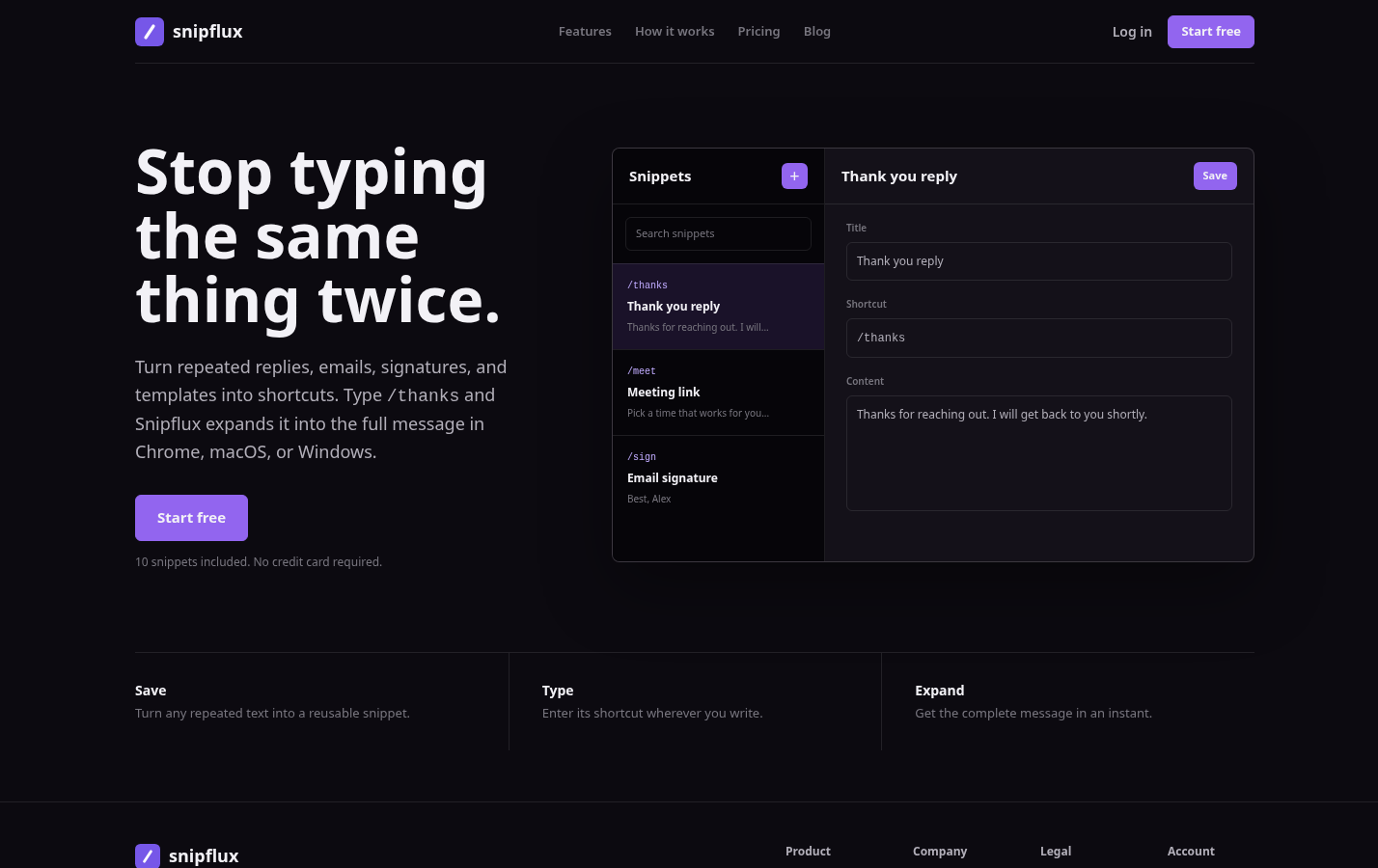
SnipFlux is designed for reusable text that needs to be available across Chrome, macOS, and Windows. Teams can organize snippets with folders and labels, then use workspaces and invitations to maintain shared libraries for replies, follow-ups, signatures, instructions, and links.
Its strongest fit is a team that needs shortcut-based expansion backed by an organized, shared source of truth. Before rollout, test the actual browser, operating system, and writing fields your group uses; cross-platform availability does not mean every third-party input field will behave the same way.
Ask a second person to run an independent review
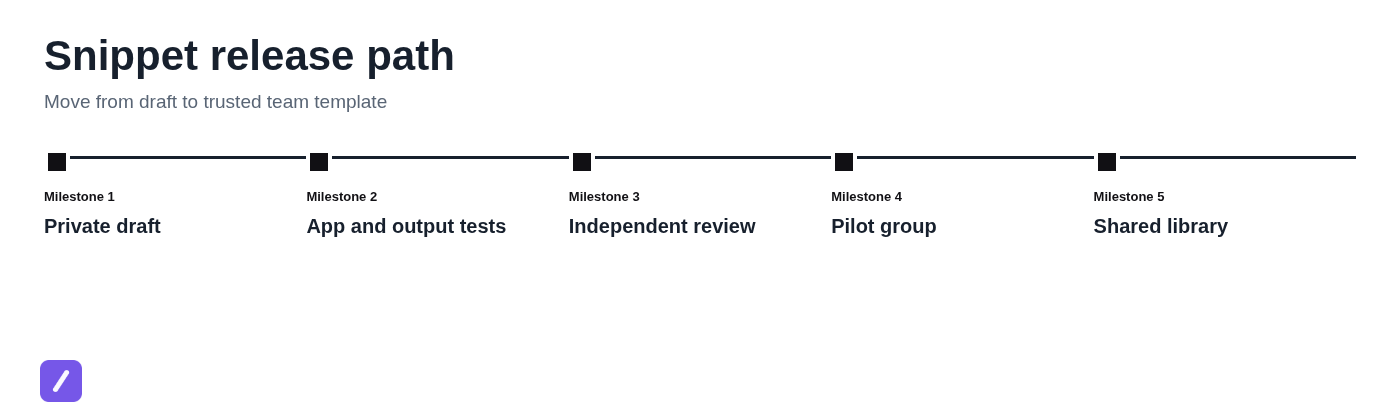
The creator of a snippet is often the least likely person to notice its assumptions. Ask a teammate to test from the written instructions without watching the creator perform the expansion. If they cannot find the snippet, understand its name, trigger it correctly, or recognize a required placeholder, the shared version needs improvement.
Use different review lenses where possible. One reviewer can verify content accuracy, another can test workflow fit and formatting, and an appropriate approver can check policy, legal, security, or brand-sensitive language.
Independent review catches issues that technical checks miss: confusing shortcut names, missing setup steps, outdated terminology, and instructions that only make sense to the original author.
Use a short pilot instead of a full-library rollout
Start with a small, high-value collection: perhaps five to ten support replies, a sales follow-up, a signature, and two operational templates. Give the pilot to a representative group of users across the apps and devices that matter most.
Set an end date and a success threshold before the pilot begins. For example, run the pilot for five business days and require that every core snippet expands correctly in the required destination for each pilot user, with no unresolved placeholder or meaning-changing formatting issue.
Collect failures by snippet, app, device, and symptom. That makes the decision to expand the library evidence-based rather than driven by a few vague comments.
Prepare the shared library for safe adoption
Move only passing snippets into the shared collection. Give each one a clear name, a logical category, a short description, usage notes, and an assigned owner. A teammate should be able to search for "refund," "demo follow-up," or "address change" and select the right approved response.
For a smoother rollout, use a documented process for how to onboard a team to a shared snippet library. Set a source-of-truth policy before the library grows: decide who can edit shared snippets, how change requests are submitted, who approves sensitive wording, and how obsolete templates are retired. A shared library without ownership tends to accumulate outdated copies.
Do not store passwords, API keys, personal data, or other secrets in reusable snippets. Text expanders are useful for repeatable language and links, not for distributing sensitive credentials or bypassing access controls.
Monitor early use and fix failures without creating version drift
Early use is still part of testing. Give teammates a simple way to report issues, and ask for the shortcut, target app, device, expected result, actual result, and a screenshot when permitted. This turns "it did not work" into a report someone can reproduce.
Prioritize failures that change meaning, expose placeholders, break links, or prevent expansion in a core workflow. Minor cosmetic issues can wait; a support snippet that sends incomplete instructions cannot.
Fix the canonical snippet once, then retest the change in the affected environment. Communicate the revision to the team instead of sending one-off text replacements in chat or email. One-off copies create version drift and defeat the purpose of a shared library.
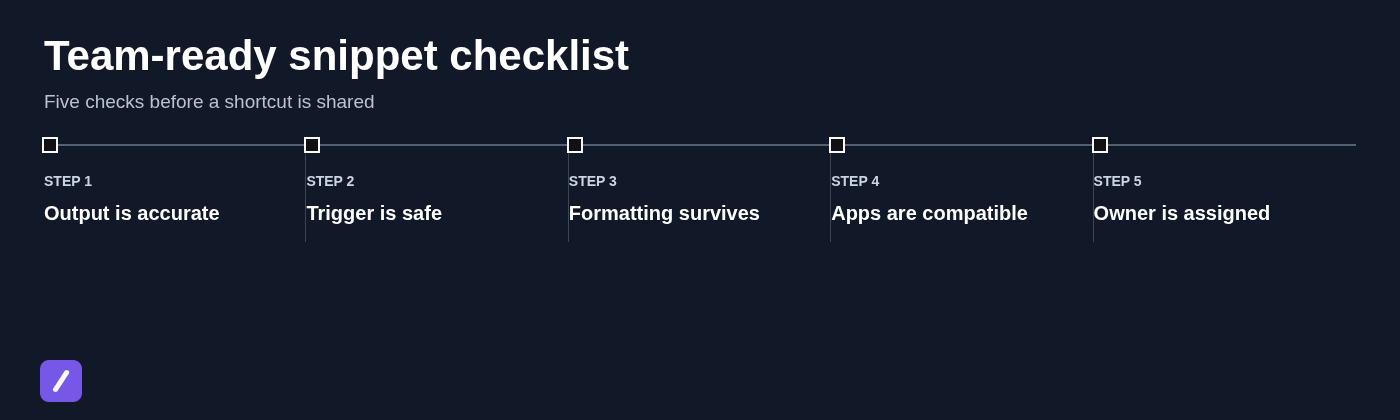
Use this pre-sharing checklist for every new snippet
Use this checklist as a release gate before any snippet enters the team library:
- Content has been approved by the appropriate owner.
- The shortcut is specific, memorable, and unlikely to collide with normal typing.
- The expansion has been checked against the approved source.
- Required destinations have been tested.
- Formatting and a plain-text fallback have been verified.
- Variables and placeholders have been tested with realistic sample data.
- Required platforms, browsers, and devices have been verified.
- An independent reviewer has tested the snippet from written instructions.
- A pilot group has passed the agreed success threshold for important snippets.
- An owner, usage notes, and rollout details have been assigned.
Used consistently, this is not bureaucratic overhead. It is the small release process that keeps a shared snippet library trustworthy as it expands.
Make shared snippets dependable before they become team habits
Teams adopt shortcuts quickly when they save time and produce reliable text. They abandon them just as quickly when one template inserts the wrong link, fires unexpectedly, or leaves an embarrassing placeholder in a customer message.
Test before sharing, keep a clear owner for every important snippet, and treat changes as controlled updates rather than informal copies. Apply the same process to any private SnipFlux collection before sharing approved snippets with the team.