Repeated typing is one of those small work problems that quietly consumes hours. The same thank-you email, support explanation, shipping link, meeting note, and signature get rewritten again and again - often with slightly different wording and occasional mistakes.
A text expander fixes that pattern by turning a short shortcut into complete reusable text. Set it up well, and you can write faster without making customer messages sound copied and pasted.
What a Text Expander Does and When to Use One
A text expander stores a piece of text as a snippet and connects it to a shortcut. When you type the shortcut in a supported writing field, the tool replaces it with the full saved text. For example, typing /thanks might insert a complete customer follow-up instead of requiring you to write the same three sentences from scratch.
This is more useful than a single application's canned-response feature because a text expander can work across supported apps and browser fields. The same shortcut can be useful in email, a help desk, a CRM note, a chat reply, a document, or a Chrome form.
Good uses include repeated emails, customer support replies, addresses, meeting instructions, product links, email signatures, onboarding steps, and form fields. The goal is not to automate every sentence you write. It is to eliminate the stable text you already know you will type again.

Start With the Repetition You Already Type
Do not begin by trying to build a huge library. Start with your real work from the past week. Review sent emails, support tickets, calendar messages, CRM updates, internal chat replies, and forms you complete regularly.
Look for text you have written at least two or three times with little change. A shipping-status response, a scheduling note, a standard product link, or a closing signature is a better first snippet than a complicated message that changes completely for every recipient.
Copy the useful core into a draft list before adding it to your text expander. This quick audit prevents a common mistake: saving vague phrases that are not actually worth expanding.
Prioritize snippets by frequency, length, and error risk
Use a simple rule: save text that is typed often, long enough to be tedious, or important enough that consistent wording matters. A snippet does not need to be long to earn its place. An address, a scheduling link, or a two-sentence policy explanation can save time and reduce errors.
- Strong first snippets: email signatures, product links, return instructions, appointment confirmations, standard follow-ups, office addresses, and frequently used internal instructions.
- Useful with minor editing: customer updates, proposal follow-ups, recruiting outreach, and meeting recaps.
- Poor first candidates: sensitive messages, conflict resolution, complex proposals, or anything requiring extensive personal context before it can be sent.
If a reply needs only a name and one order detail added, save it. If it requires a fresh explanation every time, leave it out for now.
Choose a Text Expander That Works Where You Write
The best text expander is the one that works in your actual writing environment. Before committing to a tool, check your operating system, browser needs, supported apps, synchronization requirements, and whether you need to share approved snippets with a team.
A Mac user should confirm macOS compatibility and any required input or accessibility permissions. A Windows text expander should run reliably in the desktop applications and web tools used each day. If much of your work happens in browser-based software, confirm that the tool supports Chrome and test it in the fields that matter. For Outlook users, this guide to setting up reusable email shortcuts in Outlook covers that specific workflow.
Also consider where your snippets live and who can access them. A solo professional may only need a private personal library. A support or sales team may need shared folders, invitations, clear ownership, and a process for updating approved language.
Do not assume expansion works everywhere just because it works in a basic note field. Test the exact email client, help desk, CRM, document editor, and browser form you use before building your workflow around it.
Create Your First Reusable Snippet
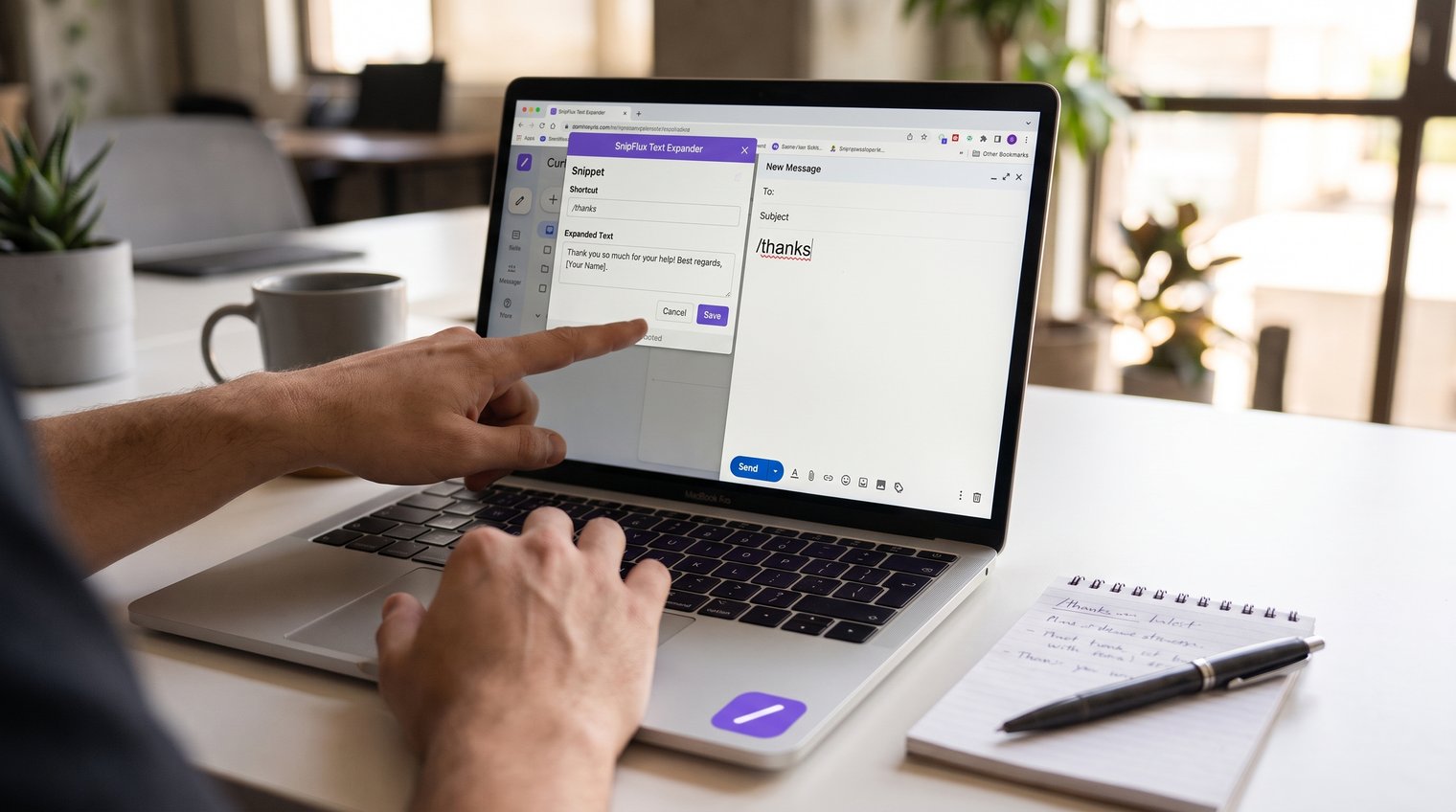
The basic setup is straightforward: create a new snippet, enter the complete text you want to reuse, assign a shortcut, save it, and test it in a real writing field. Start with one response you can use immediately.
For example, a customer follow-up snippet might use /thanks as the shortcut and expand to:
Thanks for reaching out. We have received your message and will follow up with an update as soon as possible. If you have any additional details that may help, feel free to reply here.
Type the shortcut in a test email or plain-text field, confirm that it expands as expected, and then adjust the wording until it matches your usual voice. The shortcut is only useful when the expanded text is ready to use with minimal editing.
SnipFlux
SnipFlux is built for people who repeatedly reuse text across Chrome, macOS, and Windows. You can save replies, links, signatures, instructions, and templates as organized snippets, then expand them with memorable shortcuts. Folders, labels, workspaces, and invitations also make it useful for teams maintaining shared response libraries.
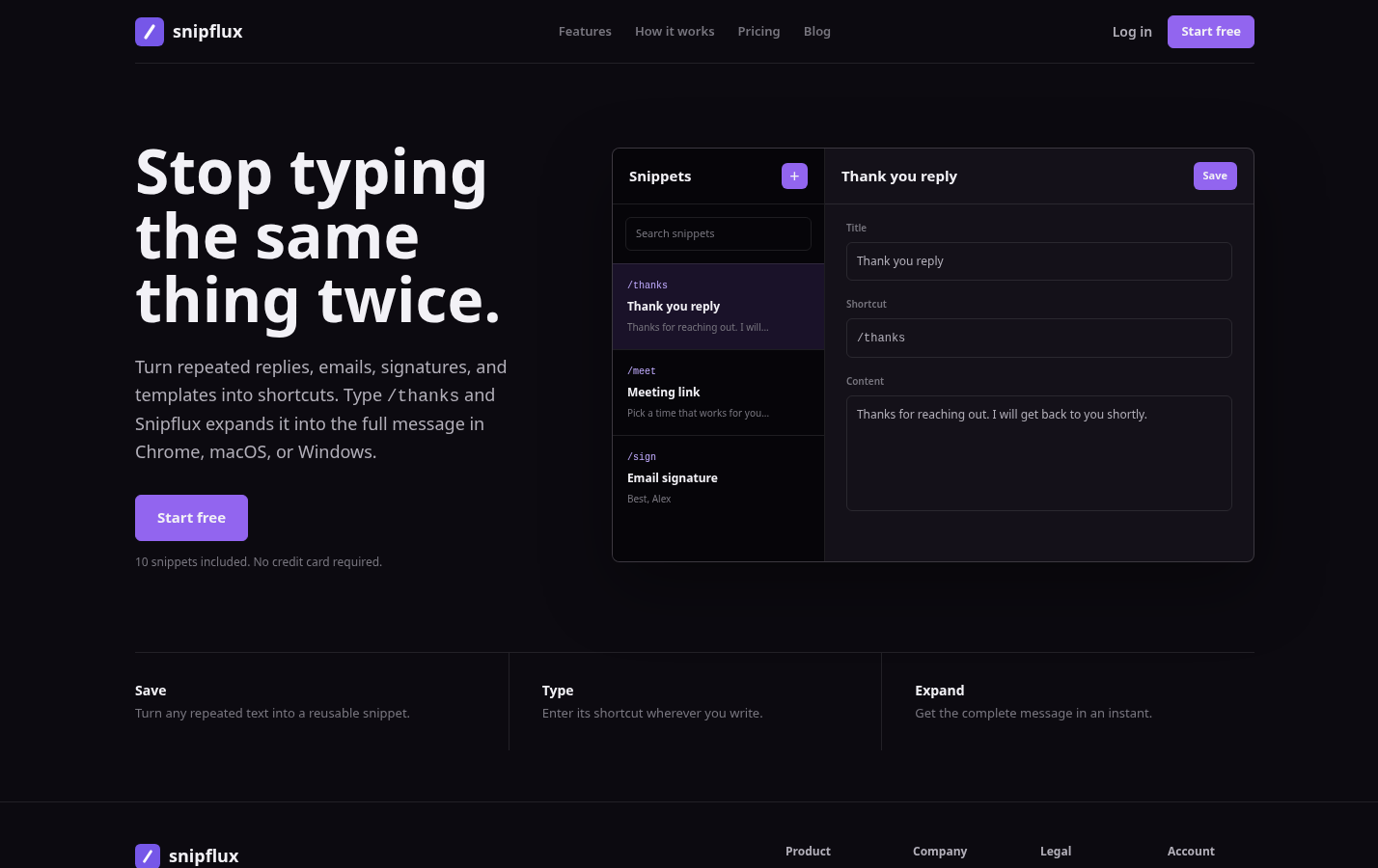
Its best fit is a workflow centered on reusable text and automatic shortcut expansion, rather than a tool intended to write new content for you. Choose it when you want a practical shorthand text expander with an organized library you can use across supported writing fields.
Write snippets that still sound human
A reusable message should contain the stable part of the communication, not every possible detail. Leave intentional blanks for names, dates, order numbers, plan names, and next steps.
For example, write: "Hi [Name], thanks for your message about [topic]. I have checked [order or account detail], and the next step is [next step]." The structure stays consistent, but the message still requires a quick, relevant update.
Do not expand a full reply and send it without reading it. The fastest way to make text expansion feel impersonal is to use a template that does not match the recipient's situation, tone, or history.
Build Shortcuts You Can Recall Without Accidental Expansions
The best shortcuts are memorable, consistent, and unlikely to appear in ordinary writing. Making every shortcut as short as possible is not the goal. A one-character abbreviation is fast, but it can become a nuisance if it expands when you meant to type a normal word.
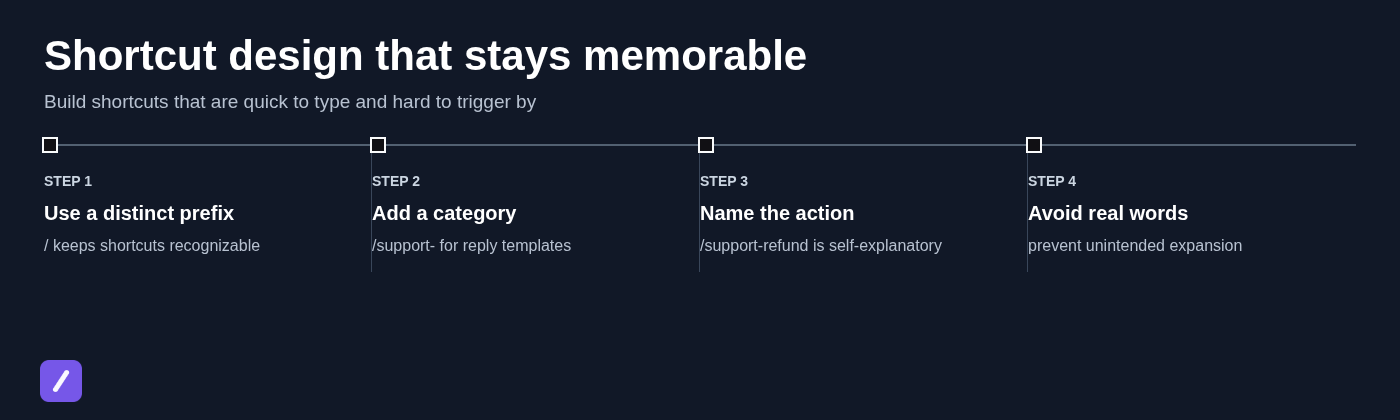
Use a distinctive prefix where your tool supports it, such as a slash or semicolon. Then add a readable category and action. This makes shortcuts easy to guess later and reduces accidental expansion.
Use a simple naming pattern
A practical pattern is prefix + category + action. For example:
- /email-followup for a standard follow-up email
- /support-refund for refund instructions
- /link-demo for a demo or booking link
- /sig-work for a work signature
Keep related snippets consistent. If support replies start with /support-, do not create a similar one called /refundhelp. Consistency matters more than cleverness because you need to remember shortcuts while working quickly.
Avoid common words, initials, and short abbreviations that could appear in normal sentences. A shortcut such as ty may look efficient, but it is far more likely to create an unwanted expansion than /thanks.
Organize Snippets So They Stay Useful
A small snippet library is easy to manage. A library with dozens of unlabeled entries becomes another place to lose time. Create folders, tags, or groups that match the way you work.
Useful top-level groups often include support, sales, operations, personal details, links, signatures, and internal communication. Within a support folder, you might keep subgroups for delivery, billing, refunds, account access, and troubleshooting.
Add a short description when the snippet name or shortcut is not obvious. Then review the library periodically for duplicates, stale links, outdated policies, and responses that no longer match your voice or process. A monthly 10-minute review is usually enough for an individual library.
Separate personal details from shared templates
Personal snippets and shared team templates should not be treated the same way. Your home address, personal signature, direct booking link, and individual preferences belong in a private area. Team-approved refund language, escalation instructions, and current policy explanations belong in a shared library with clear ownership.
Be careful with sensitive information. Do not store passwords, payment details, private customer data, or confidential material in a snippet library unless the selected tool and your company's policy explicitly support the necessary storage and access controls.
Use Placeholders for Messages That Need Personalization
The most effective templates save the stable 80 percent while leaving room for the recipient-specific 20 percent. A placeholder can be a simple manual marker, such as [Name] or [Order Number], or a dedicated fill-in field if your text expander supports one.
Consider this client follow-up before saving it as a snippet:
"Hi, I wanted to follow up after our conversation. Let me know if you have questions."
It is reusable, but too vague. A better version is:
"Hi [Name], thanks again for discussing [project or service] today. As agreed, I will send [next item] by [date]. If anything changes before then, please let me know."
The second version gives you a professional structure while forcing you to add the details that make the message accurate. That is the right balance between speed and personalization.
Test Expansions in the Apps and Browser Fields You Actually Use
Test every new shortcut before relying on it during a busy day. Begin in a plain-text field, then try the same expansion in each important environment: an email compose window, your support platform, CRM notes, document editor, and relevant Chrome-based forms.
Check more than whether the text appears. Confirm that line breaks, links, bullet formatting, punctuation, and special characters arrive correctly. If your snippet includes a signature or multi-paragraph response, make sure it does not create extra spacing or remove formatting in the destination field.
Permissions, browser extensions, app-specific restrictions, and shortcut conflicts can all affect results. Testing early is much easier than discovering that a customer-facing message fails to expand in the one system where you need it most.
Troubleshoot a Text Expander That Is Not Working
When a text expander is not working, start with the fastest checks. Confirm that the tool is running, verify that the snippet is enabled and saved, and make sure you are typing the correct shortcut exactly as configured.
Next, test the shortcut in a simple plain-text field. If it works there but not in a specific application, the issue is probably related to that app, browser field, permission, or security restriction rather than the snippet itself.
Check permissions, extensions, and app conflicts
For Chrome-based workflows, confirm that the relevant browser extension is installed, enabled, and allowed to run on the site where you are testing. Reload the page after changing extension settings.
On macOS, text expansion tools may need accessibility or input-related permissions to work across applications. On Windows, confirm that the application is running in the background and permitted to start when you sign in if that is part of your workflow.
Some fields are intentionally restricted. Password inputs, secure applications, remote desktop sessions, and certain web editors may block text expansion for security or technical reasons. Do not assume a failed expansion in one protected field means the entire tool is broken.
Rule out shortcut collisions and formatting problems
A shortcut can fail because it is too common, because another utility uses the same key combination, or because the expansion contains rich text that a destination field does not accept cleanly. Change one variable at a time so you can identify the real cause.
Create a minimal test snippet such as /testx expanding to Expansion works. Try it in a plain-text editor first. If that works, test it in the problem application. Then try your original snippet again without formatting, links, or special characters.
This method is more reliable than changing several settings at once. It tells you whether the issue is the shortcut, the tool, the destination field, or the content inside the snippet.
Turn a Few Snippets Into a Sustainable Daily Workflow
Once the first few snippets are working, build the library gradually. A useful habit is to create a snippet when you notice yourself typing the same text for the second or third time. That rule keeps your collection focused on real repetition instead of hypothetical needs.
Review your snippets once a month. Remove outdated material, replace old links, merge duplicates, and update shared wording when policies or processes change. A smaller, current library is better than a large archive of text you no longer trust.
Measure the result by practical outcomes: less copy-paste work, fewer missed details, faster replies, and more consistent communication. A huge snippet count is not a goal. Reliable reusable text is.
Make Reusable Text a Reliable Part of Your Workday
Start with the repetition already in your work. Turn one useful response into a tested snippet, assign a shortcut you can remember, personalize the result before sending it, and keep the library organized as it grows.
That sequence is enough to make a text expander genuinely useful rather than another tool you set up once and forget. If you need reusable text and shortcuts across Chrome, macOS, and Windows, explore SnipFlux.