Windows 10 can help you paste copied text, correct a typo, or reuse a template inside certain apps. If you are looking for a Windows 10 text expander built in to the operating system, there is no full system-wide option. What it cannot do is act as a true built-in text expander: a system-wide tool where typing a shortcut like /followup reliably inserts a saved message wherever you work.
That gap matters when you send the same support acknowledgement, sales follow-up, signature, address, or meeting recap several times a week. Copying and pasting works until it becomes another repetitive task to manage.
Does Windows 10 Have a Built-In Text Expander?
No. Windows 10 does not include a native, system-wide text expander for creating arbitrary shortcuts that expand into reusable text across applications.
It does include a few features that can reduce typing: clipboard history, speech input, keyboard shortcuts, predictive suggestions, and app-level tools such as AutoCorrect or email templates. But these are substitutes with narrow use cases, not a unified shortcut-to-snippet system.
If you need to type a trigger in a browser, desktop email client, CRM, chat tool, or document editor and have a saved response appear, you generally need a dedicated Windows text expander program.
Quick verdict
Use Windows features when you occasionally need to retrieve something you copied or reuse text inside one specific application. Choose a dedicated text expander when repeated replies, templates, signatures, and instructions are part of your daily work.
The useful comparison points are simple: where shortcuts work, how much setup is involved, whether snippets can be organized and shared, and what level of cost or technical effort makes sense for you.
What a Text Expander Does That Windows Shortcuts Do Not
A text expander watches for a trigger you define and replaces it with saved text. For example, typing /thanks might expand into a complete customer reply, while ;sig could insert your approved email signature.
The value is not just speed. It is consistency. A customer support specialist can use /received for a polished acknowledgement, a salesperson can use /demo-followup for a standard post-call email, and an operations coordinator can insert a repeatable meeting recap without rebuilding it each time.
A capable text-expansion workflow usually includes custom triggers, a searchable snippet library, folders or labels, and expansion in multiple writing environments. Some tools also support placeholders or variables, which can make templates more flexible, though the exact options differ by product.
Good triggers are deliberately unlikely to appear in normal writing. A prefix such as a slash or semicolon helps prevent an expansion from firing when you meant to type an ordinary word.
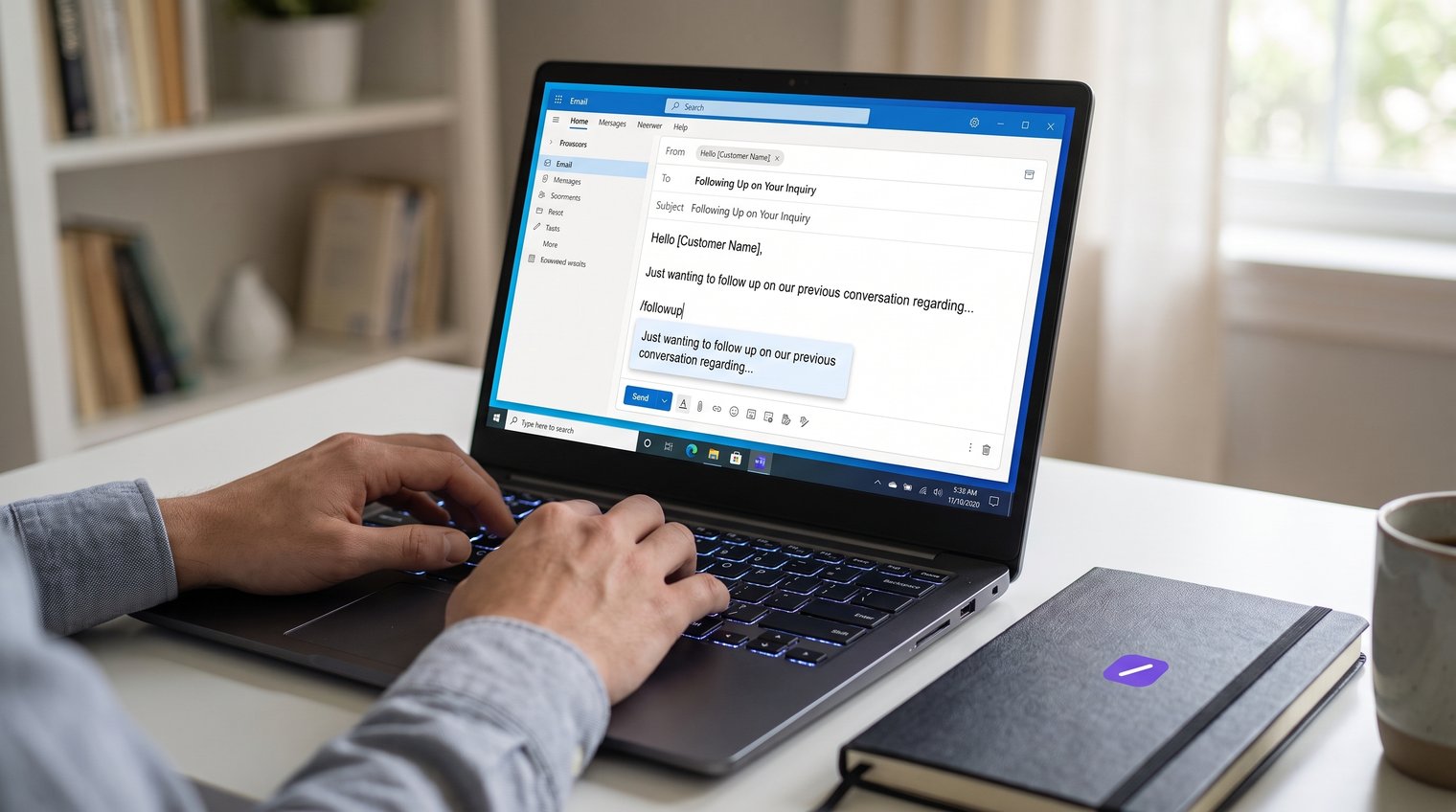
Built-In Windows 10 Options: Useful Workarounds, Not Full Text Expansion
Before downloading anything, it is worth using the Windows features you already have for the jobs they handle well. Just do not expect them to replace an organized, cross-app snippet library.
Clipboard history
Windows clipboard history, opened with Win + V after it is enabled, is useful when you recently copied several items and need to retrieve one again. It can save you from switching back to a document just to copy the same paragraph a second time.
Its limitation is fundamental: clipboard history requires manual retrieval and pasting. It does not turn a typed trigger into a template, and it is not designed as a durable collection of named shortcuts tied to specific messages.
Touch keyboard text suggestions and emoji panel
Text suggestions and the emoji panel can speed up short messages in supported situations. They are useful input aids when you need a word completion, symbol, or emoji without interrupting your typing flow.
They are not dependable tools for maintaining custom long-form replies across desktop applications. Their availability and behavior can vary by Windows settings, application, and input context, so they should not be treated as a replacement for reusable snippets.
App-specific AutoCorrect, Quick Parts, and templates
Microsoft Office applications and many email, help-desk, and CRM tools offer their own ways to reuse content. AutoCorrect can handle small replacements, while templates and features such as Quick Parts can be effective inside the application where they were created. For Outlook-specific shortcuts, see this guide to Text Expander for Outlook: Set Up Shortcuts for Reusable Emails.
The trade-off is fragmentation. A template stored in an email client does not automatically follow you into a browser-based support desk, a chat application, or another writing tool. If your repeated text appears in several places, app-specific tools create separate libraries to maintain.
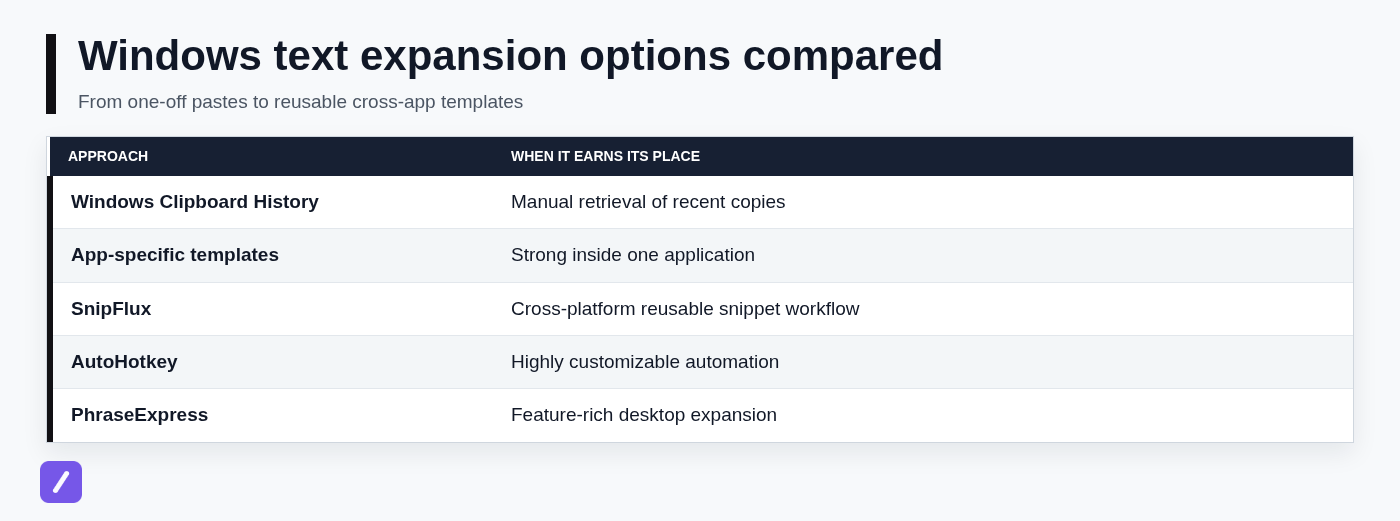
Comparison Matrix: Which Windows Text Expansion Route Fits Your Work?
The right route depends less on the number of features and more on how often you reuse content and where you need it to work. The table below uses plain labels: Yes means the approach is intended for that purpose, Limited means it can help in narrower situations, and No means it is not the normal use case.
| Option | Typed-trigger expansion | Cross-app use | Long templates | Organization and sharing | Cost model |
|---|---|---|---|---|---|
| Windows Clipboard History | No | Limited | Limited | No | Included with Windows |
| App-specific templates | Limited | No | Yes | Limited | Usually included with the app |
| SnipFlux | Yes | Designed for Windows, macOS, and Chrome workflows | Yes | Shared team templates | Check current plans |
| AutoHotkey | Yes | Windows-focused | Yes | Manual script management | Free |
| PhraseExpress | Yes | Desktop-oriented | Yes | Feature-rich configuration | Check current plans |
| TextExpander | Yes | Dedicated multi-app workflow | Yes | Built for organized reusable content | Check current plans |
Plans, platform support, and product capabilities can change, so confirm the current documentation for any option before making a purchasing decision.
Dedicated Windows Text Expander Options
Dedicated tools solve the problem Windows 10 leaves open: turning your repeated text into an accessible, reusable shortcut workflow. They differ most in simplicity, automation depth, organization, and whether you work on more than one platform.
SnipFlux
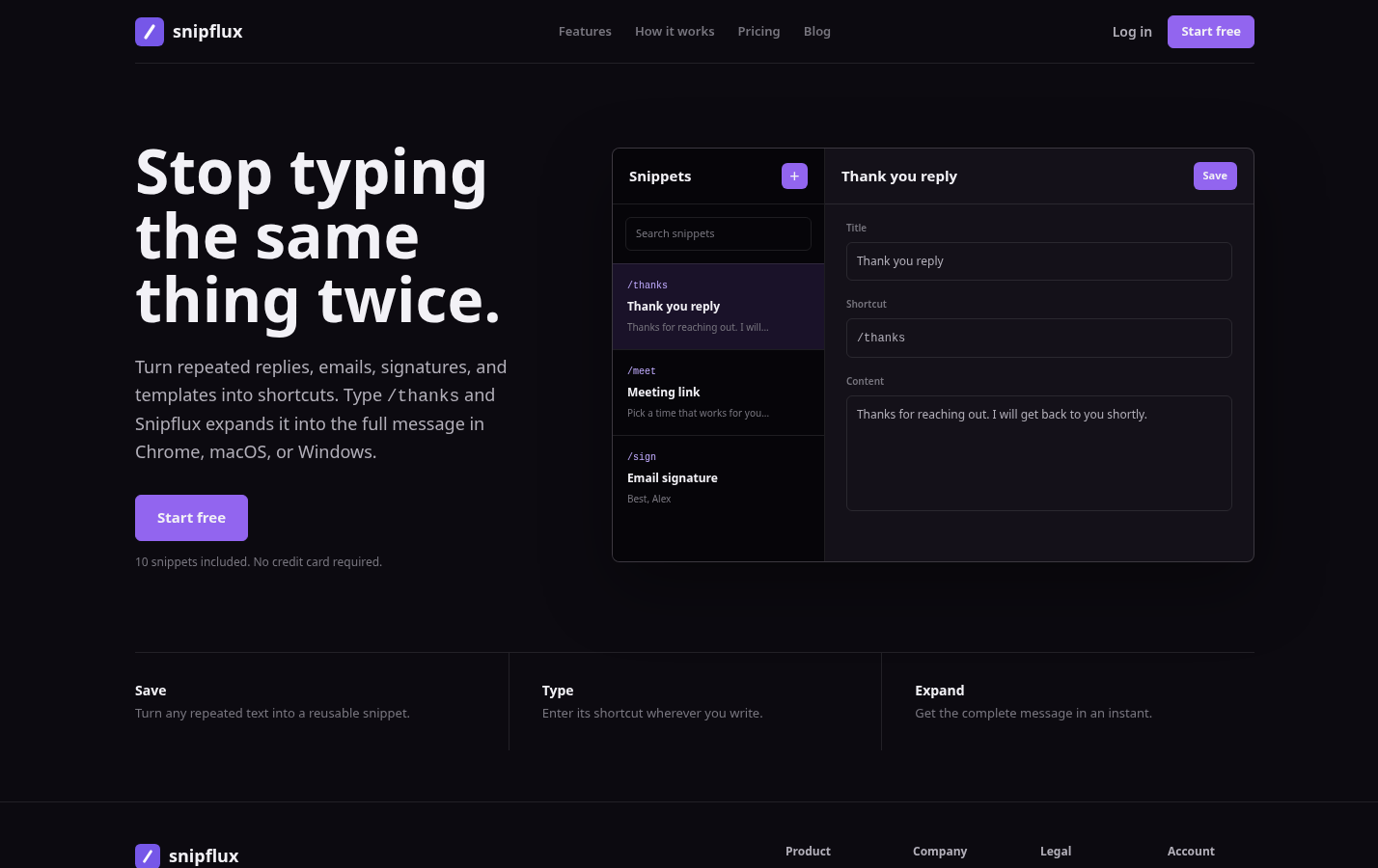
SnipFlux is built around a straightforward idea: save useful text as a snippet, assign a memorable shortcut, and expand it while writing. It is a practical fit for repeated replies, email templates, signatures, instructions, links, and other text that should be consistent without being copied from a separate document.
Its cross-platform focus is particularly useful for people who move between Windows, macOS, and Chrome-based work. If your repeated writing happens mainly in Chrome, this guide to Google Chrome Auto Text Expander: Set Up Shortcuts for Repeated Text covers that workflow in more detail. A support team can organize standard answers as shared templates, while an individual can keep personal signatures and frequently used notes in the same searchable library.
The trade-off is that SnipFlux is aimed at reusable text management, not complex scripting or broad desktop automation. If your real goal is to automate multi-step Windows actions through code, a scripting tool may be a better match. Confirm current plans and supported environments before choosing.
PhraseExpress
PhraseExpress is a desktop-oriented option for people who want extensive configuration and more automation-style control around their text expansion workflow. It can suit users whose repetitive work goes beyond a few simple replacement shortcuts.
Its depth is the advantage and the limitation. More settings and controls can support complex personal desktop workflows, but they can also require more setup time than a basic shortcut-to-snippet system.
Pick it if you want to invest time in detailed configuration. It is less compelling if your team simply needs a clean shared library of common replies and signatures with minimal administration.
AutoHotkey
AutoHotkey is a free Windows automation and scripting approach that can be used to create text replacement workflows. For technically comfortable users, a script can turn typed abbreviations into longer text and can be extended into much broader automation.
The honest trade-off is maintenance. You need to write, understand, update, and troubleshoot scripts. That makes AutoHotkey powerful, but it is not a ready-made snippet manager for someone who wants to create and organize templates without coding.
It is the strongest free path when customization matters more than convenience. It is usually the wrong starting point for nontechnical teams that need easy collaboration and dependable day-to-day content upkeep.
TextExpander
TextExpander is an established dedicated snippet-management product for people and teams that need organized reusable content. It is relevant when consistency, shared language, and a formal process for maintaining common responses matter as much as reducing keystrokes.
Evaluate it based on its workflow and pricing fit rather than assuming that a larger feature set is automatically better. A team with many approved support responses may benefit from a mature snippet-management approach, while a single Windows user who only needs lightweight text replacement may prefer something simpler.
Check its current plans and platform details directly before committing, especially if you are deciding between an individual setup and a team-wide rollout.
How to Choose a Text Expander for Windows 10
Do not start by comparing every feature page. Start with the actual writing environments where repetition happens. A tool that works beautifully in one email client but not in your browser-based help desk may not solve the problem you are trying to fix.
Then decide whether your snippets are personal or shared. Personal snippets can be informal and highly tailored; shared snippets need owners, naming conventions, and regular review so outdated language does not keep appearing in customer-facing messages.
Finally, choose the appropriate level of effort. Plain-text replies and signatures need a simple snippet tool. Structured templates may need placeholders. Complex desktop automation may justify scripting, but scripting is unnecessary overhead for most common-response workflows.
Choose Windows workarounds if repetition is rare
Use clipboard history if you only occasionally need to paste something you copied recently. Use application-native templates or AutoCorrect if the repeated text stays inside one program, such as Outlook or Word.
This is the lowest-effort route, but it does not create a durable trigger-based text expansion system. Once you need the same content in multiple apps, the limitations become obvious.
Choose a free text expander approach if budget matters most
AutoHotkey can be a viable free option for Windows users who are comfortable working with scripts. It gives you meaningful flexibility without requiring a paid subscription.
But free software is not always free in time. Consider how often templates change, whether colleagues need access, and whether you are willing to maintain your own automation. A dedicated app may be more efficient when the workflow needs to be reliable for a whole team.
Choose SnipFlux if you need simple reusable snippets across devices
Choose SnipFlux if you want shortcut-based saved text across Windows, Chrome, and macOS without making scripts the center of your process. It fits people who repeatedly use replies, email templates, signatures, links, and internal instructions and want those items organized in one place.
It is also a sensible option when shared team libraries matter. The fit is less direct for users whose primary requirement is programming-style automation rather than reusable writing content.
Set Up Your First Windows Text Expansion Workflow
A good text expander can save time quickly, but only if the initial library is focused. Start with the messages that already interrupt your day instead of trying to document every sentence you have ever written.
Start with five high-frequency snippets
Pick text you use several times a week. A useful first set might include an email sign-off, a booking confirmation, a support acknowledgement, a standard follow-up, and a meeting recap skeleton.
- /received for a customer acknowledgement
- /followup for a post-call sales email
- /booked for a scheduling confirmation
- /recap for a meeting summary structure
- /sig for a complete signature
Avoid importing hundreds of old templates immediately. Test a small set in your real workflow first, then add snippets only when you notice repeated typing or repeated copy-and-paste.
Create triggers that will not expand by accident
Use a consistent prefix such as / or ;. For example, /support-refund is safer and easier to remember than a normal word such as "refund," which could appear in an ordinary sentence.
Use naming patterns that reveal purpose at a glance. You might reserve /work- for team-approved text, /personal- for your own material, and /sales- or /support- for role-specific templates. Avoid triggers that conflict with application shortcuts or normal writing.
Review, organize, and protect reusable content
Group snippets by workflow: support, sales, recruiting, operations, personal administration, or whichever categories reflect your day. Folders and labels are useful only when they reduce search time, so keep the structure simple enough to maintain.
Review client-facing snippets periodically. Update old product references, expired offers, outdated policy wording, and names of former contacts. Shared text is a living resource, not a one-time setup task.
Do not treat an ordinary snippet library as a password vault. Avoid storing passwords, security answers, or confidential information unless your selected tool and your organization's security practices explicitly support that use.
The Practical Answer for Windows 10 Text Expansion
Windows 10 has useful input aids, but it does not have a built-in, system-wide custom text expander. Clipboard history helps with recent copies, and app-native templates can work well in one place, but neither provides an organized shortcut-to-snippet workflow across your everyday tools.
Pick Windows workarounds if you rarely reuse text. Pick AutoHotkey if you want a free, highly configurable Windows approach and are comfortable maintaining scripts. Pick a dedicated text expander if repeated replies, templates, and signatures are part of your normal work.
Pick SnipFlux if you want simple saved snippets and memorable shortcuts that support writing across Windows, Chrome, and macOS, with an organized library for personal or shared content. Explore SnipFlux to see whether that workflow fits the text you repeat every day.