A vague bug report slows everyone down. The fastest way to move a support case forward is to ask for a few specific pieces of evidence in a clear, reassuring email: what the customer saw, the exact error, a useful screenshot, and the steps that led to it.
The templates below help you request screenshots and error details without making customers feel as though they are being asked to troubleshoot the product for you.
What to include when requesting screenshots and error details
A good support follow-up asks for the exact error text, a full-screen screenshot, the page or action involved, when the issue occurred, and the steps needed to reproduce it. Those details give your team a much better chance of finding the cause without sending several more emails.
The goal is not to hand the customer a technical checklist. It is to guide them through a simple description of what happened. A short explanation helps: tell them that the information will help your team recreate the problem and investigate it properly.
Think of this as a support follow-up, not a generic professional inquiry. Your message should acknowledge the inconvenience, explain what you need, and make replying feel easy.
The copy-and-paste email template
Use this primary template when you need enough context to investigate a reported problem. Replace the bracketed fields and remove anything that does not apply to the case.
Subject: A few details to help us investigate [product area/issue]
Hi [Customer Name],
Thanks for letting us know about the issue with [product area]. I am sorry you ran into this. To help our team investigate and reproduce the problem, could you please send the following when you have a moment?
- What you were trying to do: For example, the page you opened or action you selected.
- What happened instead: A brief description of the result you saw.
- The exact error message: Please copy and paste the text if possible.
- A full-screen screenshot: Please include the browser or app window, the error message, and the page or screen where it occurred.
- Steps leading up to the issue: What you clicked or entered immediately before the error appeared.
- Approximate time it happened: This can help us match the event to our records.
If relevant, please also let us know which device, browser, and operating system you were using.
Before sending a screenshot, please redact or hide any passwords, payment details, API keys, one-time verification codes, or other sensitive information. Once we have these details, we will take a closer look and update you.
Thank you,
[Your Name]
[Support Team]
This template explains why you are asking and gives customers concrete examples. Once approved, save it in SnipFlux as a reusable snippet with editable placeholders so agents can personalize it without rebuilding the request.
A shorter bug report acknowledgement template
For an initial response, ask for only the highest-value evidence: a screenshot, the exact error message, and the steps immediately before the failure. This is the better option when the report is new, the customer appears frustrated, or a longer list could discourage a reply. For more guidance on acknowledging the initial report, see this bug report acknowledgement email template.
Subject: Re: [brief issue description]
Hi [Customer Name],
Thanks for reporting this, and sorry for the trouble. Could you reply with:
- A screenshot of the issue, including the full browser or app window if possible
- The exact error message, copied and pasted
- What you clicked or did immediately before the error appeared
Please hide any sensitive information before sending the screenshot. Once we have those details, we will investigate further.
Best,
[Your Name]
Do not send the full diagnostic checklist by default. Start small when the case is simple or the customer has already supplied useful context. You can request browser details, timestamps, or a recording later if the initial evidence does not reveal enough.
Ask for the details in an order customers can follow
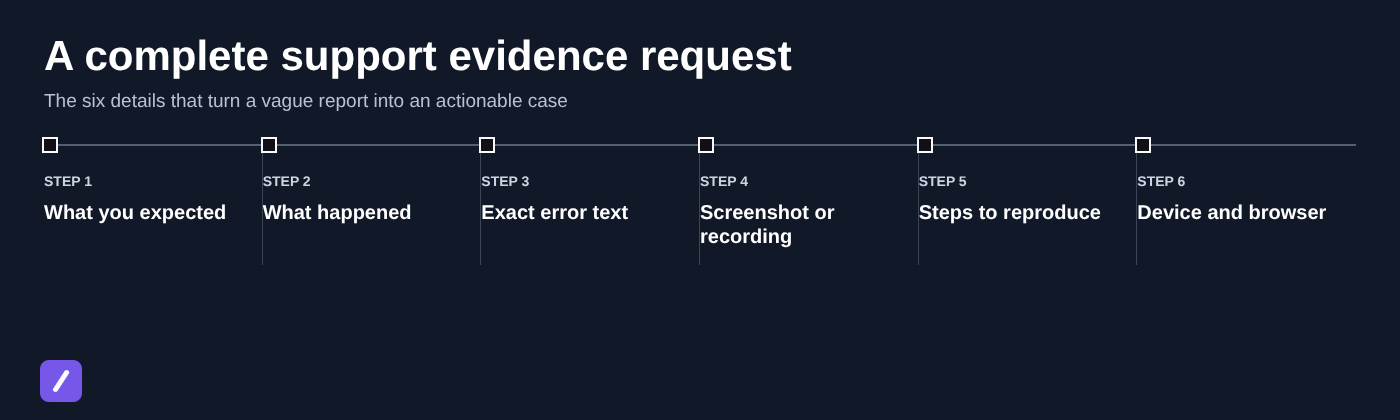
Request details in the order the customer experienced the issue: what they expected, what happened, where it happened, a screenshot and exact error text, then the steps they took. A screenshot, error message, and reproduction steps are usually essential; browser, device, account role, network, and timing details can be requested when needed.
How to request a useful screenshot
Ask for a full browser or app window, the visible error message, and the screen state immediately before or during the failure. For website issues, request the page URL when it is safe to share. A full view preserves context such as the page address, navigation state, and surrounding messages; you can say, "If possible, please include the entire browser window and the error message so we can see what happened just before the issue occurred."
If a screenshot is not possible, offer an alternative. The customer can copy the error text, describe the screen they were on, or send a short screen recording. A recording is particularly useful for intermittent failures, multi-step workflows, and errors that disappear before someone can capture them.
How to ask for error details and reproduction steps without technical jargon
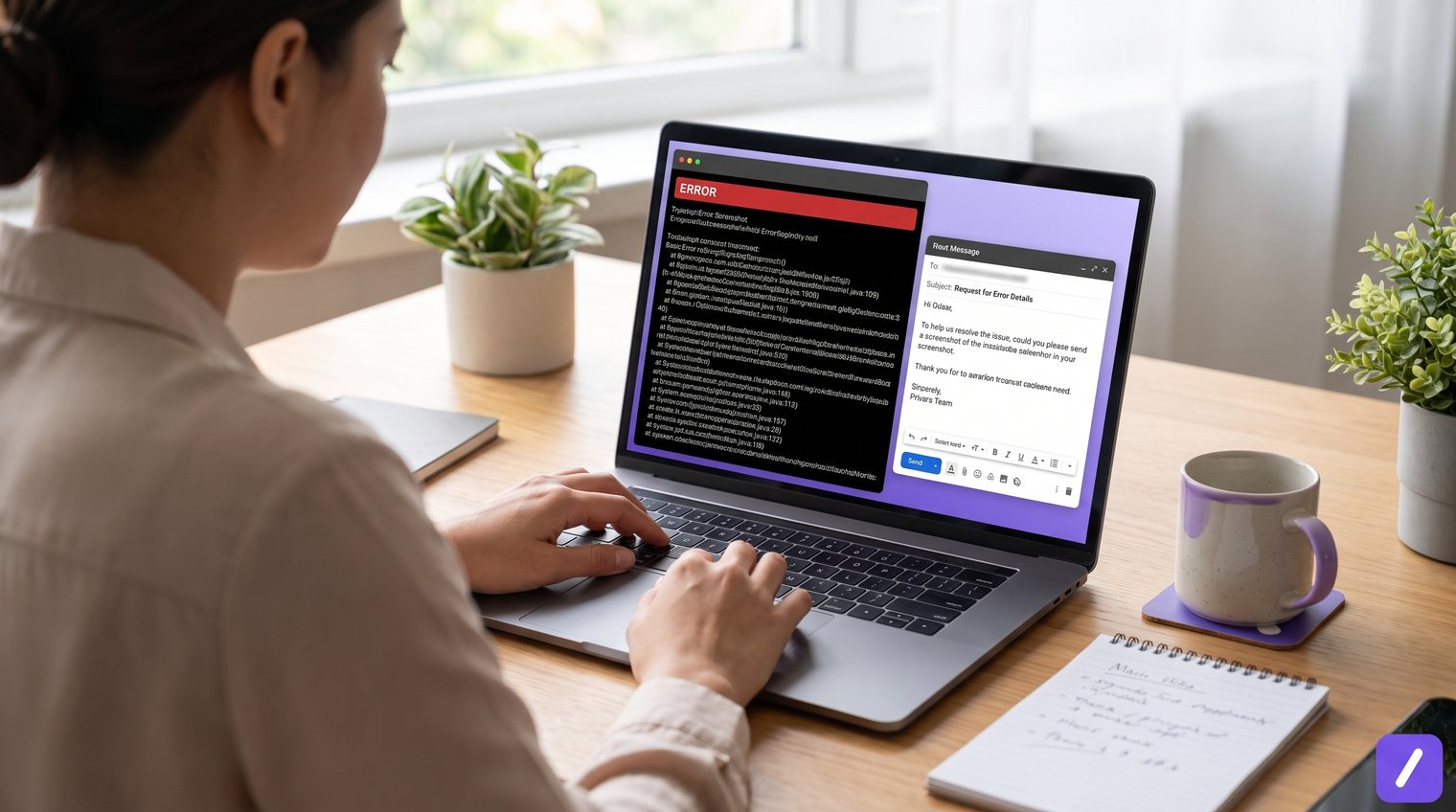
Customers do not need to know what a reproduction step is. Ask them what they clicked, what they expected to happen, and what happened instead. That wording gets the same information while keeping the request approachable.
For example, instead of asking for "reproduction steps," write: "Could you tell us the steps you took right before the error appeared?" Instead of asking for "environment details," say: "Please let us know whether you were using a phone, tablet, or computer, along with the browser or app version if you can find it."
Useful prompts include:
- "What were you trying to accomplish when this happened?"
- "What did you expect to happen?"
- "What happened instead?"
- "Which browser and device were you using?"
- "About what time did you notice the issue?"
- "Were you signed in as an administrator, team member, or another account type?"
Logs and browser console output can be valuable, but they are not appropriate for every customer. Request them only when the recipient is technical, when your support process provides clear instructions, or when the basic evidence has not been enough. For most cases, a screenshot, error text, and clear sequence of actions should come first.
Adapt the template for common support situations
The best customer service email response samples are selective. A mobile app issue needs different details than a website problem, and a client clarification email should not read like a bug report. Ask only for information that can change the next step in your investigation.
Website or browser issue
For a website problem, request the page URL, browser name and version, a full-screen screenshot, and the steps leading to the error. If browser behavior is suspected, you can also ask whether the issue happens in a private window or with extensions disabled.
Keep that last request conditional. Do not ask a customer to troubleshoot extensions unless it is likely to help and you can explain the purpose: "If you are comfortable trying it, please let us know whether the same issue occurs in a private browsing window."
Mobile app issue
For a mobile app issue, ask for the device model, operating system version, app version, screenshot or short recording, and the actions taken before the problem appeared. Connection type can matter for sync, upload, and loading issues, so ask whether the customer was on Wi-Fi or mobile data when relevant.
A concise request might say: "Please share your phone model, iOS or Android version, app version, and a screen recording if the issue is easier to show than describe."
Missing information from a client
When a client message lacks the details needed to move a project forward, shift from troubleshooting language to straightforward clarification. Ask for the specific asset, approval, access, deadline, or decision you need. If the missing information involves an approved change to project requirements, this scope change request email template can help structure the request.
Subject: Details needed to proceed with [project/task]
Hi [Client Name],
Thanks for the update. To move forward with [project/task], could you please send or confirm the following?
- [Specific file, asset, or access needed]
- [Approval or decision required]
- [Relevant deadline or preferred delivery date]
- [Any requirements, examples, or brand guidance we should follow]
Once I have those details, I can proceed with the next step.
Best,
[Your Name]
This kind of professional email inquiry works because it makes the dependency clear without sounding accusatory. Avoid vague wording such as "Please provide more information." Name exactly what is missing and why it matters.
Make the request easy and safe to complete
Use short bullets, one action per line, and a calm tone. Customers are more likely to provide complete information when they can scan the request and respond point by point.
Only include a deadline when it is genuinely necessary, such as a time-sensitive outage or a pending project handoff. If you need a response by a particular time, explain the reason briefly instead of making the request feel arbitrary.
Privacy deserves equal attention. Customers should never send passwords, one-time codes, full payment card numbers, private keys, or unredacted personal data. If a screenshot may expose sensitive account information, offer a secure upload route or another approved channel rather than asking them to attach it to email.
Also consider whether a screenshot is needed at all. For an account-access issue, the exact error text and approximate time may be safer and more useful than an image containing personal details.
Save the template as a reusable support snippet
A proven evidence-request email should not have to be rewritten from scratch every time. Save the approved version with editable placeholders for the customer name, affected product area, and requested details, then remove irrelevant bullets before sending.
Teams handling frequent follow-ups can use a text expander such as SnipFlux to insert a consistent request from a shortcut across Chrome, macOS, and Windows. An agent can expand the template, personalize the case details, and keep the final message human rather than robotic.
For example, a shortcut such as /evidence can insert your standard request for a screenshot, error text, and reproduction steps. Keep separate snippets for browser issues, mobile issues, and client clarification requests so agents start with the right version.
Send a focused request, then investigate faster
A strong request for screenshots and error details combines empathy, a brief explanation, and only the evidence needed to understand or reproduce the issue. Customers should know what to send, why it helps, and how to do so safely.
Use the main template as a starting point, not a script that must be sent unchanged. Shorten it for simple reports, adapt it to the product or channel involved, and make every requested detail earn its place in the email.