A Gmail email signature should make your message easier to act on, not turn every email into a miniature brochure. The best ones are short, readable on a phone, and consistent enough that recipients immediately know who they are hearing from.
Gmail can handle your standard identity block well. For different sign-offs, follow-ups, and repeated replies, a separate reusable-text workflow is usually faster and less cluttered.
Set up a Gmail email signature on desktop
In Gmail on a desktop browser, click the gear icon in the upper-right corner, then select See all settings. Stay on the General tab and scroll down to the Signature section.
Click Create new, give the signature a clear name such as "Full client signature" or "Short reply signature," and enter the text you want to use. Gmail's editor lets you add basic formatting, links, and images, but restraint matters more than decoration.
Below the editor, choose which saved signature Gmail should use for new emails and for replies/forwards. Scroll to the bottom of the settings page and click Save Changes. This last step is easy to miss, and Gmail will not apply the new setup until you save it.
Gmail can store multiple signatures, but it inserts only the signatures selected as your defaults. Creating a signature alone does not make it appear automatically.
Gmail Help signature settings
Choose the right default signature for new emails and replies
Use separate defaults for new conversations and replies. A new message often benefits from a fuller identity block: your name, role, company, and one contact route. In a reply chain, that same block can become repetitive noise after a few messages.
A good default is a full signature for new emails and a shorter signature for replies, such as your name and role only. If your team communicates in long internal threads, choosing No signature for replies can be the cleanest option.
The goal is not to force a signature into every message. It is to give a recipient the information they need without making a thread harder to scan.
Use the signature picker when one default does not fit every message
When composing an email, use the signature icon in the bottom toolbar to switch to another saved signature or remove the current one. This is useful when a default is close but not appropriate for the recipient or purpose.
Practical signature variants include:
- Client-facing: full name, role, company, direct contact method, and a relevant meeting link.
- Internal: name, team, and perhaps an extension or Slack handle if your organization uses one.
- Personal: name and personal contact details, without employer branding.
- Campaign-specific: a temporary version with one relevant event or resource link.
Do not turn every campaign into a permanent default. Temporary promotions in old email threads look dated quickly.
Build a professional signature that is easy to scan
A good Gmail signature is not the most elaborate one. It gives the recipient immediate confidence about who you are and a simple way to respond, call, visit a site, or book time if that is relevant.
Start with a clear hierarchy: name first, then role and company, then one or two useful contact methods. Add one optional link or call to action only if it serves the recipient. Most people need less than they think.
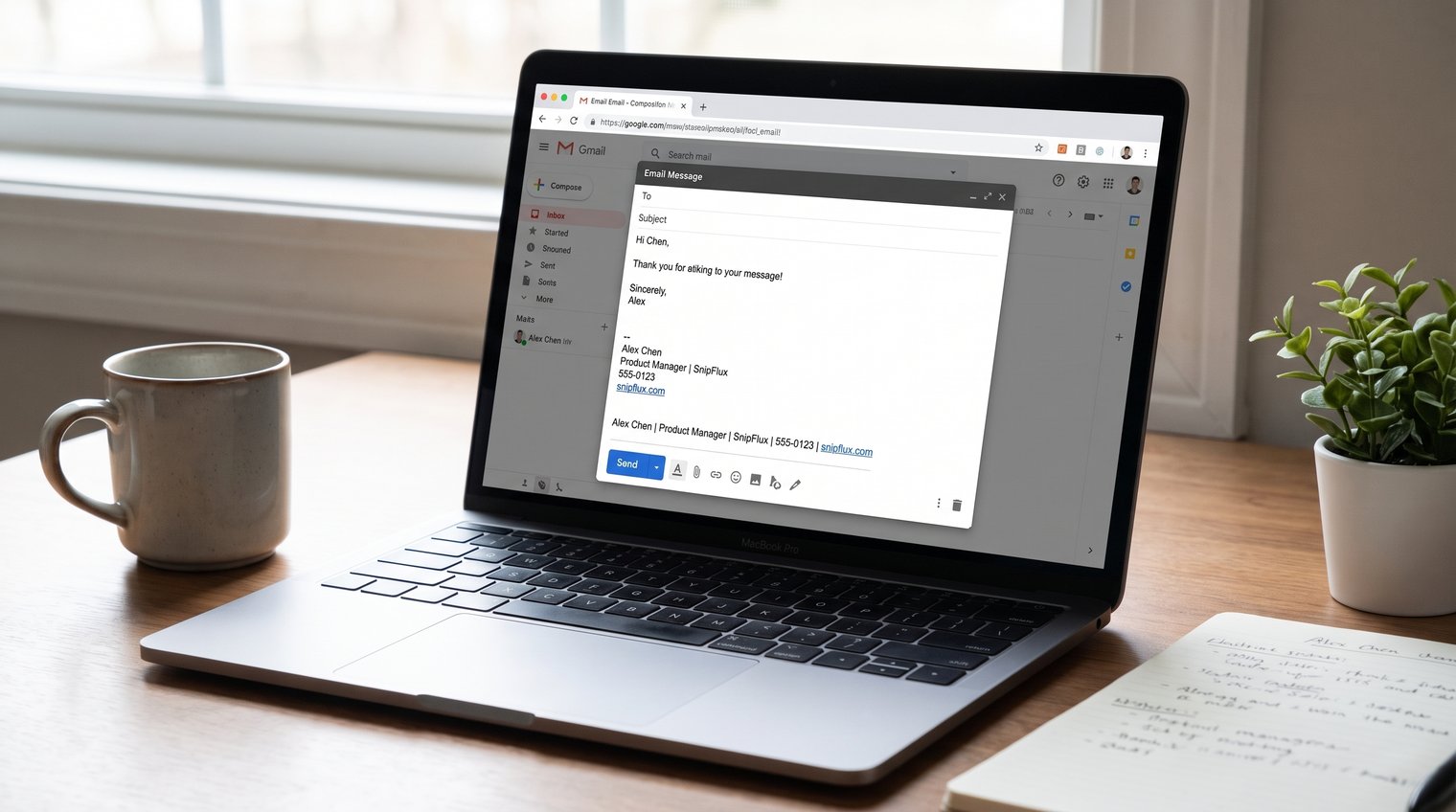
For example, this is more useful than a block of logos and social icons:
Jordan Lee
Customer Success Manager | Northstar Analytics
(555) 014-8821
northstaranalytics.com
It is visually simple, but it answers the important questions: who sent this, what do they do, and how can I reach them?
A simple professional Gmail signature template
Copy this template into Gmail and replace the placeholders:
[Your Name]
[Job Title] | [Company Name]
[Phone Number] | [Website]
[Optional: Book a meeting]
Use a plain-text or lightly formatted signature when you email people across different devices, mail clients, and corporate security systems. It is more likely to render correctly than a graphic-heavy design, and it remains readable when images are blocked.
A logo can be appropriate for a customer-facing role, but it should support the information rather than replace it. If the recipient cannot identify you when images fail to load, the signature is too dependent on design.
Keep formatting, links, and images reliable
Use one familiar font, a readable size, and no more than one restrained accent color. Gmail recipients should not have to zoom in to read your phone number or decipher a light gray title against a white background.
Make websites, calendar links, and social profiles clickable. Then send yourself a test email and click each link from both a desktop and phone. A link that looks correct in the editor can still be broken, redirected unexpectedly, or wrapped awkwardly in a received message.
If you use an image, keep it small and test whether it loads for an external recipient. Add descriptive alt text where your setup supports it, and do not use an image as the only place your name, role, or phone number appears.
Common mistake: pasting a signature from Word, a website, or a design tool often imports hidden formatting, oversized spacing, unfamiliar fonts, and unnecessary tracking links. Build the signature directly in Gmail when possible, or paste plain text first and format it there.
Avoid signature mistakes that make emails harder to read
Email signature etiquette is mostly about respecting attention. Your signature should identify you and offer a useful next step, not compete with the message itself.
- Skip oversized logos. A logo taller than several lines of text pushes the actual message down, especially on mobile.
- Limit social icons. One relevant profile can be useful. A row of six tiny icons rarely is.
- Avoid long legal disclaimers. If your organization requires one, use the approved version, but do not add legal language voluntarily.
- Leave out motivational quotes. They can be distracting, personal, or inconsistent with your company voice.
- Use one CTA at most. "Book a meeting" is enough; do not also ask readers to follow, subscribe, download, and register.
- Keep information current. Old titles, departed coworkers, stale promotions, and dead links undermine trust.
- Do not use tiny type or low-contrast colors. If it is difficult to read, it is not professional.
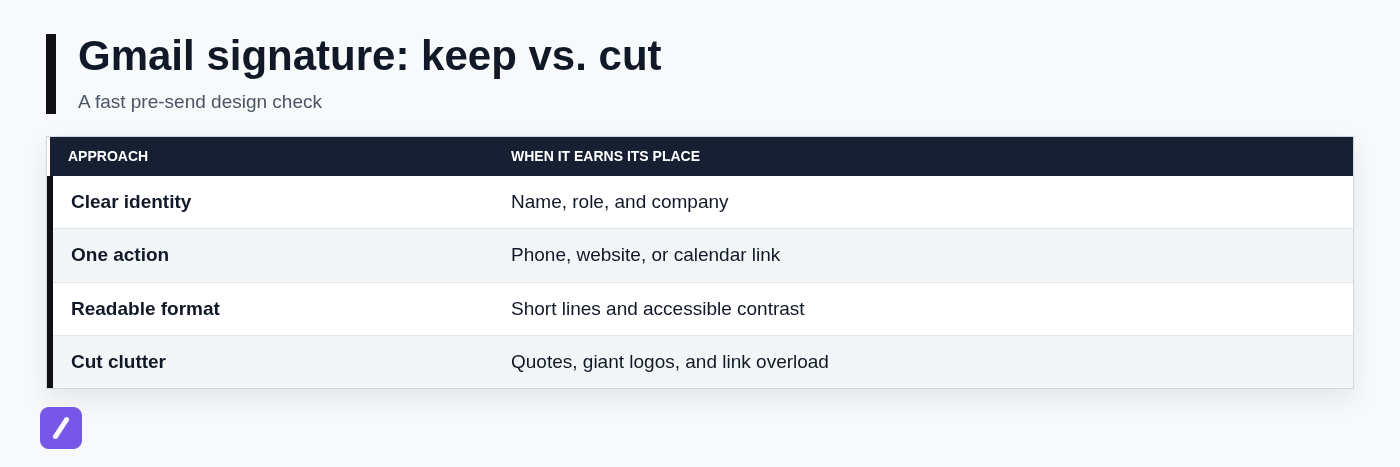
The best email signature is the one that fits its job. For most professionals, that means a compact signature with clear identity, accurate contact information, and no visual clutter.
Make your Gmail signature appear automatically
After choosing and saving your defaults in the Signature section, Gmail adds the selected signature to new messages or replies. You can still remove it or choose another saved signature from the compose toolbar for an individual email.
If a signature does not appear, check these likely causes:
- You are composing from a different Gmail account than the one you configured.
- The new-message or reply default is set to No signature.
- You created the signature but did not save changes at the bottom of the page.
- You are composing in plain-text mode, which can affect formatting.
- A browser extension is altering Gmail's compose window.
- Your work account has an administrator policy that affects signatures.
Test by opening a completely new compose window after saving. Do not judge the setting from an older draft, which may retain its original signature state.
Understand the two dashes above a Gmail signature
The two dashes, usually shown as --, are a common email signature separator. They distinguish the signature from the message body and can help mail clients recognize quoted material in replies.
Seeing the separator is normal, particularly in plain-text messages or when a recipient's email client displays standard signature formatting. It can also affect reply trimming, where an email client hides or collapses content below the separator to keep long conversations manageable.
If you manually typed two dashes at the top of your signature, remove them from the signature editor if you do not want them. Also check for pasted formatting that may have included them. Do not rely on browser hacks or fragile formatting tricks to suppress behavior controlled by Gmail or the recipient's mail client.
In most business email, the separator is harmless. Focus on whether your signature remains readable and whether important message content appears above it.
Create signatures for common email situations
One signature does not fit every conversation. Choose the version that matches the relationship, message length, and action you want the recipient to take.
Client-facing and sales signatures
For client conversations and sales outreach, use a signature that provides confidence and a direct route to continue the conversation. Include your full name, role, company, and one relevant action such as a phone number or calendar link.
For example:
Maya Patel
Account Executive | Cedar CRM
(555) 013-1048
Choose a time that works for you
Keep promotional language measured. "Choose a time that works for you" is more useful than a large banner announcing every product update. If you add a campaign link, remove it once the campaign ends and measure it only when tracking genuinely serves a business purpose.
Internal and reply signatures
Internal messages rarely need a full marketing-style footer. A simple name and team is usually enough:
Maya
Revenue Team
You may hear a "3 email rule" described as a rule that changes how emails should be signed after three messages. There is no universal formal rule. The practical lesson is sound, though: once a thread has several exchanges, reduce repeated context so the latest question and answer stay visible.
For replies, use a shorter signature or no signature at all when your identity is already clear in the thread. That keeps long discussions from turning into stacks of repeated logos, phone numbers, and disclaimers.
Warm, fun, and formal sign-offs
A warm closing is polite, human, and appropriate to the relationship. "Warmly," "Thanks again," "Take care," and "Looking forward to it" work well when the rest of the email supports that tone.
For a friendly professional email, try:
- Thanks,
- Warmly,
- Appreciate your help,
- Looking forward to it,
- Have a great weekend,
A fun ending can work with colleagues or familiar clients, but keep it light and recognizable. "Cheers," or "Onward," may fit a casual workplace; a joke or emoji-heavy sign-off can misfire with a new contact, senior stakeholder, or formal audience.
Avoid passive-aggressive closings and phrases that sound like a reprimand. "As noted below," "Per my last email," and "As previously explained" often read as hostile even when the writer is frustrated. State the needed information directly instead: "The deadline is Thursday, September 12. Please let me know if that creates a conflict."
Opening lines are separate from signatures. If you want a funny email start, make it specific and low-risk, such as "I hope your inbox is being kinder to you than mine today." Use it only where an informal relationship makes it welcome.
Reuse sign-offs and short templates faster than Gmail allows
Gmail signatures are useful for a small set of formal identity blocks. They are not ideal for every repeated reply, meeting follow-up, availability note, support acknowledgment, or context-specific closing you send during the day.
A text expander solves that workflow gap. Save reusable blocks under memorable shortcuts, insert them when needed, personalize the details, and then send. For a broader overview of choosing a text snippet manager, compare the features that matter for this kind of workflow.
Use Gmail signatures for identity and snippets for message-specific text
Use a simple decision rule: permanent identity details belong in Gmail signatures; reusable message content belongs in snippets; sensitive or recipient-specific details should never auto-expand without a review.
For example, your Gmail signature can contain your name, role, and company. A snippet can handle a repeated closing such as:
"Thanks again for your time today. I will send the updated proposal by Thursday."
Other useful reusable blocks include:
- /followup: a polite meeting follow-up with placeholders for the next step and date.
- /availability: a short availability note with your preferred meeting window.
- /supportreceived: an acknowledgment that a request was received and when the customer can expect an update.
- /thanks: a warm, concise sign-off for routine emails.
Always replace placeholders, verify dates, and confirm the recipient before sending. Automation should reduce typing, not reduce judgment.
Use SnipFlux to keep reusable sign-offs available across Chrome, macOS, and Windows
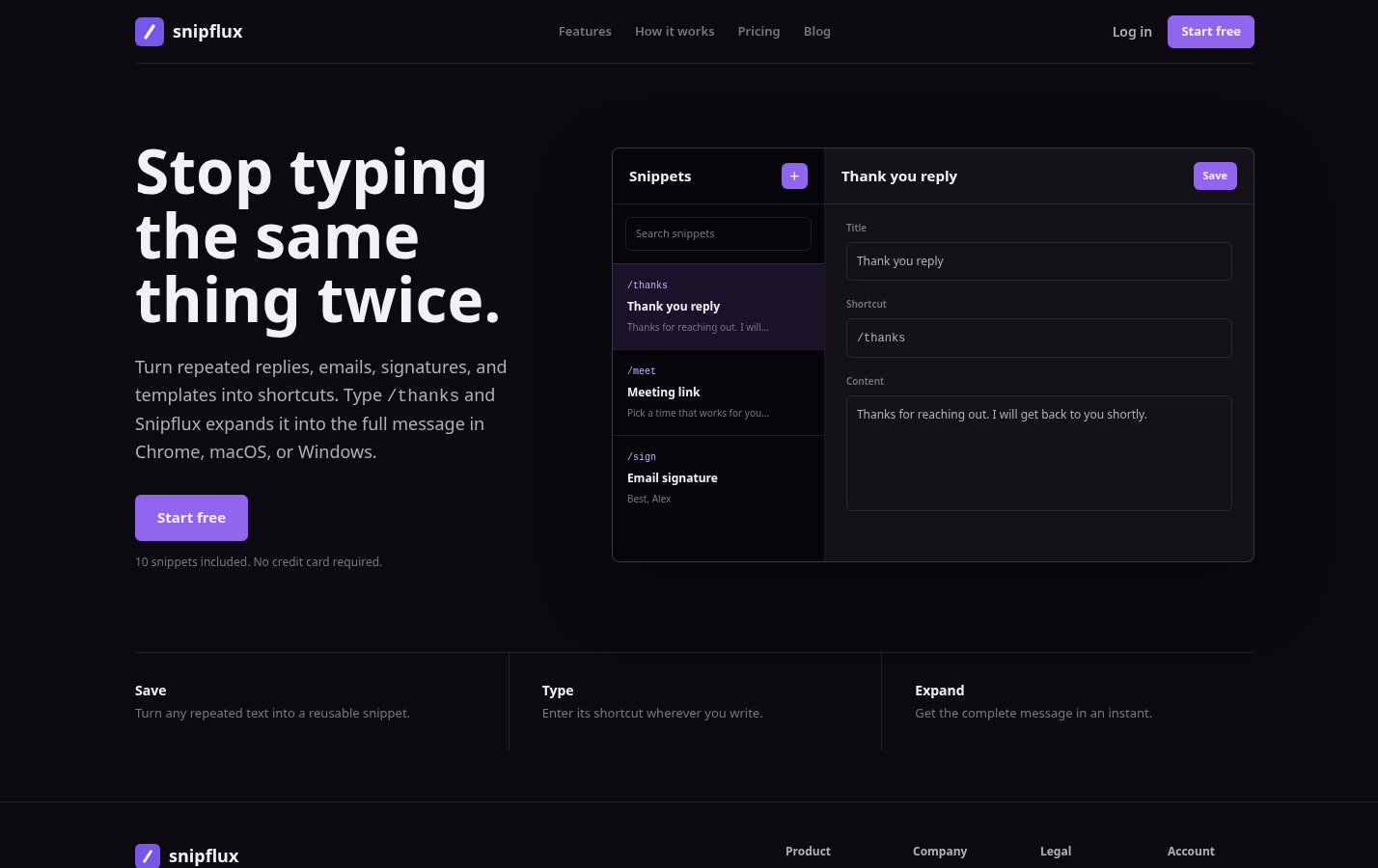
SnipFlux is a cross-platform text expander and snippet manager for repeated text. You can save multiple sign-offs, replies, links, templates, and email blocks, then insert them with shortcuts while writing in Gmail and other supported fields across Chrome, macOS, and Windows.
Create shortcuts that are distinct and easy to remember, such as /signwarm, /followup, or /introclient. Keep them specific enough that you will not trigger one accidentally in normal writing. Review the expanded text before sending, especially when it includes names, dates, links, pricing, or promises.
Revisit saved snippets periodically. A useful template becomes a liability when it carries an outdated job title, retired product name, or old scheduling link. If you are converting existing material, this guide to organizing copy-paste templates into reusable snippets can help.
Configure mobile signatures separately
Your desktop Gmail signature does not automatically control every mobile email app. The Gmail app uses its own mobile signature setting, while Apple Mail uses a separate signature setting in iPhone Settings.
On your device, find the signature setting for the Gmail account or mail app you use, then enter a compact signature and save it. Menu names and paths can vary by app and iOS version.
Keep a mobile signature shorter than its desktop counterpart. Name, role, company, and a phone number are usually enough. Send a test email after updating it, because line breaks and links can behave differently in mobile clients.
Test your signature before relying on it
Send a test email to yourself before using a new signature in client or customer communication. Better yet, send it to an address outside your organization, since external email filtering and display behavior can differ from your company environment.
- Check the signature on desktop and on a phone.
- View it in light and dark viewing contexts where possible.
- Confirm line breaks do not wrap awkwardly.
- Click every website, calendar, phone, and social link.
- Verify images load, remain reasonably sized, and do not contain essential text only.
- Reply to the test message and look for duplicated signatures or unnecessary thread clutter.
- Make sure the signature uses readable type and clear contrast.
This takes a few minutes and prevents a common problem: discovering that your polished desktop signature is unreadable, oversized, or broken for the people receiving it.
Keep your Gmail sign-offs useful, current, and personal
Set Gmail defaults for the identity information that should appear consistently, keep the visual design concise, and choose shorter reply signatures when a thread starts to grow. A professional signature is useful because it is clear, not because it is elaborate.
For the message-specific text you repeat every day, keep reusable sign-offs and templates separate from your permanent Gmail signature. If you write the same email content across devices, SnipFlux can help you turn those repeated blocks into quick, reviewable shortcuts.