A bad troubleshooting reply creates a second problem: the customer has to explain everything again, while your support team still lacks the details needed to diagnose the issue. A good reply narrows the gap quickly. It acknowledges the problem, uses what the customer already shared, and asks only for the information that determines the next step.
This customer support troubleshooting questions template gives agents a practical starting point for tickets, chat conversations, and email follow-ups. Use it as a flexible intake, not a questionnaire to send unchanged to every customer.
Start with a reusable troubleshooting intake template
Begin with a response that confirms you understand the reported problem and requests the missing facts needed to investigate. Remove any question the customer has already answered in their original message.
Copy-and-paste troubleshooting intake template
Hi [Customer name],
Thanks for reporting this. I understand that [brief issue summary in the customer's own words]. I am sorry this is interrupting your work.
To help us investigate, could you share the following details that are still missing?
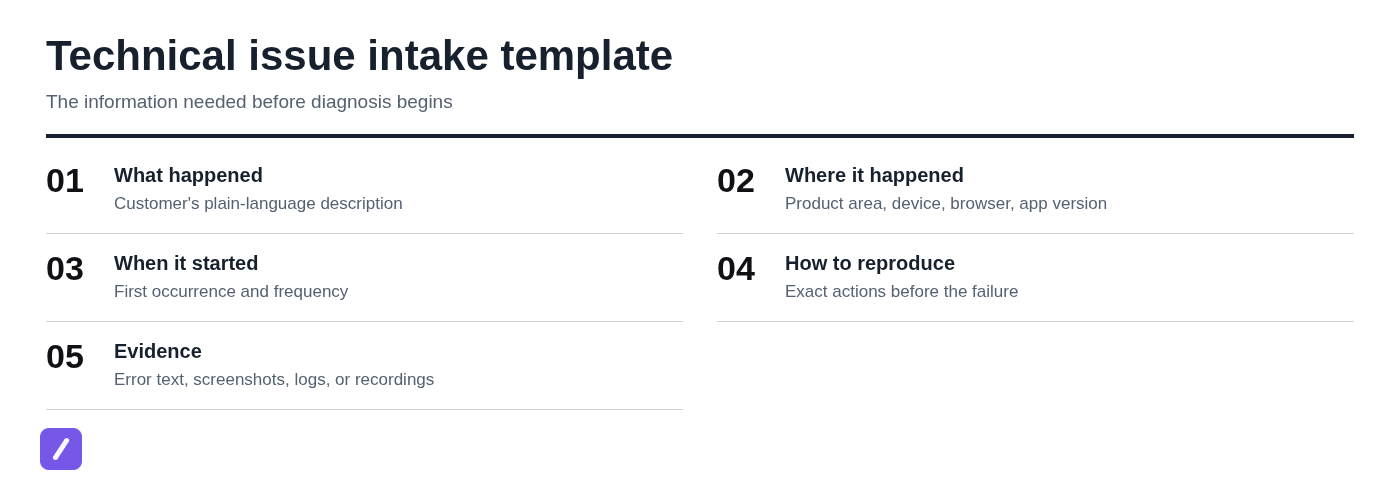
- What you were trying to do: [task or workflow]
- What you expected to happen: [expected result]
- What happened instead: [actual result, including exact error text if available]
- Where it happened: [product area, device, browser, operating system, or app version]
- When it started: [first occurrence, approximate time, and whether it happens every time]
- Steps to reproduce it: [the actions immediately before the problem occurs]
- Recent changes: [configuration, permissions, browser update, import, integration, or network change]
- Impact: [who is affected and whether this blocks a time-sensitive task]
If possible, please include a screenshot or the full error message. Please do not send passwords, verification codes, or payment details. Once we have these details, we can determine the best next step.
Review the ticket before asking any questions
Before using a template, read the ticket closely. Check the customer's message, account record, recent support history, known incidents, and relevant service-status information. A customer who has already said they are using Chrome on Windows should not receive a generic "Which device and browser are you using?" response.
Extract what is already known, then ask only for details that could change your next diagnostic action. For example, if the customer supplied an error message and a screenshot, you may only need the approximate time it occurred and the steps they took immediately before it appeared.
This small review step prevents a common support mistake: treating every issue as a blank form. Customers interpret repeated questions as a sign that nobody read their report, even when the agent has good intentions.
Ask questions that define the symptom clearly
"It isn't working" is a valid starting point, but it is not yet a diagnosable symptom. Your first questions should turn a vague report into an observable statement: what the customer attempted, what they expected, what occurred, how broadly it occurs, and how much it affects their work.
Do not jump straight to suspected causes. A clear symptom often rules out more possibilities than a long list of technical guesses.
Questions for expected versus actual behavior
Use these prompts when the customer has described an outcome without explaining the intended workflow:
- What were you trying to do when this happened?
- What did you expect to happen after you completed that action?
- What happened instead?
- Did you see an error message, unexpected result, or no response at all?
- Which page, feature, or step in the workflow was involved?
Mirror the customer's terminology in your reply. If they say "my report will not save," use that language rather than immediately replacing it with internal product vocabulary. In your internal notes, translate the report into the specific feature, action, and failure state your team uses for diagnosis.
For example: "I understand the report appears to save but is missing after you refresh the page. Does that describe what you are seeing?" This checks your interpretation before you investigate the wrong behavior.
Questions for scope and urgency
Scope questions distinguish an isolated issue from a broader incident. They also help you prioritize without forcing a customer to argue that their problem deserves attention.
- Is this happening to only your account, or are other users in the workspace affected too?
- Does it affect one record, project, or order, or every item you try?
- Does the issue happen every time, or only intermittently?
- Is there a workaround that lets you continue working?
- Is this blocking a deadline, customer-facing task, or required workflow today?
A useful phrasing is: "To help us prioritize the right investigation, is this preventing you from completing a time-sensitive task, or is there a temporary workaround?" That asks about impact without minimizing an inconvenience that still needs a fix.
Collect the technical context needed to reproduce the issue
Technical context matters only when it helps explain the symptom. Ask for the device, operating system, browser or app version, network context, account role, and connected services when those details are relevant. Do not request every possible field by default.
For example, browser details matter for a web application or extension issue. They may be irrelevant for a server-side export that fails after the request has already been submitted.
Device, browser, and app questions
For desktop or browser-based issues, use focused questions such as:
- Which device are you using: Windows PC, Mac, iPhone, Android device, or something else?
- Which browser and version are you using? For example, Chrome 126 or Safari 17.5.
- Are you using the web app, desktop app, mobile app, or browser extension?
- Does the same issue occur in another supported browser?
- If appropriate, does it still occur in a private or incognito browser window?
"Which browser?" is often not enough. Browser versions, extensions, cached sessions, and private browsing can produce different results. Use private or incognito mode as a controlled test when relevant, not as a universal fix.
For mobile reports, ask for the device model, operating system version, app version, and whether the customer is on Wi-Fi or cellular data. Those details are more useful than asking them to broadly "check their phone."
Account, permissions, and integration questions
Many apparent defects are access or configuration issues. Ask questions that quickly test those possibilities:
- Which workspace, team, or account is affected?
- What is your user role or permission level?
- Can another administrator or teammate complete the same action?
- Which connected app or integration is involved?
- Were any roles, permissions, settings, or connection details changed recently?
If a feature works for an administrator but not a standard user, the problem may be permissions rather than a product-wide failure. That is why account context belongs in a troubleshooting question template, especially for shared workspaces.
Pinpoint when the issue began and what changed
Timing gives support a useful boundary. Ask whether the problem is new, intermittent, or persistent, then look for changes near the first occurrence. A browser update, configuration edit, bulk import, integration token change, network switch, or product release may be relevant.
Use neutral language. A recent change can be a clue without being the cause. Avoid telling a customer that their update "broke" something before your team has evidence.
- When did you first notice this issue?
- About what time did it most recently occur, including your time zone?
- Has it happened every time since then, or only on certain attempts?
- Did anything change around that time, such as a browser update, permission edit, new integration, or network change?
- Did the workflow work successfully before this date?
If the customer says the issue started after a change, follow up with: "Thank you, that timing is helpful. We will check whether the change is related rather than assume it is the cause." This preserves trust and keeps the investigation evidence-based.

Request evidence without overwhelming the customer
Evidence should answer a specific question. Ask for exact error text when wording matters, a screenshot when the interface state matters, a screen recording when sequence matters, and timestamps or request IDs when your technical team needs to correlate activity with logs.
Give simple capture instructions. The best screenshot includes the relevant page, visible error, and enough surrounding context to identify the feature. The best recording begins just before the failure and shows the steps that trigger it.
Copy-ready requests for screenshots and recordings
Screenshot request: "Could you send a screenshot of the full browser or app window when the issue appears? Please include the error message and the page address or screen name if visible. You can blur personal or sensitive information before sending it."
Screen recording request: "If possible, could you record a short video starting just before you begin the action and ending after the error appears? A 15 to 30 second recording is usually enough. Please avoid showing passwords, private customer data, or authentication codes."
Exact error request: "Please copy and paste the complete error message exactly as it appears, including any reference or request ID. A screenshot is helpful too if the message cannot be selected."
Never request passwords, full payment card information, recovery codes, or one-time verification codes. If sensitive information appears in evidence, instruct the customer to obscure it before sending. Support needs diagnostic context, not unrestricted account access.
Guide the customer through safe first checks
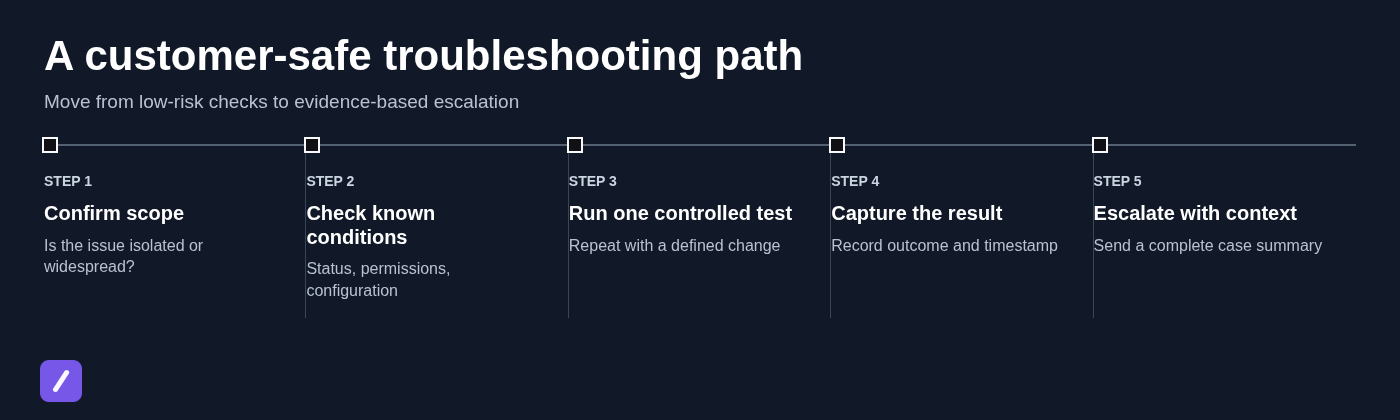
Once you understand the symptom, guide the customer through a small number of low-risk checks. The right order is important: confirm the problem's scope, check known conditions, run one controlled test, capture the result, and escalate with the completed context if necessary.
- Confirm whether the issue is isolated to one user, one item, or multiple users.
- Check known conditions, such as service status, account permissions, and required configuration.
- Retry the action once and note the result and timestamp.
- Refresh the page or restart the relevant app.
- Test in one alternate supported browser, device, or network when that test is relevant.
- Collect the error message, screenshot, recording, or request ID if the issue persists.
Do not lead with destructive actions such as clearing all data, resetting configurations, deleting records, or disconnecting an integration. Those steps can remove evidence or create a new problem. Reserve them for a documented process with clear recovery instructions.
How to phrase troubleshooting instructions clearly
Give one action per numbered instruction, state what a successful result looks like, and ask the customer to report the outcome before moving to the next branch.
For example:
"1. Open the page in a private or incognito window. 2. Sign in and repeat the same action once. 3. If it succeeds, please tell us that it worked in the private window. If it fails, send the exact error message and the time it occurred."
A common mistake is sending a ten-step checklist and asking the customer to report back afterward. If the issue disappears, neither the customer nor the agent knows which action helped. Controlled tests produce useful evidence; broad checklists mostly produce confusion.
Turn answers into a reproducible support case
Before escalating to a technical specialist or engineering team, convert the conversation into a concise case summary. The recipient should be able to understand the problem and attempt reproduction without reopening the customer discovery process.
Internal escalation format
| Field | What to include |
|---|---|
| Customer impact | Who is affected, workflow blocked, workaround availability, and urgency. |
| Observed behavior | What occurred, including exact error text. |
| Expected behavior | What should have happened after the customer's action. |
| Environment | Device, operating system, browser or app version, account role, and integration details. |
| Reproduction steps | Shortest known sequence that produces the issue. |
| Evidence | Screenshots, recordings, logs, request IDs, and affected item identifiers. |
| Checks completed | Tests already performed and their results. |
| Timestamps | First occurrence, latest occurrence, time zone, and relevant event times. |
A strong handoff does not mean writing a long narrative. It means preserving the facts that prevent tier-two support or engineering from asking the customer to start over.
Use troubleshooting question templates for common technical issue types
One universal intake is useful, but issue-specific prompts are faster once the broad symptom is clear. Choose the question set that matches the diagnostic path rather than sending every customer the same oversized form.
Login and access issue questions
- What is the exact sign-in error message?
- Which email address or account is affected? Do not include the password.
- Are you signing in with email and password, single sign-on, or another authentication method?
- What happened when you requested a password reset, if that option applies?
- Which device and browser or app version are you using?
- Can another user in the same workspace sign in successfully?
Never ask a customer to send a password, recovery code, or one-time verification code. If access requires identity verification, use your approved secure support process.
Performance and loading issue questions
- Which page, report, or action is slow or fails to load?
- Approximately how long does it take before the issue appears?
- Does it happen every time or only at certain times of day?
- What network are you using: office network, home Wi-Fi, VPN, or mobile data?
- Does the issue persist in another supported browser or on another device?
- What is the most recent timestamp when it occurred, including time zone?
Timestamps are especially valuable for performance reports because they let technical teams compare the ticket with application monitoring and server activity.
Feature failure or incorrect-result questions
- What exact workflow were you following?
- What inputs, settings, or options did you use?
- What result did you expect?
- What result did you receive instead?
- Which records, items, or identifiers are affected?
- Can you reproduce this using a new test item, if creating one is safe and appropriate?
A minimal reproduction example is more useful than a general claim that a feature is "wrong." For a related example of status-based support wording, see this Feature Request Response Template: Examples by Status. If a test item is not safe, do not ask the customer to create one simply for diagnosis.
Integration, sync, and automation issue questions
- Which connected service or integration is affected?
- Is the connection shown as active, disconnected, or displaying an error?
- When was the last successful sync or automation run?
- Is data failing to move into the product, out of the product, or both directions?
- Were permissions, tokens, account ownership, or configuration settings changed recently?
- Is there an error message, job ID, run ID, or sync identifier available?
Customers should not disconnect or reauthorize an integration unless your support process calls for it. Reauthorization can change permissions, interrupt workflows, or make a historical issue harder to investigate.
Save the best questions as reusable snippets
Reliable troubleshooting language should not live only in individual agents' drafts. Save approved questions, evidence requests, safe first-check instructions, and escalation formats as reusable snippets. Agents can then personalize the opening and remove questions already answered, while preserving the parts that need to stay consistent. For broader guidance on structuring reusable support and sales responses, see Paragraph Snippets: Build Reusable Answers for Support and Sales.
Organize snippets by issue type, such as login, permissions, performance, browser behavior, integration sync, and escalation. Use clear placeholders like [Customer name], [product area], [browser], [affected workspace], [timestamp], and [ticket ID] so the template prompts the agent to add context before sending.
SnipFlux is a cross-platform text expander and snippet manager that can expand memorable shortcuts into approved troubleshooting questions, follow-up templates, and escalation summaries across Chrome, macOS, and Windows.
SnipFlux
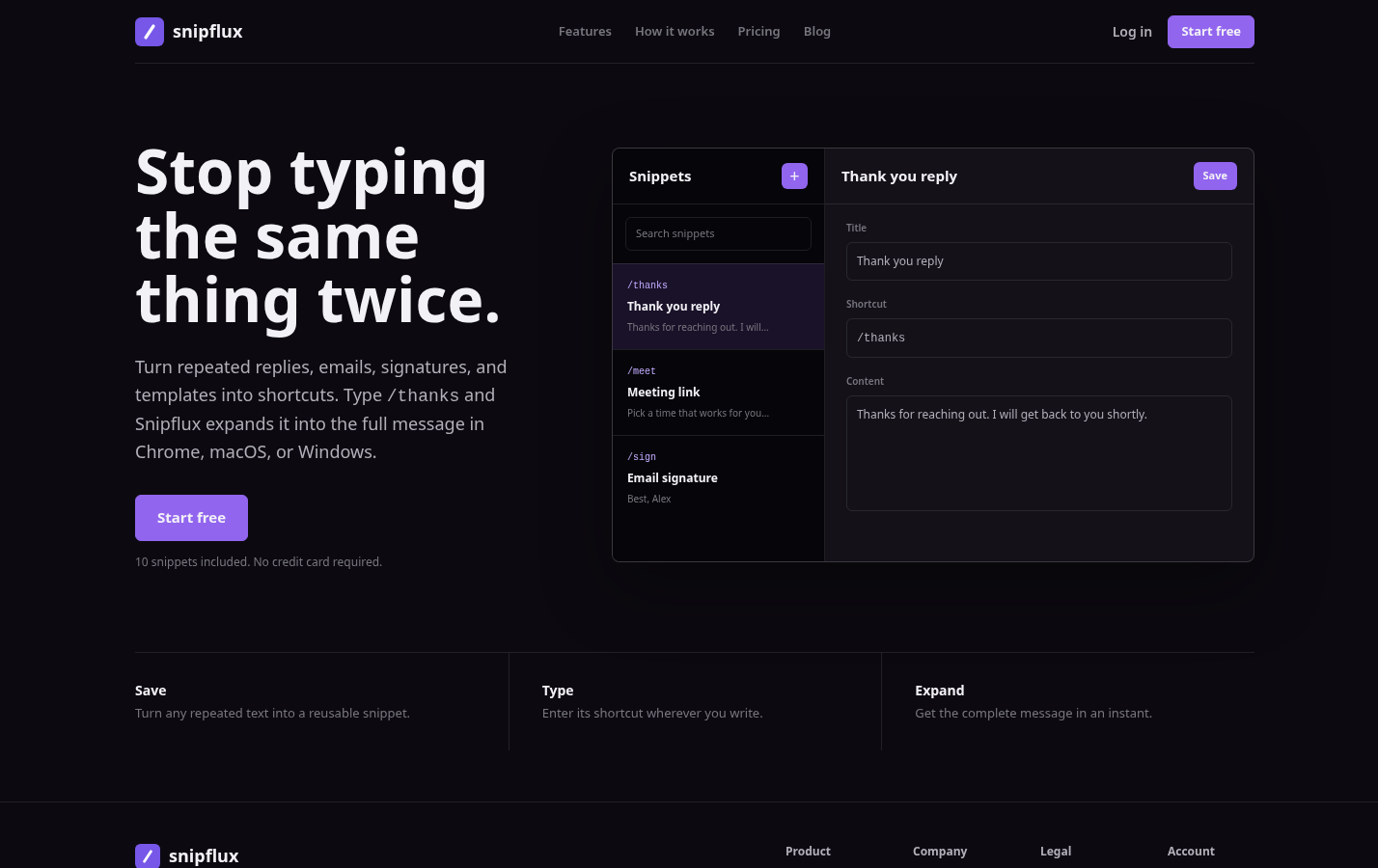
SnipFlux is best for support teams and individual professionals who repeatedly type useful text and want a faster way to insert it in supported writing fields. An agent could assign /shot to a screenshot request, /login to a login troubleshooting template, or /escalate to an internal handoff format.
A text expander makes reusable wording available quickly, but it does not replace your help desk, incident management process, or technical diagnosis. Choose it when your main problem is repeated typing and inconsistent support phrasing.
Avoid the questions that slow down technical support
Some questions create activity without improving diagnosis. Avoid asking for every detail at once, using jargon before the symptom is understood, repeating information already supplied, recommending destructive fixes too early, or promising a resolution before your team has identified the cause.
Replace vague requests with a simple pattern: identify the action, request the observable result, and ask for one relevant piece of context.
- Vague: "Please provide more information."
- Better: "When you click Save on the billing page, what happens next? If you see an error, please send the exact wording and the approximate time it appeared."
- Vague: "Try clearing your cache and cookies."
- Better: "Before changing any saved browser data, please try the same action once in a private window and let us know whether the error still appears."
The goal is not to make the customer do support's job. It is to request the smallest useful detail or safest test that moves the investigation forward.
Build a troubleshooting question library your team can improve
A troubleshooting template should improve over time. Review the questions that regularly lead to fast resolutions, remove prompts that produce vague or unused answers, and update saved language after product changes, recurring incidents, or new integration behavior.
Start with the intake template, tailor each reply to the evidence already available, and document the questions that consistently uncover the missing clue. When a response pattern proves useful, save it in SnipFlux so agents can expand it quickly, personalize it, and give customers a clearer path to resolution.