A beautiful Pages template can still create extra work. If the layout breaks when exported to Word, hides the next action in decorative formatting, or forces everyone to rewrite the same client language, it is not doing its job.
The best Pages templates are practical documents people can complete, share, and reuse without hesitation. Whether you manage support updates, freelance proposals, meeting recaps, or internal procedures, the goal is a reliable starting point rather than a pile of attractive files.
Start with the built-in Apple Pages templates and know their limits
The easiest place to find templates for Pages is inside the app. Open Pages, select New Document, and browse the template chooser by document type. Apple includes options for reports, letters, resumes, newsletters, flyers, books, invoices, and more.
Apple Pages has free templates, and there is no Pages subscription required to use the app or its included template collection. Pages is Apple's free document-creation app for Mac, iPad, and iPhone. It is the closest Apple-made equivalent to Word for everyday writing, reports, layouts, and business documents.
That does not mean every built-in choice is right for professional work. Judge a template by whether it supports the task at hand: can people scan it quickly, edit it without damaging the structure, export it reliably, and use it again next week? A striking cover page is far less valuable than a clear hierarchy, usable tables, and a layout that survives real-world sharing.
1. Choose a template by the job it must do, not its cover design
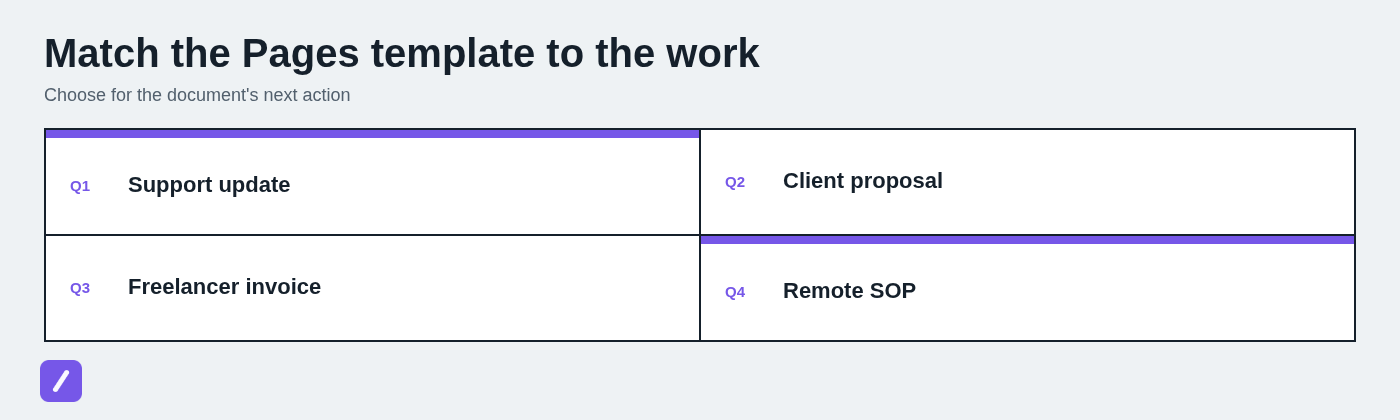
Start with the document's next action. A client proposal needs to make scope, timeline, cost, and approval obvious. A support update should surface current status, owner, impact, and next steps. An internal SOP must make a repeatable process easy to follow, even for someone new to the task.
That framing prevents a common mistake: selecting a modern template for Mac Pages because it looks polished, then spending an hour fighting decorative columns and oversized image areas. A clean document with useful structure will outperform an impressive-looking layout that obscures the important information.
- Client proposal: Choose a template with room for the problem, proposed scope, deliverables, timeline, price, and an unambiguous approval cue.
- Status report or support update: Prioritize headings, short sections, tables, and a visible next-step area over visual flourishes.
- Freelancer invoice: Use a layout with readable line items, dates, payment terms, tax details where relevant, and contact information.
- Meeting brief or recap: Look for sections for attendees, decisions, open questions, owners, and deadlines.
- Remote-work SOP: Select a simple, step-based format with clearly marked responsibilities and links or references where needed.
- Resume: Pages templates for resumes should favor legibility and restrained formatting, especially if the file may be exported or reviewed by an applicant tracking system.
Before committing, inspect more than the first page. Check the page size, heading hierarchy, table behavior, image placeholders, and whether important copy depends on text boxes sitting in a precise location. Also consider accessibility: readable font sizes, meaningful headings, sufficient contrast, and a layout that does not rely on color alone to communicate status.
If the final file will be a PDF, export a test copy early. If it will be a Word document, test that too. Free Pages templates for iPad can be useful, but templates with complex floating objects or tightly positioned elements are harder to edit on a touchscreen. The best option is often the one that remains stable on the device where the work actually happens.
2. Find more Pages templates safely from trusted sources
When the built-in chooser does not fit your use case, you can get more templates in Pages through reputable marketplaces, specialist template apps, and established creator libraries. These sources can be useful for a refined brochure, business proposal, planner, resume, or other document that needs a specific visual treatment.
Do not confuse quantity with quality. A bundle promising hundreds of templates may contain near-duplicates, outdated files, or formats that are not truly editable in Pages. Before downloading, verify that the template is compatible with your current version of Pages and that it is supplied as a native Pages file rather than a PDF masquerading as a template.
Check the license as well. A template that is free for personal use may not allow client work, resale, or use in a commercial deliverable. Review whether the seller identifies required fonts, explains what is editable, and offers updates or support when Pages changes.
Use template marketplaces for specific document types
A marketplace is most helpful when you need a particular result, such as a polished resume, a proposal deck, a brochure, or a planner. Preview every page before buying. A listing thumbnail can make a design look excellent while hiding cramped body copy, repetitive page layouts, or an awkward final page.
Avoid generic download sites that bury licensing information, use misleading download buttons, or bundle unwanted software. A legitimate template should make the file format, permissions, required fonts, and editing expectations clear before you hand over payment or personal information.
Use template apps when you need a maintained library
Template apps can make sense when you regularly need fresh options and prefer browsing from a maintained catalog. Toolbox for Pages is one example people may encounter when searching for additional Pages templates. Treat it like any other source: assess whether its formats are current, whether the templates are actually useful for your work, and what access model applies to the library.
The trade-off is simple. A subscription or app-based catalog may provide periodic additions and convenience, while individual template files give you a smaller set of assets you can keep and control. Neither approach is automatically better. For recurring business documents, a few tested templates are usually more valuable than unlimited designs you never open.
3. Turn one strong document into a reusable custom Pages template
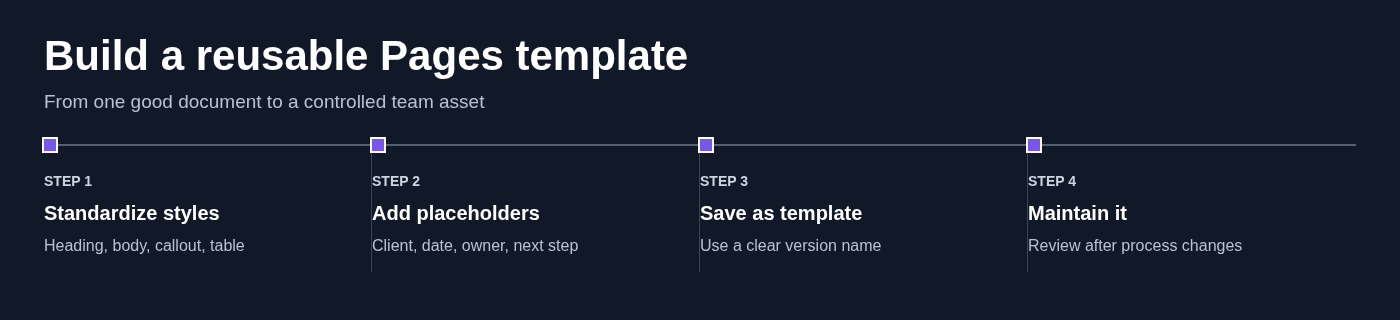
The most useful Pages template may be one your team already created. If a proposal, incident update, or onboarding guide worked well in practice, turn it into a controlled template instead of beginning every new document from scratch.
Start with a clean master document. Apply consistent heading and body styles, set up reliable tables, add branded elements only where they help, and remove client-specific information. Replace details that change with obvious placeholders such as [CLIENT], [DATE], [OWNER], and [NEXT STEP].
Include fixed sections that should appear every time. A client proposal may always need objectives, scope, exclusions, timeline, investment, and approval instructions. A support escalation brief may always need impact, severity, what has been tried, current owner, and the requested decision. Fixed structure saves readers from hunting for information and writers from forgetting it.
When the master is ready, save it as a template in Pages and give it a clear versioned name, such as Client Proposal - Standard - v1.3. Assign an owner for important team templates, keep one approved source of truth, and retire obsolete versions rather than allowing stale copies to circulate.
4. Design templates around reusable response blocks, not just page layout
Page structure is only half of a repeatable communication system. Support teams also need dependable language for escalation summaries, incident updates, handoff notes, troubleshooting instructions, and follow-up messages. Freelancers often reuse proposal language, scope-change terms, project updates, bios, and meeting recaps.
Put stable, approved blocks of copy where they belong in a Pages template, but do not force every reusable phrase into the document itself. Pages is excellent for controlling document structure. A dedicated snippet library is better for text that must be retrieved across email, chat, support tools, and other day-to-day communication channels.
That distinction matters when a response begins in a message and later becomes part of a formal document. Your proposal template can hold the approved structure, while your response library can hold the short explanation of timelines, revision policy, payment terms, or next steps that you use throughout client communication.
Use variables and a final personalization check
Make variable fields impossible to miss. Brackets work well because they interrupt the visual flow: [CLIENT NAME], [PROJECT], [MEETING LINK], and [DEADLINE]. Avoid subtle placeholder text that can be accidentally sent unchanged.
Before exporting or sending, check names, dates, links, promises, pricing, policy references, and the document's next action. Reusable language should still be reviewed for accuracy, tone, and current policy. A template reduces routine work; it does not remove accountability.
SnipFlux
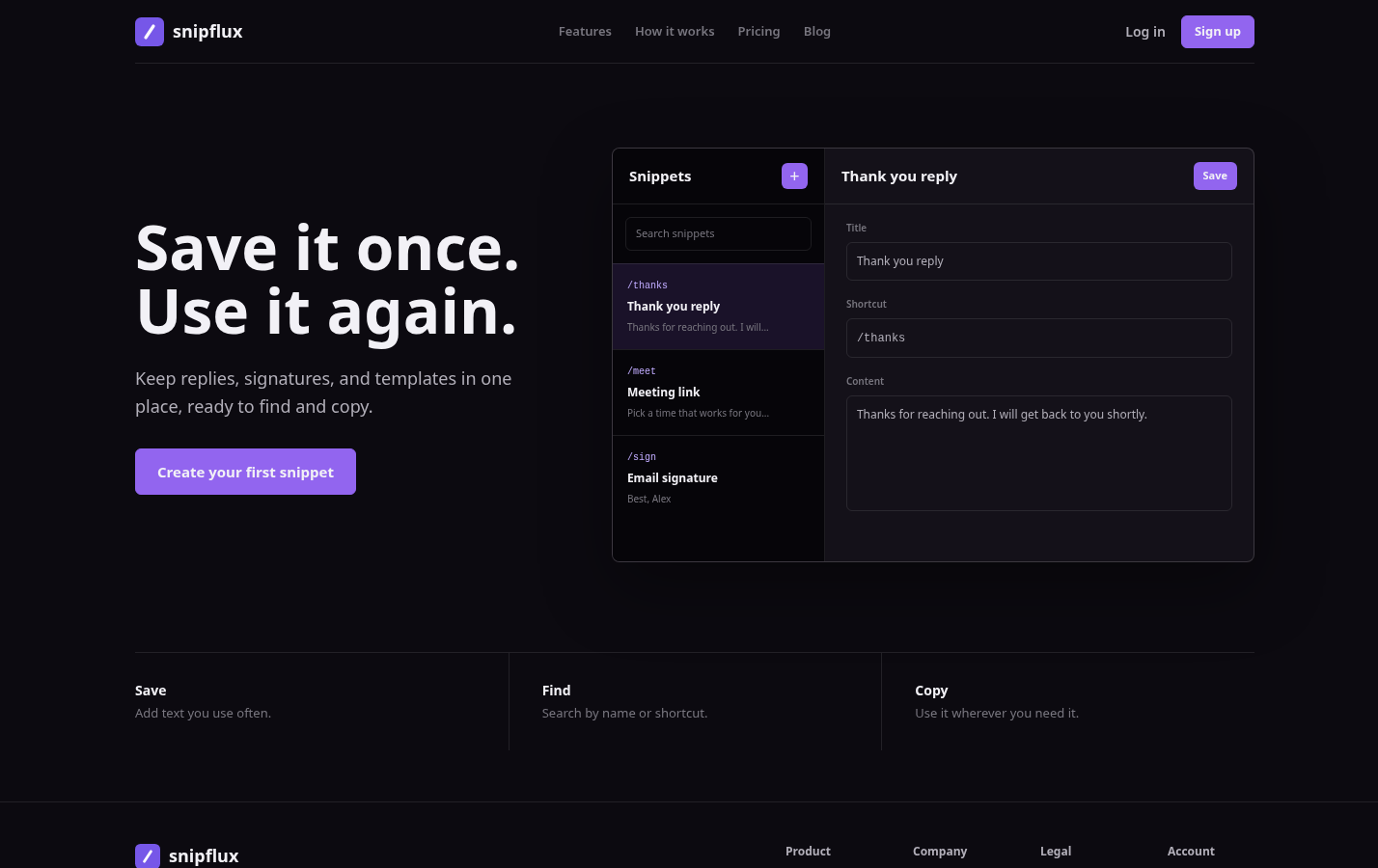
SnipFlux is designed for the reusable-text side of this workflow. It stores and organizes replies, signatures, and templates so support teams, freelancers, sales teams, and remote professionals can quickly find approved language and reuse it across ongoing conversations.
Its strength is keeping frequently used message blocks in a central, searchable place rather than burying them in old emails or separate documents. It is not a replacement for Pages when you need document layout, pages, tables, or polished PDF output. It is a practical companion when the challenge is consistent wording across email and messages, not document design.
5. Make Pages templates work on Mac, iPad, and with Word users
Templates for Pages on iPad work best when they are intentionally simple. Use a clear single-column structure where possible, avoid fragile object placement, and keep critical content out of floating text boxes. If you expect to edit a document on an iPad, test the actual workflow there instead of assuming a desktop-first design will behave the same way.
Pages can open and edit many Microsoft Word .docx documents. That makes it useful in mixed environments, but compatibility is not perfect. Complex layouts, uncommon fonts, tracked changes, macros, advanced Word features, and elaborate formatting may not transfer cleanly in either direction.
To turn an Apple Pages document into a Word document, use Export To > Word in Pages, choose the appropriate Word format, and save the file. Then reopen the exported version and inspect it before sharing. This visual check is not optional for client-facing or collaborative documents.
Prevent formatting surprises before a client or team handoff
- Use common fonts when collaborators will open the file in Word or on non-Apple devices.
- Keep tables simple and avoid overly nested structures that can shift during conversion.
- Do not rely on text boxes for essential copy, since their positioning is more likely to change across applications.
- Export a PDF when the layout is final and recipients only need to read, print, or approve the document.
- Test the .docx in Word when recipients need to edit, comment on, or continue working in the file.
PDF is generally the right choice for fixed presentation. Word is usually the better choice when another person must actively edit the document. Sending both can be sensible when a client needs a polished reference version and an editable working copy.
6. Know when Pages is the right Word alternative - and when it is not
Apple Pages and Microsoft Word are not interchangeable for every job. Pages is a strong choice for Apple-first users who want a free, approachable app for polished documents, reports, simple layouts, and personal or small-team work. It is also Apple's own Word-like app, so users asking whether Apple has a free version of Word are usually looking for Pages.
Word is often the safer choice for complex enterprise workflows, Microsoft-centric organizations, heavily structured documents, advanced review processes, and files that must retain exact formatting across many platforms. If your employer, client, or industry standardizes on Word, working outside that standard can create unnecessary friction.
The main disadvantages of Apple Pages are its weaker fidelity with complex Word documents, fewer advanced enterprise features, less universal adoption, and limited support for Word-specific capabilities such as macros. None of those makes Pages a poor product. They simply define where it fits best.
Pages has not disappeared from the Mac. It remains available as Apple's document app, and plenty of individuals, students, freelancers, and small businesses use it. What Apple users use instead of Word depends on the work: Pages for straightforward Apple-based document creation, Word for compatibility-heavy environments, and other tools when live collaboration or organizational requirements call for them.
For most people on a Mac, the best alternative to Microsoft Word is not a universal answer. Choose Pages when clean design, cost, and Apple device integration matter most. Choose Word when complex collaboration and cross-platform fidelity are non-negotiable.
7. Create a small, reliable Pages template library instead of collecting hundreds
A large template collection feels productive until people cannot find the approved version. Build a lean library around the documents your team genuinely repeats. For many professionals, that means a support update, escalation brief, meeting agenda and recap, client proposal, scope-change note, invoice, and one-page SOP.
Organize files by function, audience, and version. For example, use folders such as Client Documents, Support Operations, and Internal Processes, then name files consistently: Support Update - Customer Facing - v2.0. Keep retired files in an archive rather than deleting them immediately, but make it unmistakable that they are no longer approved for use.
Do not create a new template for every slight variation. If the difference is only a paragraph, a response block, or a service-specific detail, use placeholders or reusable snippets instead. Separate templates only when the document's structure, audience, decision path, or approval requirements materially change.
Review the library quarterly, and review sooner after a policy change, new service launch, recurring customer question, or repeated formatting failure. Templates should evolve from real use, not remain frozen because no one knows who owns them.
Build Pages templates that save time without creating rework
Start with a built-in Apple Pages template or a trusted external source, then adapt it to one recurring job. Test it on the devices people use, verify PDF and Word exports when relevant, and maintain only the versions that consistently help people communicate clearly.
For teams that also need reusable language beyond documents, consider organizing approved replies, signatures, and message blocks in SnipFlux. A dependable document template and a well-managed response library solve different problems, and together they reduce both writing time and avoidable mistakes.